





































We all have playlists; these may include nostalgia and childhood throwbacks, mental health and do-not-disturb moods, TikTok viral and Bedroom pop, wedding playlists, and more. There is a song for every mood. We don’t have one favorite song; there is a list of songs that match our personality and mood. Over time, our playlists expand, and finding the right song can be time-consuming. This is why you need to organize a music library on your iPhone.
If you use Boom on your iPhone, the new Boom iOS 3.4 update makes playlist management easier. You can add several songs at once, get to your recently created playlists faster, and choose custom cover images for your collections.
Give Your Favorite a Place of Their Own
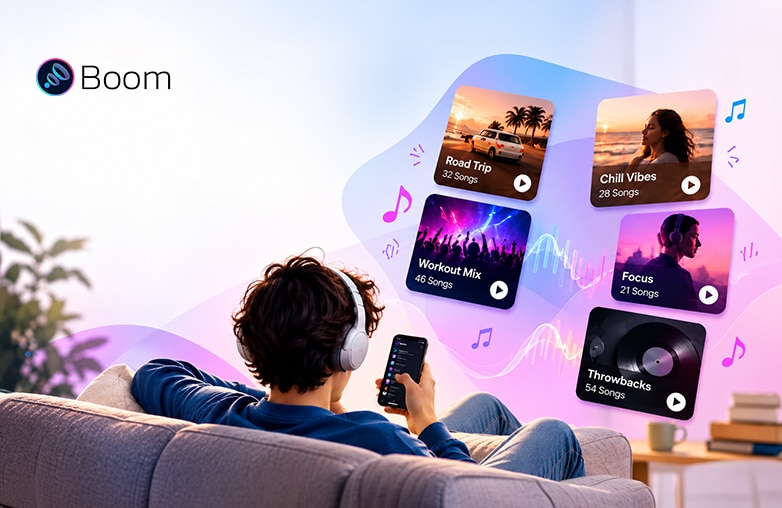
Create a playlist on iPhone to have quick access to your favorite tracks. Think about the songs you usually play together. It can be rap songs, upbeat tracks, or a nostalgic collection of childhood throwbacks. Instead of searching for them individually every time, keep them together.
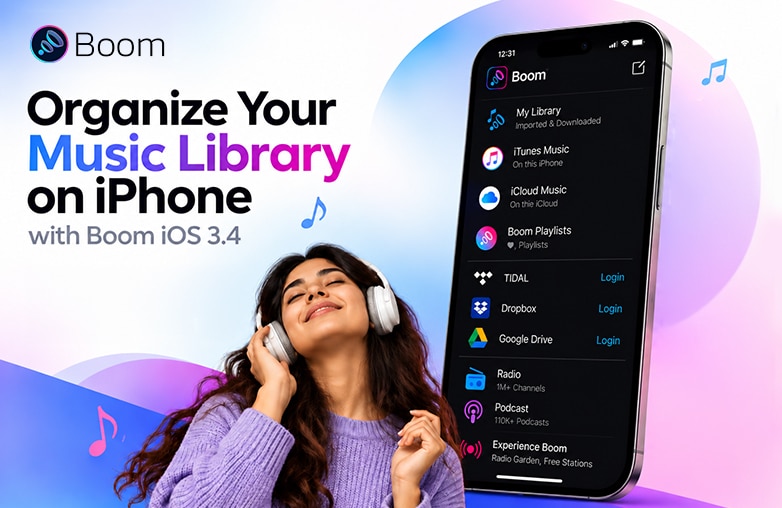
This is why creating playlists on the iPhone is useful. You can group them or stick to specific genres. With Boom, you can create and manage playlists to match your preferences. As your playlist grows, you can keep adding songs instead of searching through your entire library whenever you want to hear something specific. You might have local audio files on your iPhone, music in Dropbox, or tracks available through Tidal. Boom supports music from these sources, plus Google Drive and other cloud storage options, so that you can access your music in different ways within the app.
Read this blog for additional information: Boom iOS v3.4:Smarter playlists, free radio, and more.
Create a playlist on iPhone
A Faster Way to Add Songs to Playlists
One thing that can make organizing an iPhone music library tedious is adding songs individually. With the Boom iOS 3.4 update, you can select multiple tracks and add them to an existing playlist or a new one. This is useful when you are creating multiple playlists or adding new tracks to your favourite playlist.
If you regularly add music or create playlists, this will make your task easier.
Pick Up Where You Left Off
Playlist names are easy to remember when you have only a few playlists. Once you start creating more, finding a recently created one can take a little longer than you thought. Boom iOS v3.4 makes recently created playlists quicker to access. This is helpful if you tend to make playlists on the go. You might create one after discovering a new artist or put together a collection before heading out for the weekend getaway. When you can get back to your playlists quickly, you don’t need to search through your music library.
It also makes it easier to experiment with different playlists. You can create a collection for a particular occasion or mood without worrying as much about finding it later. This is how you manage music playlists on your iPhone.
Give Your Playlists a Personal Touch
Some songs remind you of an amazing trip, exciting concert, or a time when you had a particular song on repeat. Add a cover image to reminisce about that feeling in your music library. For example, use a holiday photo for your travel playlist or an image of your favorite band for a collection of their songs.
With Boom iOS v3.4, you can add custom cover images to your playlists. It is a simple way to make your custom music playlists feel more like your own. If you have several playlists, different covers can help you find the one you want without checking every song title. If you often listen to one artist, sort songs by artist and bring your favorites together in a playlist. If you prefer listening to full albums, organize tracks by album so it is easier to find the tracks you want to hear in order. With Boom as your music player for iPhone, you can keep your music arranged in a way you prefer.
What You Can Do with Boom iOS v3.4
| Feature | How it Helps |
| Multiple-song selection | Add several tracks to an existing or new playlist |
| Recently created playlists | Get back to your latest collections more quickly |
| Custom playlist covers | Choose images that suit your playlists |
| Music from different sources | Play music from Tidal, Dropbox, Google Drive, cloud storage, and locally stored tracks |
How to Create Playlists on TIDAL
If you already use TIDAL, you can create playlists of songs you enjoy listening to together. Open the app, create a new playlist, name it, and add your favorite tracks. Once your playlists are ready, you can access supported TIDAL music in Boom and enjoy your favorite tracks with Booming effects.
How to Organize Music on Dropbox
Do you keep your music files in Dropbox? You can sort them into folders to make them easier to find. For example, keep your favorite songs in one folder and tracks for your next road trip in another. This simple approach to music collection management saves you from searching through a long list of files whenever you want to play something. You can also access supported music stored in Dropbox through Boom and listen with its sound-enhancing effects.
You may find this blog useful: How to create the perfect music queue on iPhone.
How to Organize Music Files in Google Drive
Google Drive can be handy if you store audio files in the cloud. Create folders for different artists, albums, or occasions, then add the relevant tracks. That way, your music is easier to find when you feel like listening to a particular collection. If you want to organize a music library on your iPhone, using folders alongside a music player such as Boom can help you keep track of your audio files without making things complicated.
Bring Your Music Together with Boom
Your favorite tracks might be spread across TIDAL, Dropbox, Google Drive, and your iPhone’s local storage. What if you could access supported music from these sources in Boom and enjoy it with Boomin effects? You can import songs from these sources and have a great listening experience.
Boom also helps you manage music playlists with updated features, making it a useful music playlist organizer for creating playlists, adding songs, and personalizing playlist covers. You can spend less time looking for tracks and more time enjoying the music you love.
Bottom Line
You don’t have to spend time searching for your favorite tracks or switching between different music apps to find what you want to hear. Well-managed playlists can make everyday listening much easier.
If you want to organize a music library on your iPhone, Boom supports music from TIDAL, Dropbox, Google Drive, and locally stored tracks.
FAQs
How can I organize a music library on my iPhone?
Create playlists based on your favorite artists, albums, moods, or activities. Boom helps you manage playlists and access music from supported sources.
Can I play music from Dropbox and Google Drive in Boom?
Yes, Boom supports accessing music from Dropbox, Google Drive, TIDAL, and locally stored tracks.
Can I add custom covers to playlists in Boom?
Yes, Boom lets you set custom cover images to personalize your music playlists.
How can I improve music collection management on my iPhone?
Create playlists you use regularly, give them clear names, and add new tracks as you discover them.
Can I add multiple songs to a playlist in Boom?
Yes, Boom iOS v3.4 lets you select multiple tracks and add them to a new or existing playlist.
Can I access recently created playlists in Boom?
Yes, the latest update makes it quicker to find playlists you have created recently.









Leave a Reply
You must be logged in to post a comment.