




































Users sometimes experience high disk usage in Windows 11/10, which can slow down the system and make it unresponsive. When disk usage reaches 100%, performance drops, causing simple tasks to take longer than usual. This can make your system feel stuck in slow motion. To maintain a smooth workflow, it’s crucial to fix high disk usage.
Best Ways to Fix High Disk Usage
What is disk usage? It refers to how much of your hard drive is used to run processes, not just how much storage is filled. Sometimes, even when no major programs are running, the disk may still appear to be 100% utilised due to background processes or malware. Identifying the cause helps to solve the issue faster and restore your system’s performance. Let’s learn to fix this issue in the simplest ways.
Restart PC to Fix High Disk Usage
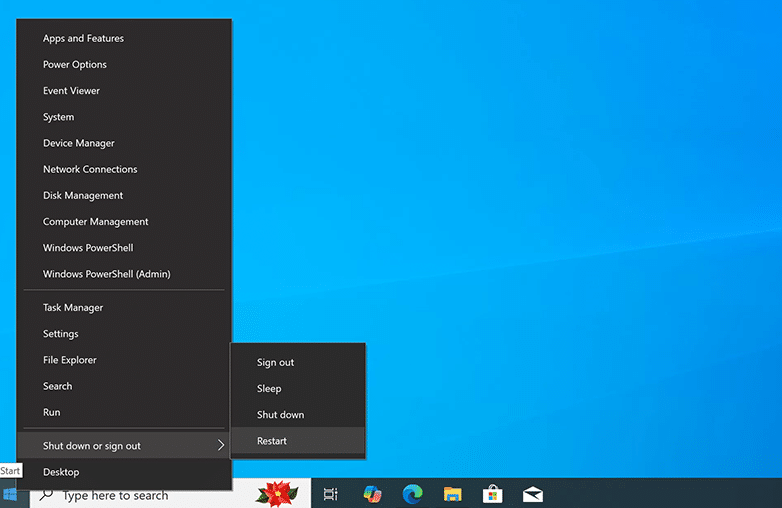
One of the simplest solutions for high disk usage in Windows 11/10 is restarting your system. This can clear temporary files, stop unnecessary background processes, and free up system resources. A quick restart refreshes the operating system and helps resolve software glitches or other minor issues that may be causing 100% disk usage.
If your system has been running for a long time, it may accumulate processes that slow it down. Restarting the PC can improve performance. This simple step can improve speed and make your PC responsive. To restart Windows, open the Start Menu, click on the Power option, and select Restart.
You may find this blog helpful: How to speed up Windows PC.
Startup apps management
Manage Startup Apps
Startup Applications can affect a PC’s performance and can cause high disk usage in Windows 10 and 11. If you’ve noticed, many apps automatically launch when you start your system, increasing disk activity and increasing startup time.
To fix high disk usage and improve speed, open Task Manager, navigate to the Startup tab, and disable unwanted programs. When you limit startup apps, it reduces the load on your disk and helps your system start faster. You should only keep important apps enabled for startup. Alternatively, you can manage this through Settings, open the Start menu, go to Settings, select Apps, and click on Startup. Now, turn off programs that you don’t need at startup.
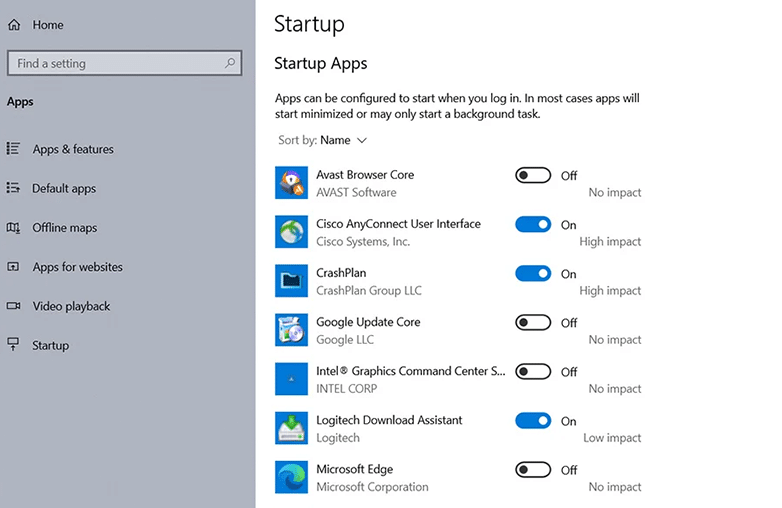
Disable startup apps to fix high disk usage
Check for Malware and Viruses
Malware and viruses can consume your system resources and are one of the reasons for high disk usage. Hackers often target critical parts of the system, including the hard disk, which can lead to 100% disk usage and poor performance.
Built-in tools like Windows Defender offer basic protection, but they are not enough to detect phishing attacks or hidden malware. If your disk usage remains high without any reason, it’s important to run a full system scan using antivirus software.
Adjust Power Settings
Your system’s power settings can cause high disk usage in Windows. By default, Windows may use balanced or power-saving modes, which can increase disk activity. To fix this, go to the Control Panel, select Power Options, and switch to the High Performance plan. This mode focuses on speed over energy efficiency. It can help reduce disk strain and improve overall performance. However, this setting uses more power, so use it while your PC is plugged in. This is one of the easiest ways to lower disk usage and speed up the performance of your system.
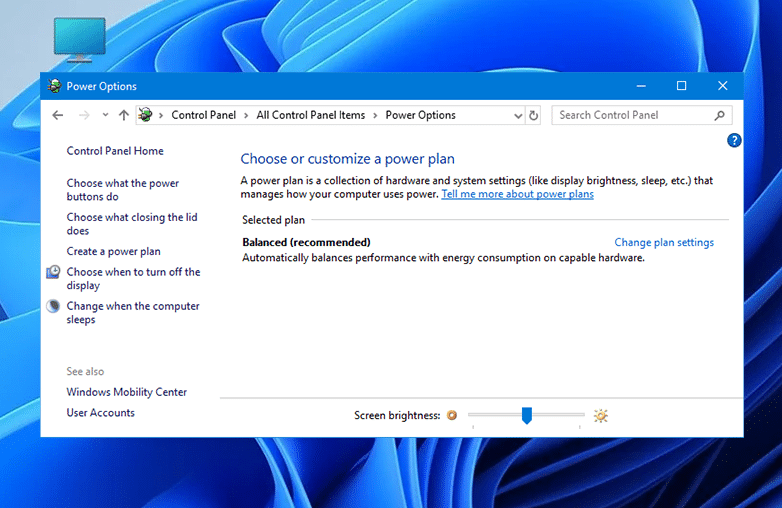
High Performance power settings in Windows
Upgrade to an SSD
If your system is still running on a traditional hard disk drive (HDD), upgrading to a solid-state drive (SSD) can significantly improve performance and help manage high disk usage in Windows 10 and 11. While an HDD alone isn’t always the direct cause of 100% disk usage, it can struggle to keep up with heavy workloads.
In situations where your disk usage is high due to intensive tasks, switching to an SDD can greatly reduce delays and improve responsiveness. You may still see spikes in disk usage, but they will typically last for shorter durations or feel less impactful. In some cases, the same tasks that previously caused 100% usage may run more efficiently with lower disk strain. Overall, upgrading to an SSD is one of the most effective ways to fix high disk usage, boost system speed, and enhance your PC’s overall performance.
This is a great follow-up read: How to Speed Up a Windows PC.
Bottom Line
100% disk usage can be annoying, and it’s important to act quickly and fix high disk usage. You should understand the root cause and choose the right solutions to restore your PC’s performance. There is also a need for regular maintenance to prevent such issues, so always keep a check on disk usage and keep your system optimised.
This article explains how to fix 100% disk usage in Windows 10 and 11 using practical methods such as restarting the PC, managing startup applications, scanning for malware, adjusting power settings, and upgrading from HDD to SSD. It also explains common causes behind high disk activity and how users can improve system responsiveness.
FAQs
What causes 100% disk usage?
It occurs when your system is overloaded with background processes, malware, outdated drivers, or unnecessary startup programs. There can also be other reasons for 100% disk usage; identifying the cause is important to fix the problem and restore your PC to optimum performance.
Can malware cause 100% disk usage?
Yes, malware and viruses can lead to 100% disk usage. You can run a full system scan with an antivirus software to help detect problems.
Is 100% disk usage a serious problem?
Not always. However, constant 100% disk usage should be addressed to prevent long-term performance issues.