





























Mac is known for its excellent speakers, yet it can still face audio issues. The good news is you can fix low volume issues on a Mac with simple steps. Yes, you heard that right. No technical knowledge required; just a few tweaks and you’re good to enjoy it as it is meant to be on Mac.
Whether you’re listening to music, watching a movie, or attending a virtual meeting, clear sound can enhance your entertainment or help you stay focused in meetings. If your MacBook’s audio isn’t sounding right, this blog will help you identify the cause and resolve the issue easily. Let’s get your sound back on track.
Download Boom 3D App
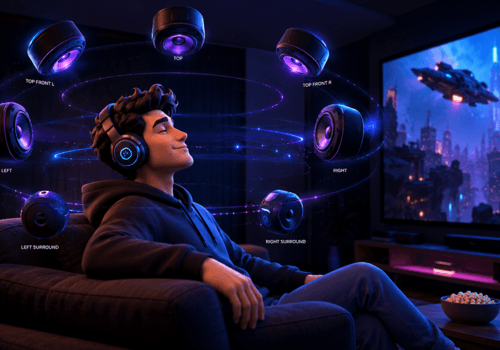
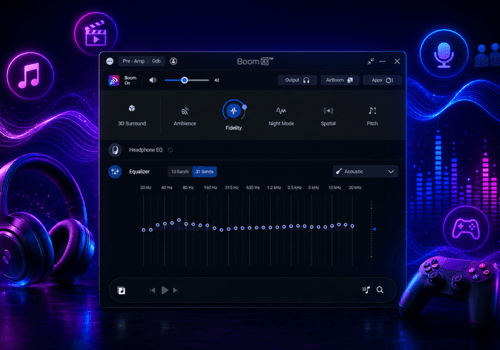
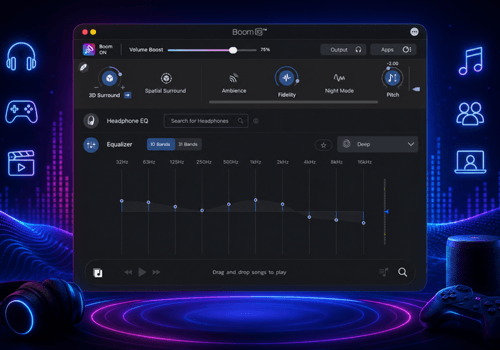
Boom 3D is a Volume booster and Equalizer app for Mac and Windows. It works system-wide and ensures your audio output is tailored to your choice. Whether you’re watching a movie or listening to music, Boom 3D elevates your listening experience. You can enjoy audio with 3D surround sound, and the best part is that it is compatible with ANY headphones.
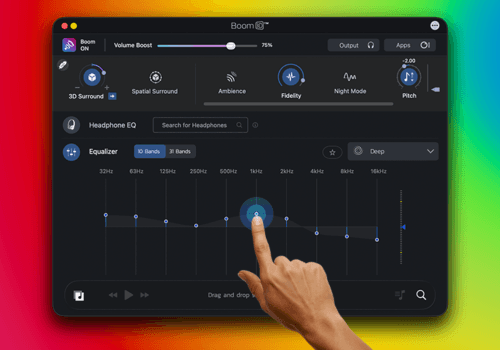
It offers audio effects, Headphone EQ, a 31-band equalizer with presets, individual app volume control, and more. You can fix the Mac volume issue and get louder and clearer audio with Boom 3D. It is the choice of audiophiles; if you want to change the way you listen, download Boom 3D.
| Feature | Default macOS | Boom 3D |
|---|---|---|
| System-wide volume boost | ❌ | ✅ |
| 31-band Equalizer | ❌ | ✅ |
| 3D Surround Sound | ❌ | ✅ |
| Individual app volume | ❌ | ✅ |
Have a look at this blog: How to speed up Mac?
Check Your Headphone Connection
One reason you’re experiencing low Mac volume is that your system is incorrectly detecting connected devices. When this happens, your Mac may think your headphones are still plugged in, even when they aren’t. This is why many of us face the ‘Mac volume too low’ issue.
Now, how to fix this problem? Plug your headphones into the audio jack and wait for a few seconds. Then unplug them, and disconnect any other external audio devices. This will help your Mac re-detect the correct audio output source. Now, play any audio and check whether the sound returns to normal. In most cases, this should resolve sound issues on your Mac.
You may find this helpful: Why is Mac running slow after an update?
Restart Your MacBook
Did you know temporary glitches can affect your Mac’s audio? This can make your Mac sound very quiet. Restarting your Mac is a simple step and an easy solution to this issue. It will help resolve audio-related issues. This step is also helpful to improve Mac’s speed.
Make sure you save all the files before restarting your Mac. This is one of the simplest solutions and helps increase Mac volume beyond the limit caused by software glitches. You don’t have to try advanced troubleshooting; all you need to do is restart your MacBook.
Take a moment to read this blog: How to improve sound quality on Mac?
Check Mac Sound Settings
If you have tried the above steps and still feel your Mac’s audio isn’t working as expected, you should check your sound settings. A Mac speaker volume problem can be caused by external audio devices that overpower your internal speakers. You should start by disconnecting external speakers and Bluetooth headphones before testing sound.
This is how you can check your Mac’s sound settings:
- Go to System Settings.
- Select Sound.
- Open the Output tab, and make sure MacBook Pro Speakers are selected.
- Check the Output Volume slider and move it to the right if it’s set too low.
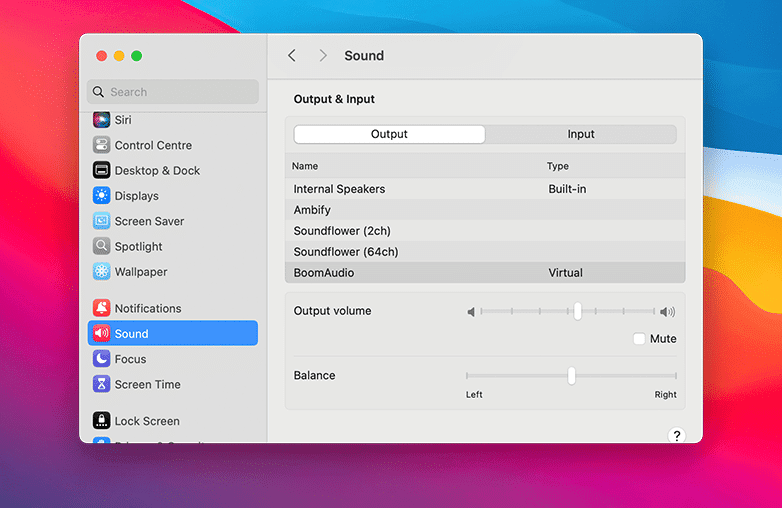
Check Mac Sound Settings
You should also check that the Mute option is turned off. This is an important step when you’re facing low sound output Mac issues. These are simple tweaks that can quickly fix low volume on a Mac.
Read this blog for more tips related to Mac: How to Improve Mac startup time?
Adjust Volume from Control Center
Audio issues on your Mac can also be due to volume controls rather than system errors. If your sound suddenly feels low, the Control Center may be the quickest fix.
To get started, click the Control Center icon (the two-toggle symbol) in the top-right corner of the menu bar. Look for the Sound control and make sure the volume isn’t turned down or muted. If it is, drag the slider to the right to raise the volume. Next, click on Sound to confirm that the correct output device is selected.
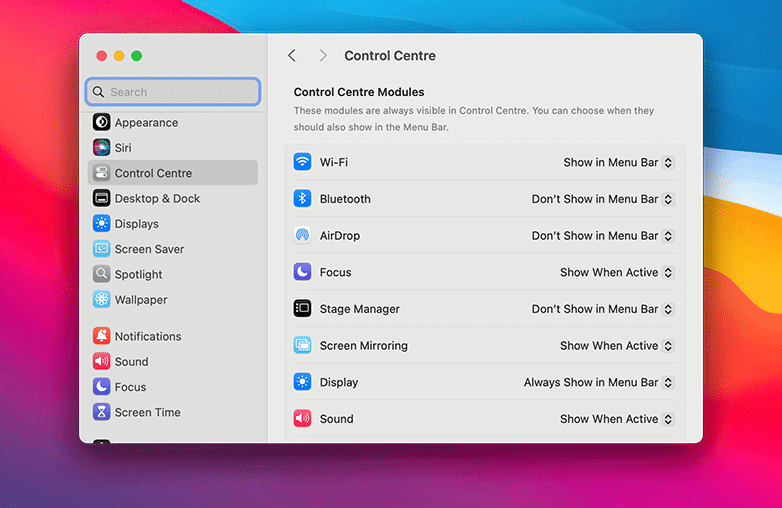
Adjust Volume from Control Center
Mac Volume Troubleshooting Checklist
☐ Output device selected correctly
☐ Volume slider turned up
☐ Mute disabled
☐ Headphones unplugged
☐ Mac restarted
☐ Background apps closed
Bottom Line
Even a minor audio issue on your Mac can be frustrating, but most sound issues can be fixed easily. By following the above-mentioned tips, you can fix low volume on a Mac and enjoy clearer audio.
FAQs
Why is my Mac’s sound unusually loud?
This can happen when there’s a memory leak, when an app or process starts using a large amount of CPU power. You can examine this issue by opening Activity Monitor and checking for apps that are consuming excessive resources, then closing the app or restarting it if needed.
Can background apps affect the Mac’s sound?
Yes, apps using high CPU or system resources can impact your Mac’s sound negatively.
Is it safe to download Volume Booster Apps on a Mac?
Trusted apps like Boom 3D are safe to download and will not cause harm to your Mac.
Reference:
- How to Fix Sound Issues on a MacBook Pro – Asurion
- How to Fix MacBook Audio Issues: The Ultimate Troubleshooting Guide – iConnect Care
- Fix Sound Not Working on Mac (Complete Guide) – Setapp








Pingback: Enhance Bass on a Mac: Easy Tips to Boost Sound and Clarity