






























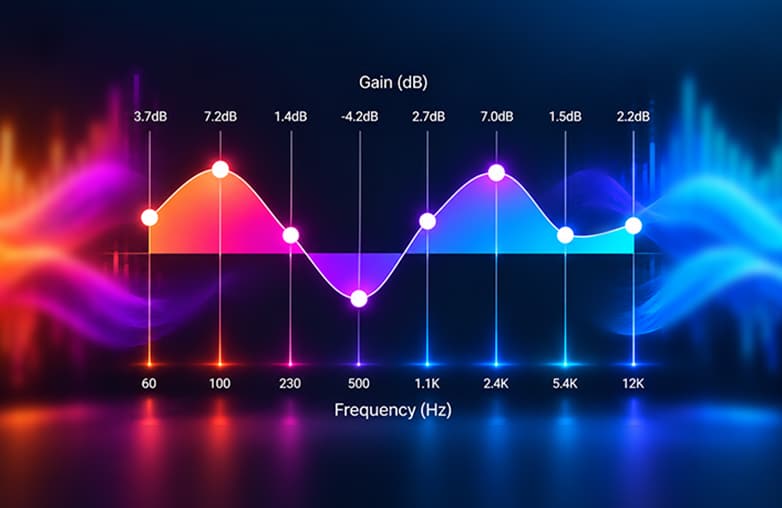
We have personal preferences when it comes to music. Some love bass, some enjoy beats and rhythm, and some love a balance between it all. Most of the time, we blame our headphones for not providing the right sound. However, it’s not always the headphones; a slight change in equalizer settings can personalize sound.
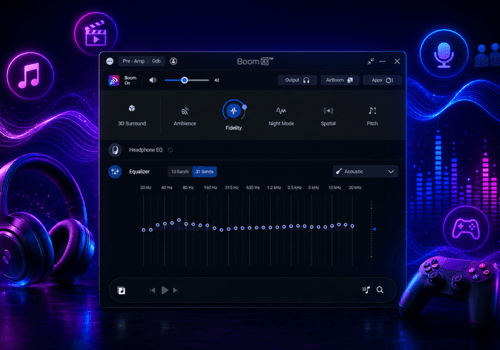
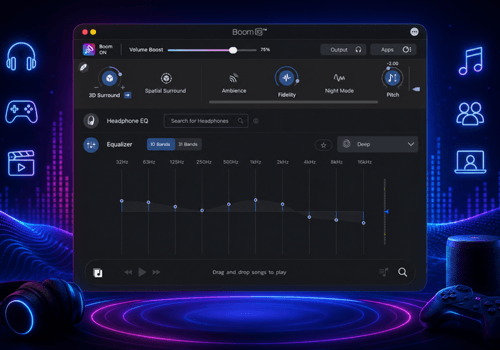
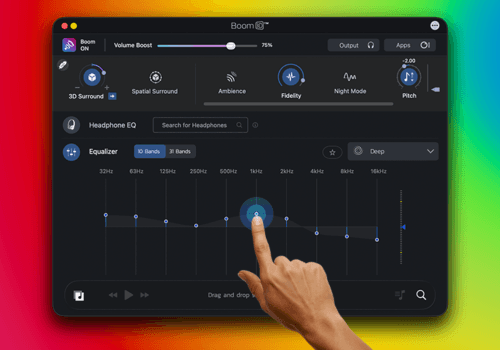
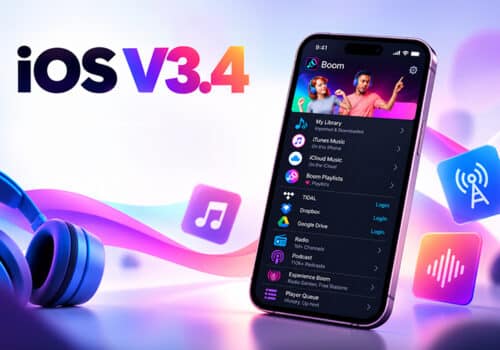
Boom: Bass booster and equalizer offers an 8 or 16-band equalizer. The trickiest part is that different songs sound better with different settings. If you switch between genres, changing your EQ settings every time can be frustrating. With the Boom iOS v3.4 update, you can assign genres to local music tracks imported into the app or downloaded from the cloud, Google Drive, Dropbox, or other sources. Set the equalizer to Auto, and Boom selects a suitable preset for the track. If you’re a music lover, here are a few iPhone EQ settings for different music types.
Which EQ Settings Work Best for Different Music Genres?
EQ settings depend on your headphones and what you enjoy hearing. There isn’t a one-size-fits-all equalizer setting that makes music sound better; it all comes down to personal preference. These suggestions can make your listening experience better.
| Music Genre | EQ Settings to Try | Benefits |
| Pop | Boost bass and keep vocals clear | Makes the beats and vocals stand out |
| Rock | Add a little punch to the bass and keep mids clear. | Guitar and drums may sound fuller |
| Hip-Hop | Add bass without lowering vocal clarity | Beats and basslines are heard clearly |
| Jazz | Balanced bass and clear mids | Saxophone, piano, and vocals are heard clearly |
| Classical | Balanced sound | Natural sound of instruments is preserved |
| EDM | Gentle boost and treble boost | Adds depth to the bass drops and makes beats more lively |
| R&B | Warmth to the bass | Works excellently with smooth vocals and mellow beats |
| Acoustic | Keep bass moderate and vocals clear | Vocals and guitar strings come through naturally |
You can follow this to get the best equalizer settings for music. You can also apply your own settings; everyone has different preferences. The right equaliser setting is the one that sounds best to your ears.
Adjust iphone equalizer settings
Guide to Adjusting iPhone EQ Settings
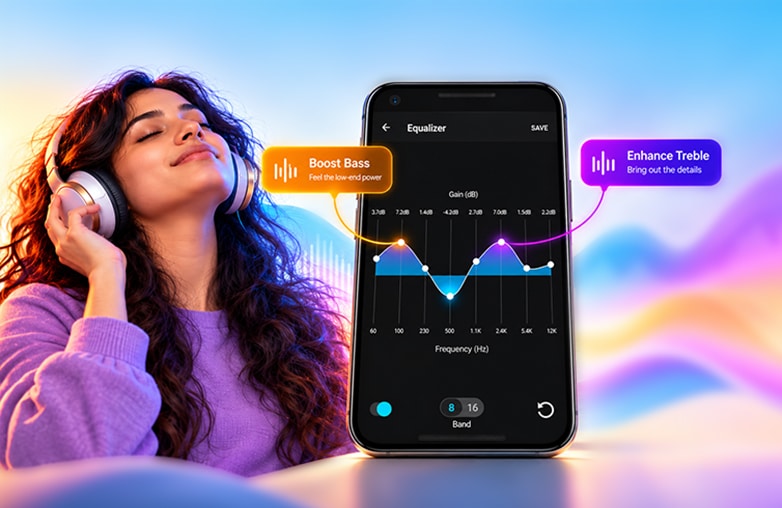
If you’re new to equalizers, the different frequency controls can seem confusing. Start with ready-to-use presets, then start adjusting the equaliser manually. Here are a few basics to get started.
You might find this blog worth reading: How to organize music on iPhone.
Are you a bass lover?
Try a small boost to the lower frequencies. This works well for songs with strong beats like hip-hop, EDM, and similar genres. Don’t push it too far, or the bass may overpower everything else.
Not able to hear the vocals?
Focus on the midrange. Vocals and many instruments are in this range; a small adjustment may help them stand out.
Want to add brightness?
Adjust the treble. It can bring out details in strings, percussion, and cymbals. However, too much treble can make songs sound sharp, so adjust accordingly.
Start with your favorite song and make a small adjustment. You’ll have a better idea of what each adjustment does. Here’s how you can change your iPhone EQ settings.
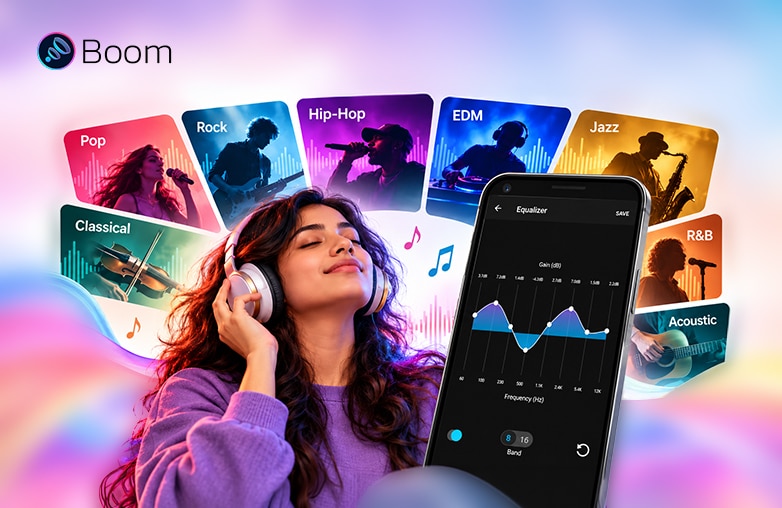
iPhone EQ settings for different music genres
Try Boom’s Auto EQ to Avoid Changing EQ for Every Song
Let’s take an example: you play a few rap songs while getting ready in the morning, switch to a podcast, and put on some soothing music later. Every genre is different; settings vary for every genre. Finding the best iPhone equalizer settings for every genre can be time-consuming if you keep switching between playlists.
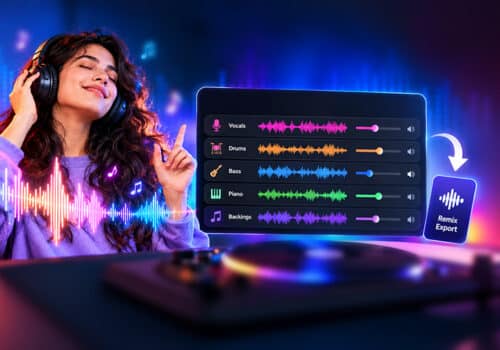
Boom for iOS v3.4 makes it easier with its Auto EQ feature. You can assign genres to local tracks you’ve imported into Boom or downloaded tracks. When the equalizer is set to Auto, Boom chooses an EQ preset that fits the track. You don’t have to keep switching equalizer settings or presets when you change to another genre. It’s a useful feature if you keep switching between different genres.
How to Set Up Auto EQ in Boom
- Launch Boom on your iPhone and find any music track.
- Assign a genre to the track.
- Now select Auto in the equalizer.
- Play your music and let Boom select a suitable preset for your track.
If you love experimenting with equalizer settings for different genres, you should try Boom’s Auto EQ. You don’t have to adjust EQ manually; let Auto EQ select the best preset for you. Auto EQ makes it easier to enjoy different music genre EQ settings without adjusting everything manually.
You may want to give this blog a read: How to listen to radio stations on iPhone for free.
Bottom Line
Try the best iPhone EQ settings for the genres you listen to most. Also, adjust them to your preference. The best EQ is the one that sounds perfect to your ears. On Boom iOS, Auto EQ saves time by changing presets for different genres. If you love music or enjoy podcasts, try Boom for iOS.
FAQs
What are the best EQ settings for an iPhone?
The best EQ settings depend on your preference. Adjust the equalizer settings and check what works best for you.
Which EQ setting is best for bass on an iPhone?
A slight boost to the lower frequencies can make bass sound fuller. Avoid overboosting, as it may overpower other instruments and vocals.
Can I automatically change EQ settings for different songs on my iPhone?
Yes, Boom for iOS v3.4 offers Auto EQ for local tracks with assigned genres. When you select Auto, Boom chooses a suitable EQ preset based on each track’s genre.
Is Boom the same as Boom 3D?
No, Boom is a bass booster and equalizer app for your phone, while Boom 3D is a volume booster and EQ app for Mac and Windows. Their features differ.







Leave a Reply
You must be logged in to post a comment.