




































Have you ever done a PC or Mac cleanup? If your answer is no, your computer is likely filled with random files, unused programs, and hidden data that consume storage space. This clutter can slow down performance, reduce speed, and make your system unresponsive.
In this guide, we’ll walk you through a safe disk cleanup on Mac and Windows. This will help you remove junk files, uninstall unwanted software, and clear out clutter that has been hidden for years. Whether your Mac is starting to lag or your Windows PC is not as responsive as before, these simple tips will help you free up space and keep your system running smoothly.
How to Clear Space on Windows?
Remove Unused Programs on Windows 11
One of the easiest ways to remove junk files safely and improve your PC’s performance is to uninstall apps you no longer use. Start by opening the Start menu and selecting Settings (gear icon). From there, go to Apps → Installed apps (in some versions, it may appear as “Apps & features”). You’ll see a complete list of installed programs.
Check the list and uninstall apps that you don’t use. If you’re unsure about a program, take a moment to look it up before removing it. This is an important part of system cleanup best practices to avoid deleting something important.
To uninstall, click the three dots next to the app and select Uninstall, then confirm. This may take up your time, but it will free up storage space and keep your system running smoothly.
You can also read this blog: How to Protect Your Privacy on Mac and Windows.
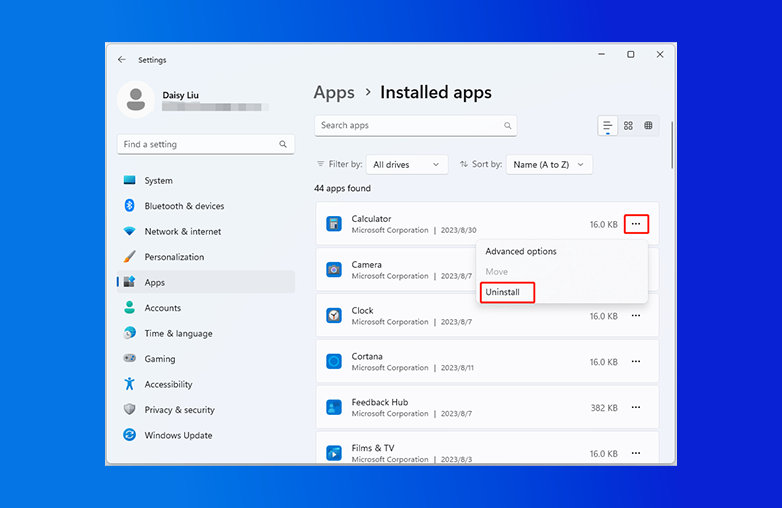
Removing unused apps safely on Windows PC
Disable Startup Programs
The more apps launch at startup, the slower your system gets. You should disable unnecessary startup items to make your PC run smoothly. To manage startup apps, right-click on the taskbar and select Task Manager. If it opens in a compact view, click More details, then switch to the Startup apps tab. You’ll see a list of programs that run when your PC boots.
To stop an app from launching at startup, select it and click Disable (or right-click and choose Disable). Avoid the “disable everything” approach. While your PC may still boot, you could lose useful features like touchpad gestures, audio controls, or sync services. After making changes, restart your PC.
Empty the Recycle Bin
Files you delete remain in the Recycle Bin and use storage space. To free up storage safely, right-click the Recycle Bin on your Desktop and select Empty Recycle Bin, then confirm. Before you empty the Recycle Bin, review the files and folders to make sure there’s nothing important. Once emptied, the files are permanently removed, and this is one of the ways to clear storage space.
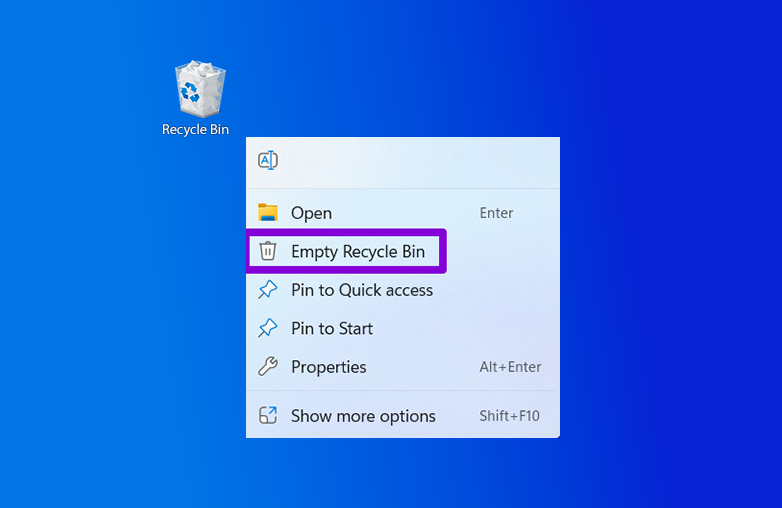
Emptying Recycle Bin on Windows
How to Clear Space on Mac?
Update Your Software in macOS
Did you know that keeping macOS updated can improve performance? Not just performance, it can optimize storage and help manage system files. It can also reduce file bloat and improve performance.
To update macOS, click the Apple menu in the top-left corner and open System Settings. Then go to General → Software Update. If an update is available, click Upgrade Now or Update Now and follow the on-screen instructions.
Check out this blog: How to Find and Remove Tracking Files on Mac.
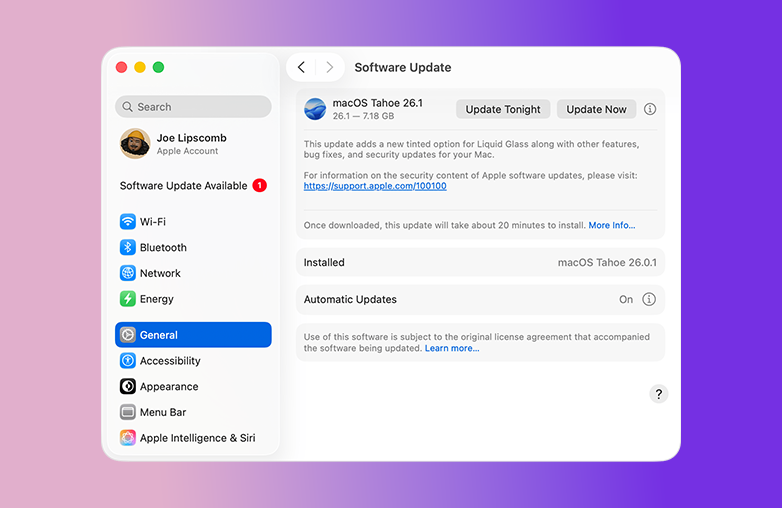
macOS storage management and cleanup options
Remove Large Files on macOS
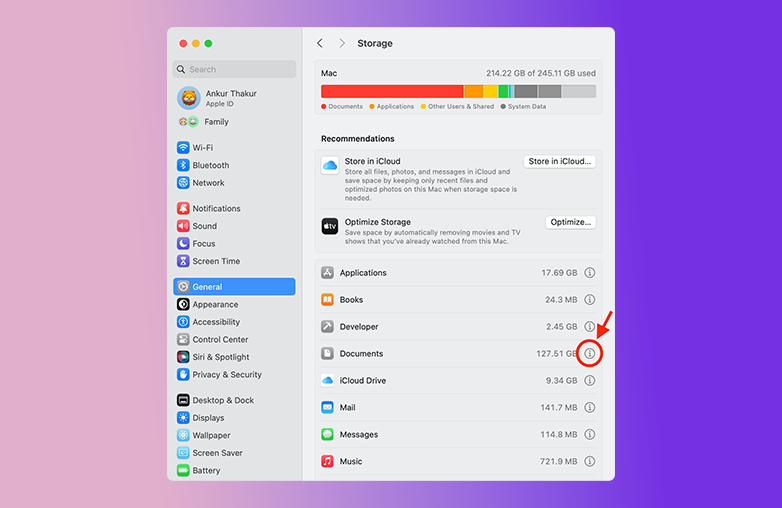
Deleting large, unwanted files is one of the best ways to free up space and perform a safe disk cleanup on Mac. However, it’s important to review files carefully and avoid deleting system files. To find large files, click the Apple menu in the top-left corner and open System Settings. Then go to General → Storage. Now, you’ll see how your storage is used.
You can sort or filter files by size to identify what is consuming the most space. Review and delete only those files that you don’t need. You need to be careful while reviewing System Data, as they contain important files for macOS to function properly. Stick to removing old downloads, unused applications, or personal files.
Activity Monitor checking heavy apps on Mac
Find Heavy Apps
If your Mac feels slow, some apps may be using more CPU and memory than they should. Identifying these apps is an important step in using disk cleanup tools for Mac, along with temporary files cleanup and safe cache removal.
Open Activity Monitor (search via Spotlight or Launchpad) and check the CPU and Memory tabs to see which apps are consuming resources. If you spot an app you don’t need, select it and click the X (stop) button at the top to quit it.
You can give this blog a read for deeper understanding: How to Manage Mac Permissions on macOS.
Bottom Line
These are some of the safe disk cleanup methods on Mac and Windows. Make sure to review the files and folders before deleting them. Now, you’re just a few steps away from speeding up your system.
FAQs
What should I avoid deleting during cleanup?
Avoid deleting system files, drivers, and unknown folders.
Do I need to back up my data before cleanup?
Backing up data is a good option. It ensures you can recover data if you delete important files or folders accidentally.
Can cleanup improve my system’s speed?
Yes, it can improve speed and make your system responsive.