
























Social media is entertaining; we spend a lot of time scrolling through reels to pass the time and learn. We may see various videos, but some capture our attention; we may share them with our friends or save them. What makes these videos different is the clarity and, probably, a personal touch.
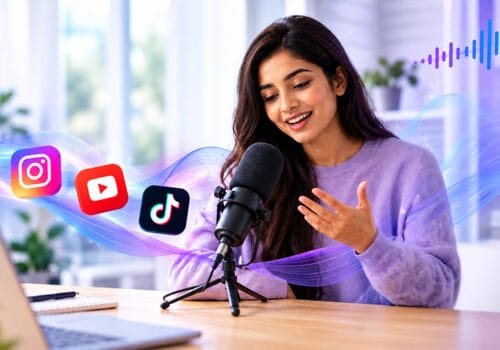
Voiceovers are very important in any video. Professional voiceovers for videos can help connect with your audience better and can make your content shareable. Whether you create YouTube Shorts, TikTok videos, or Instagram Reels, your voiceover is more than just a narration. It guides your audience through the video. Here is how to create professional and crystal-clear voiceovers.
What Makes a Good Social Media Voiceover?
If you’re searching for how to record voiceovers, you should also search for how to record clear voiceovers. According to Wyzowl’s 2026 Video Marketing Statistics, 69% of video marketers create social media videos, making them the most popular video marketing use case. The best voiceovers are never loud; they’re simply clear. You need to focus on:
- Clarity: Every word should be easy to understand.
- Natural: It should sound like a person talking rather than reading a script.
- Consistent: Stable volume, tone, and pacing.
- Clean: Remove background noise, echo, and other disturbances.
- Well-paced: Ensure enough pauses for the audience to process the information.
You should focus on making your voice pleasant to listen to.
Check out this interesting blog on the topic: Best apps for social media creators.
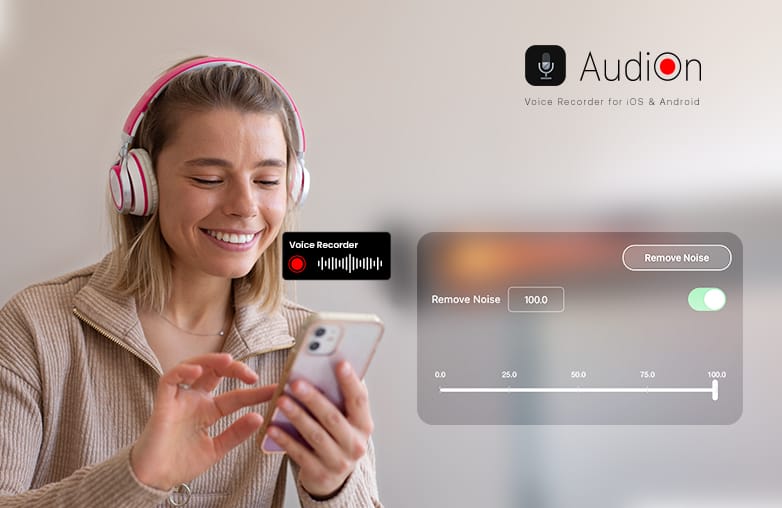
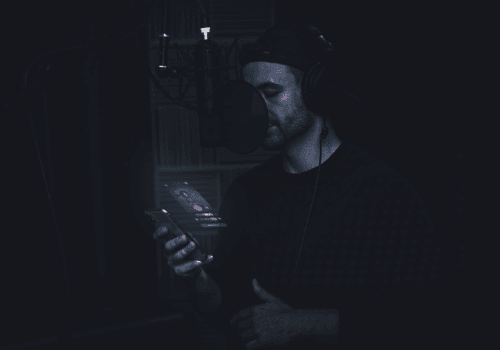
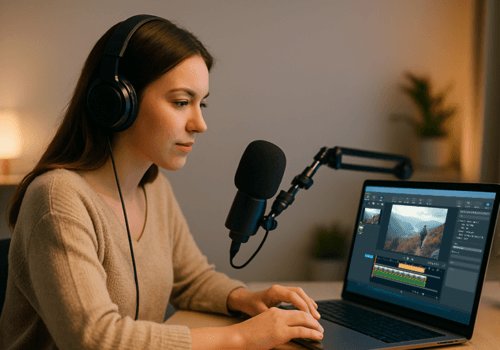
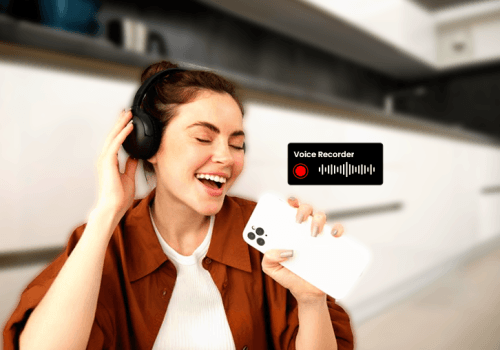
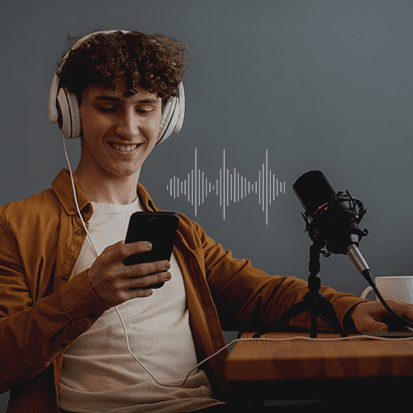
Recording professional voiceovers on a smartphone
Write a Voiceover Script
Writing a script is always a good idea to avoid repeated sentences and unnecessary pauses. It also makes it easier to match the narration with visuals.
Give your audience a reason to continue watching. Always give a call to action; tell your audience what they can do next.
For example, instead of beginning with: “Today I am going to talk about useful tips to shoot a video”. You can rather say something direct: “Your phone can record an excellent video. The problem is how you shoot the video”. The second sentence gets to the point faster.
This blog could provide valuable insights: Record studio-quality voice overs directly in your video editor.
Choose the Right Recording Environment
Background noise and echo can spoil your recordings. A quiet room with good sound dampening, like furniture, curtains, carpets, etc can help create great recordings. Soft furnishings can absorb sounds and make the room less reflective.
Voiceover tips to follow: Avoid recording close to:
- Running fans or air conditioners
- Loud appliances
- Open windows facing traffic
- Busy streets
- Rooms with strong echoes
- Empty rooms with hard walls
You don’t need to record in a recording studio; find a space where other sounds don’t overpower your voice.
Remove Background Noise
Even in a quiet room, you may notice small distractions like fan noise, traffic, keyboard sounds, people talking in the background, and other unwanted sounds.
A voice recording app with noise reduction can help. One of the best voice recorder and editing apps is AudiOn. It offers features like background noise removal and voice isolation to make recordings clearer. However, you may not be able to remove background noise fully, but you can make it less noticeable. Moreover, aggressive noise reduction can make your voice sound robotic, and this may not help your audience.
This blog might just be what you’re looking for: Best video editors with built-in-voice-over tools for creators.
Position Your Microphone Correctly
If you record voiceovers over the phone, avoid holding it directly against your mouth. Keep it close enough to capture your voice clearly but far enough to avoid sudden volume changes and breathing sounds.
Start by sitting about 3-5 inches from the microphone. The best distance may vary depending on the microphone and how you speak.
Improve Voice Clarity With EQ
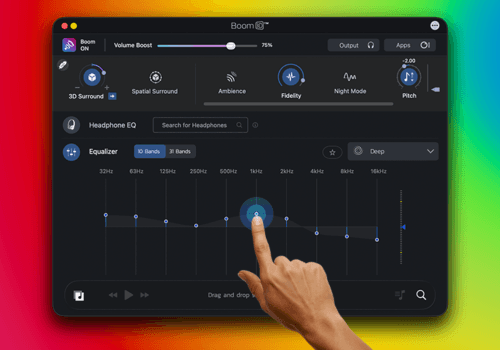
A clear voice can make a big difference when creating professional voiceovers for videos. This is where equalization (EQ) can help. You can adjust different frequency ranges in your recording so the voice sounds more balanced and easier to understand.
AudiOn offers Equalizer presets. You can easily choose the best preset that makes your recordings stand out.
Edit Out Long Pauses and Mistakes
Mistakes can be fixed with simple features; you don’t have to record the voiceover all over again. You can trim long pauses, repeated sentences, unnecessary filler words, and noisy sections. You can also split longer recordings into smaller sections and arrange them afterwards.
AudiOn offers tools like trimming, cutting, merging, and splitting recordings. It also offers features like skip silence and others to make your recordings clear and professional.
Use AudiOn to Record and Edit Voiceovers
If you want to create professional voiceovers on your phone, AudiOn can be the right choice. It is a voice recording and editing app for both iOS and Android. It offers features like teleprompter, transcription, geotagging, voice isolation, microphone controls, reverb, trimming, cutting, merging, and exporting.
It also offers the Mic Boost feature; you can increase your phone’s microphone sensitivity by up to 200%. With AudiOn, you can Record → Enhance → Edit → Export → Add to video.
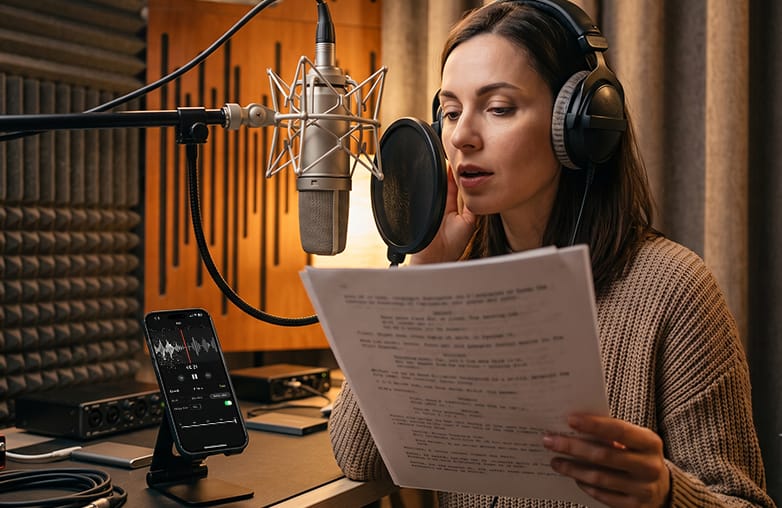
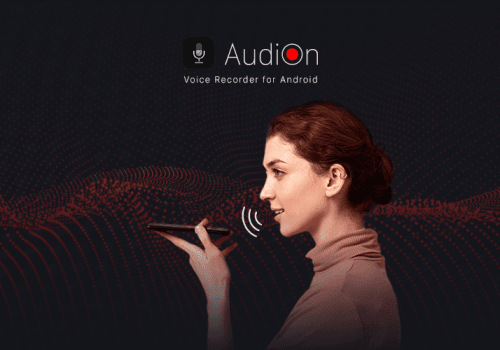
AudiOn voice recording and editing app
Bottom Line
Creating professional voiceovers for videos is not an arduous task. With the right tool like AudiOn, you can create excellent voiceovers and engage your audience. Download AudiOn on iOS and Android now!
It’s time that you make your voice easier to understand and best suited to the message you are conveying in your video or recordings.
FAQs
Which app is best for voiceover?
AudiOn is one of the best choices for voiceover. It offers recording and editing features to make your voiceover stand out.
Can I record a professional voiceover on my phone?
Yes, with apps like AudiOn, you can record professional voiceovers on your phone.
How do I record a voiceover without a microphone?
You can use your phone’s built-in microphone to record a voiceover.
Why does my voice recording sound muffled?
A muffled voice can result from microphone placement, low-frequency sound, room acoustics, or background noise. Try moving the microphone slightly, making EQ adjustments during editing, and recording in a less reflective room.
How can I remove pauses from a voice recording?
You can trim long pauses during editing or use AudiOn’s skip silence feature.








Pingback: AI Stem Separation Apps: Create Viral Music - Global Delight