




































Is your PC running low on storage? Well, you’re not the only one; we all face this problem at some point. This problem doesn’t just limit space; it can slow everything down. From failed updates to laggy performance, this can create multiple issues. You may start seeing warnings such as low disk space errors, “disk full” notifications, or even messages stating that there isn’t enough space to install important Windows updates.
What Causes 100% Disk Usage in Windows?
In some cases, limited storage can also contribute to system slowdowns, such as when your disk is constantly overloaded, as seen in Fix 100% Disk Usage in Windows. But you can easily free up space on your Windows PC. Want to know how? Read on to get more deets!
Empty the Recycle Bin to Free Up Space
Even after deleting files on your PC, you don’t really get rid of them completely. They stay in the Recycle Bin and continue using storage. Clearing it out is one of the quickest ways to free up disk space and make your PC more responsive, especially if you’re trying to Fix 100% Disk Usage in Windows or dealing with low storage warnings.
Best Ways to Reduce Disk Usage Instantly
These leftover files can pile up and contribute to issues like slow performance, disk-full errors, and trouble installing updates.
How to empty the Recycle Bin in Windows 10/11:
- Right-click on the Recycle Bin icon on your desktop.
- Click Empty Recycle Bin.
- Confirm to permanently delete the files.
You should frequently empty your system’s Recycle Bin to free up storage space in Windows, reduce clutter, and keep your PC running smoothly.
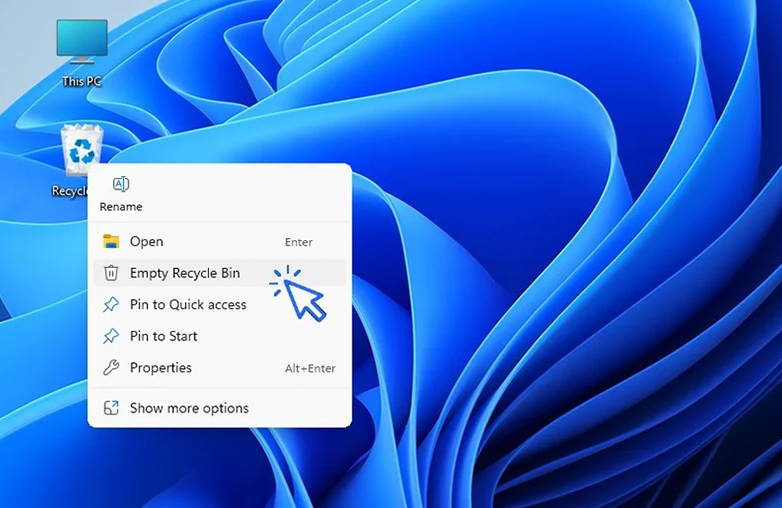
Empty Recycle Bin to free up disk space Windows
Don’t miss this insightful blog: How to Speed Up a Windows PC
Use the Disk Cleanup Tool in Windows
If your PC is running low on storage, the built-in Disk Cleanup tool can quickly remove unwanted files and improve PC performance. It’s one of the easiest ways to free up disk space in Windows and can reduce system slowdowns.
Your computer might collect temporary and system files that are not useful to you. Disk Cleanup safely scans and removes them to free up space without affecting important data.
How to use Disk Cleanup effectively:
- Type “Disk Cleanup” in the Windows search bar and open it.
- Select your main drive (usually C:) and click OK.
- Let the tool scan your system for unwanted files,
- Click “Clean up system files” for a deeper scan.
- Choose the types of files you want to delete.
Files you can safely remove include:
- Temporary Windows installation files.
- Windows Update cleanup files.
- System error memory dump files.
- Windows Defender antivirus logs.
- Temporary Internet Files.
- Delivery Optimization files.
- DirectX shader cache.
- Windows Error Reporting files.
- Temporary Files.
Once you’ve selected the files, click OK to start the cleanup. The process may take a few minutes, depending on how much data is removed. This step helps optimize Windows storage, clear junk files, and keep your PC running faster than before.
Uninstall Unused Applications in Windows
One of the quickest ways to free up storage space in Windows is by removing apps that you don’t use. Your PC gets filled with unwanted programs like bloatware, old games, or trial software that take up disk space and can even slow down performance.
Some of the applications may also run in the background, using system resources. Removing them can help optimize Windows’ performance and even help you fix 100% Disk Usage in Windows.
Steps to uninstall apps in Windows:
- Open Settings.
- Go to Apps and click on Installed apps.
- Use the Sort by option and select Size (large to small) to find apps taking up the most space.
- Click the three-dot menu next to the app you want to remove.
- Select Uninstall and confirm.
You should regularly check and uninstall programs that you don’t use. This will help clean up disk space and improve speed.
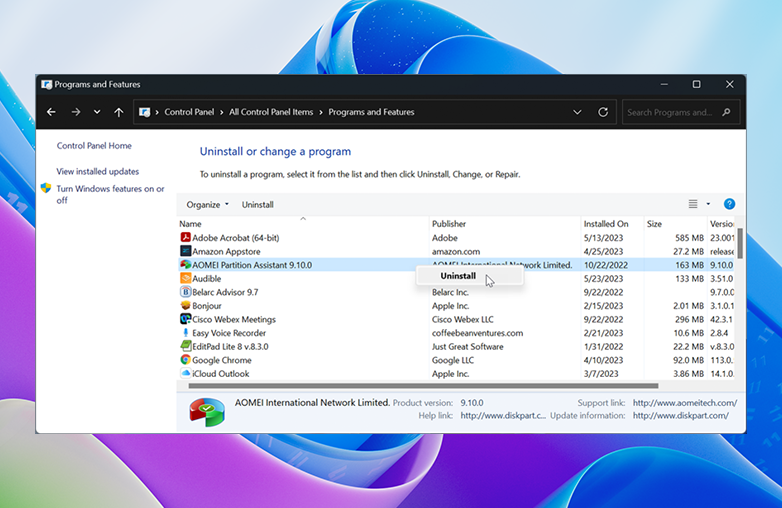
Disk Cleanup tool removing temporary files in Windows
Give this blog a read: How to Fix Low Volume Issues on Mac?
Manage Photos
Photos and images can take up a lot more space on your PC than you imagine. You need to check and delete unwanted pictures to free up storage space in Windows. This will also keep your system organized.
You can locate large image files through Storage settings to identify what is taking up maximum space.
This is how you can manage photos in Windows:
- Open Settings.
- Go to System and select storage.
- Click on Pictures to check how spaces it is using.
- Select View Pictures to open the default Pictures folder.
- Check and delete unwanted photos or duplicate images.
Cleaning up the image library helps optimize disk space in Windows and improve overall performance.
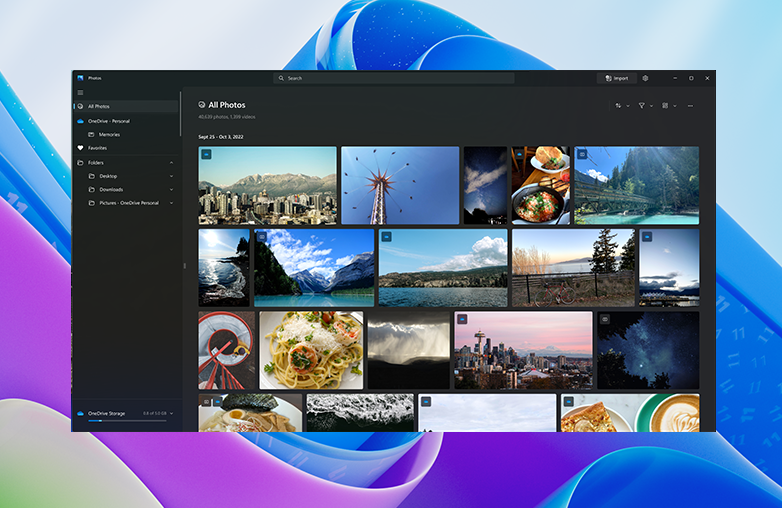
Manage photos to free up storage space in Windows PC
Bottom Line
This is how you can fix 100% Disk Usage in Windows. These are simple steps with effective results. Also, if you think your PC’s sound output isn’t up to the mark, try Boom 3D for Windows. You can experience theater-like sound on ANY headphones, and it also offers a 30-day free trial without asking for payment details.
Key Facts:
- 100% disk usage slows down Windows systems
- Temporary files and unused apps are major contributors
- Disk Cleanup is a safe, built-in optimization tool
- Storage management improves speed and responsiveness
- Regular cleanup prevents performance degradation
FAQs
How frequently should I use Disk Cleanup on Windows?
Every 1-2 months or whenever the PC slows down or shows low storage issues, like Fix 100% Disk usage in Windows.
Does Disk Cleanup remove installed programs?
No, it does not uninstall any apps. It only deletes temporary files and other unnecessary data to free up disk space.
Can I undo Disk Cleanup if I delete something by mistake?
No, once Disk Cleanup removes files, they’re permanently deleted. Review the selected items carefully before you delete them.
References
- Fix 100% Disk Usage in Windows (Official Microsoft Guide)
- Free Up Disk Space in Windows PC (Dell Support Tutorial)
- Ways to Free Up Hard Drive Space on Windows (HP Tech Tips)
- Disk Cleanup Tips to Improve PC Performance (Norton Guide)
- How to Clean Hard Disk Space on Windows 10 (PCMag Guide)
- Windows Disk Cleanup & Storage Optimization Guide (Trend Micro)