




































Mac relies on the permissions system to control who can access, view, and modify files, folders, and applications. Managing these settings is important for protecting sensitive data. This gets even more crucial if you share your device or use it in public environments. When you manage Mac permissions, you ensure that your data stays safe.
Another challenge is that restricting permissions may prevent users from completing their everyday tasks. When you keep the settings lenient, it can expose your system to various risks. That’s why it’s essential to understand how permissions work and adjust them accordingly to meet your specific needs. In this blog, we’ll guide you through how to view, change, and control file and app permissions to keep your Mac secure.
Change App Permissions on Mac
To manage macOS app permissions, start by opening System Settings from the Apple menu in the top-left corner of the screen. This is where you control which apps can access the different features of your Mac. If you’re using an older version of macOS, this will appear as System Preferences, but the steps are the same.
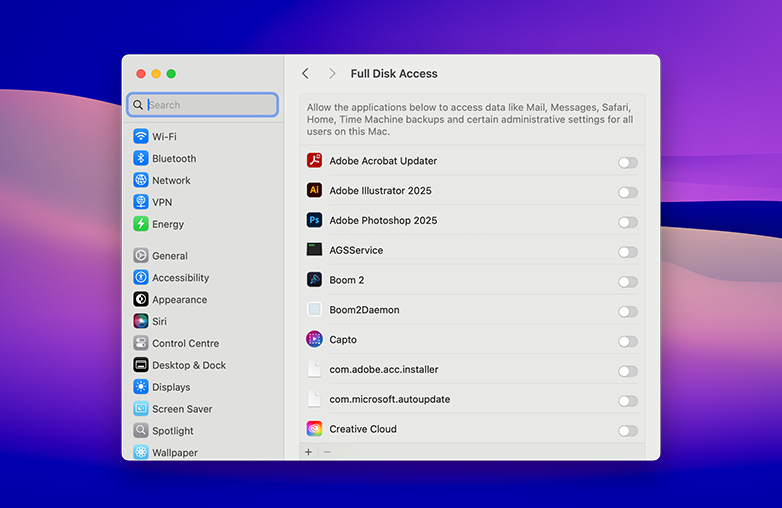
Within these settings, you can grant or restrict access to apps like cameras, microphones, photos, and others. This is useful for maintaining privacy while ensuring these apps function properly. For example, certain applications like antivirus tools may require Full Disk Access to scan and protect your system effectively.
You can decide how much control each app has so that your data is secure. You should frequently review and update macOS app permissions to improve security and speed up your Mac.
Change App Permissions on Mac
Accessing Privacy & Security Settings
To manage macOS app permissions, click on Privacy & Security in the System Settings menu. You’ll find this option toward the bottom of the left-hand sidebar, and it’s where all permission controls are organized.
If you’re using an older version of macOS, this section will appear as Security & Privacy and is located closer to the middle or right side of the window. In some cases, you may also need to select the Privacy tab within that menu to view and adjust permission settings.
This step is important for Mac privacy settings, as it allows you to control which apps can access features like location, camera, microphone, and more. You can maintain better data security on Mac by keeping track of these.
You can give this blog a read for a deeper understanding: How to Find and Remove Tracking Files on Mac.
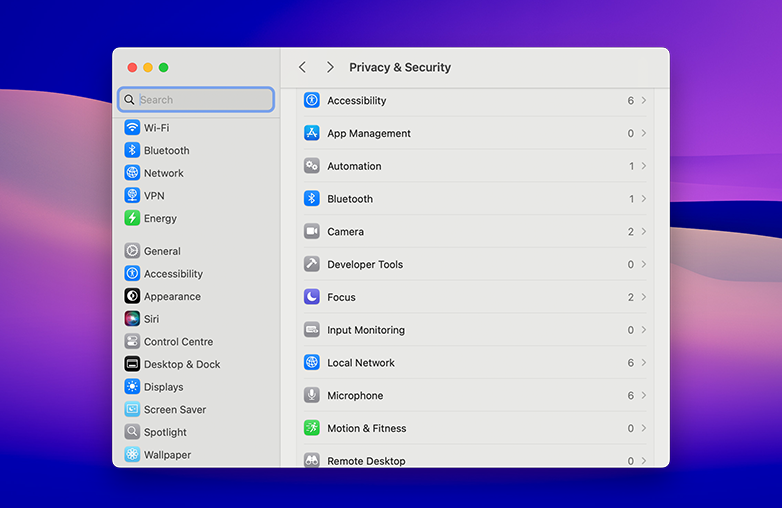
Accessing Privacy & Security Settings
View and Change File Permissions on Mac
You can control app access on Mac and file-level permissions using the Finder’s Information window. This step lets you decide who can view and edit specific files and folders.
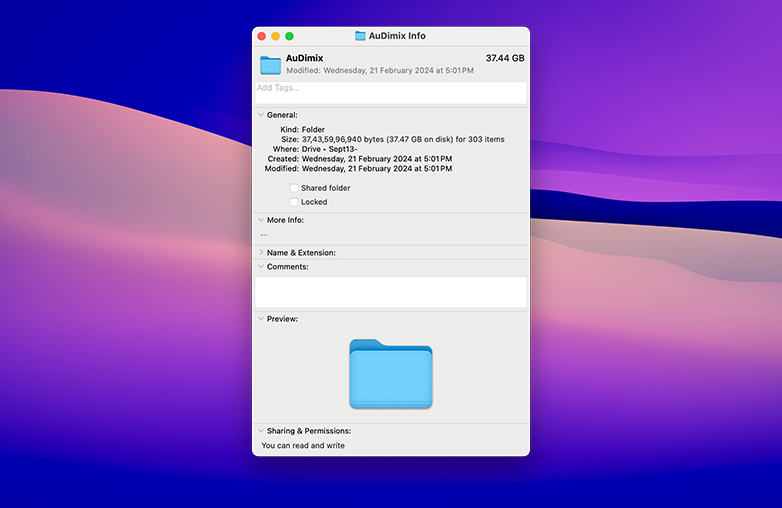
Start by selecting the file or folder in Finder. Then click File > Get Info to open its details window. In this panel, expand the Sharing & Permissions section by clicking the small arrow. You’ll see a list of users and their access levels.
To make changes, click the lock icon and enter an administrator password. Once unlocked, use the dropdown menus next to each user or group to adjust permissions, such as Read Only or Read & Write. After updating, simply choose the Info window. Your changes are now applied.
Check out this blog: How to Protect Your Privacy on Mac and Windows.
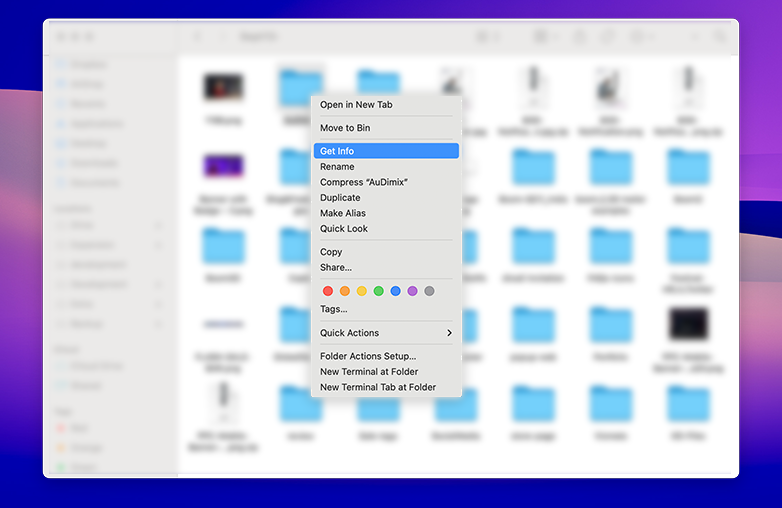
View and Change File Permissions on Mac
Change a File’s Owner
To assign a new owner, open Get Info for the file and unlock it using the lock icon. If the new owner isn’t listed, click the Add (+) button and select the user. Then choose the user’s name, open the action menu, and set them as the owner.
Managing permissions this way helps you maintain better security while ensuring the right users have access.
What Permission Types Are Available on Mac
What Permission Types Are Available on Mac?
macOS offers different permission levels that determine how users can interact with files and folders. You should try understanding this to help you manage access and protect your data.
- Read Only: Users can open and view files, but they can’t make any changes.
- Write Only (Drop Box): users can add files to a folder, but they won’t be able to open or view its contents. Only the folder owner has full visibility.
- Read & Write: users have full access to open, edit, and modify files and folders.
- No Access: Uses are completely restricted and cannot view or interact with the file or folder.
Choosing the right permission strikes a good balance between accessibility and security on your Mac.
You can also read this blog: How To Improve Mac Startup Time.
Bottom Line
Now that you understand how permissions work, you can confidently manage Mac permissions based on your specific needs. Adjusting these settings helps keep your personal data secure while allowing you to perform everyday tasks smoothly.
You should choose settings that are best suitable for you and also review them regularly, this helps keep your data safe without interfering with your daily experience.
FAQs
Is it safe to give apps Full Disk Access?
You should grant access only to trusted apps like security software, as it allows them to access all files on your Mac.
How often should I review Mac permissions?
You should review them frequently, especially when you install new apps.
Is my Mac safe?
Yes, it’s safe if you check your Privacy & Security settings frequently and allow only trusted apps. Check if your firewall is on and remove unknown apps. These practices will keep your Mac safe.