




































Did you know every click, scroll, and video view can be tracked by hidden scripts? Yes, you read that right. They can collect data about your behaviour. These tracks profit from your interests, habits, and location, mainly for advertising. However, their reach is mostly beyond ads. Safari, Apple’s default browser, is designed with privacy in mind and includes features to limit unauthorised tracking. Still, some data can be collected. That’s why it’s important to understand how to remove tracking files on Mac.
Best Ways to Remove Tracking Files on Mac
For instance, if you install an app, it may leave behind files even after you delete it. If you’re trying to remove such files on Mac or want to know where they’re located, Apple offers built-in tools that could be quite helpful. Always remember that, once installed, those windows disappear, so check them and always back up your data.
Clear Browser Cache on Mac
No matter which browser you use, it’s important to learn how to clear cache and cookies on macOS. It is simple and important for maintaining your data privacy. Cache files help websites load faster, but over time, they can slow your system and even store tracking data. That’s why it’s useful to delete tracking cookies on Mac. Users may not even realise that they’re being stored.
Learn how to clear cache in Safari, Chrome, and Firefox:
Clear Cache in Safari
To clear the cache in Safari, open the browser and click Safari in the top menu bar, then choose Settings. Go to the Advanced tab and enable “Show features for web developers”. Once enabled, go to the Develop menu in the top bar and select “empty caches”. You can also use the shortcut Command + Option +E.
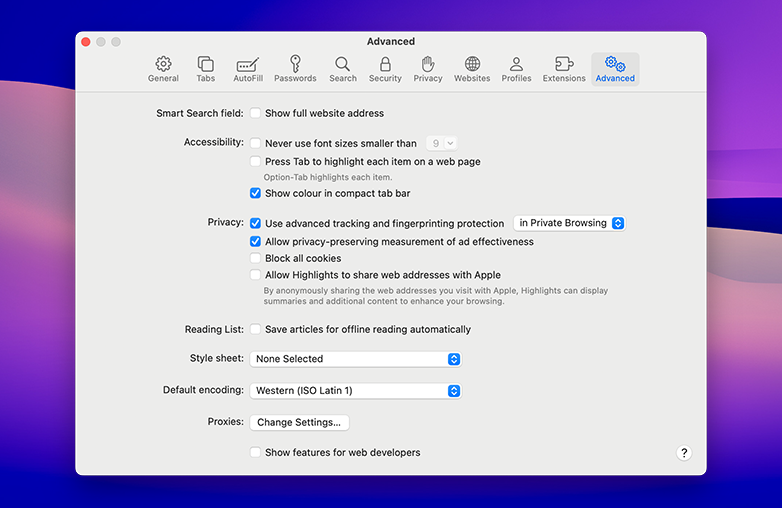
Clear Cache in Safari
Delete Tracking Cookies in Chrome
Open Chrome and click the three-dot menu in the top-right corner. Go to Settings > Privacy and security > Clear browsing data. Choose a time range (select “All time” for a full cleanup), then tick “Cached images and files” and clear the data. You can also press Command + Shift + Delete to open this menu instantly. Moreover, using Incognito mode can help reduce stored data, but it’s not the only solution.
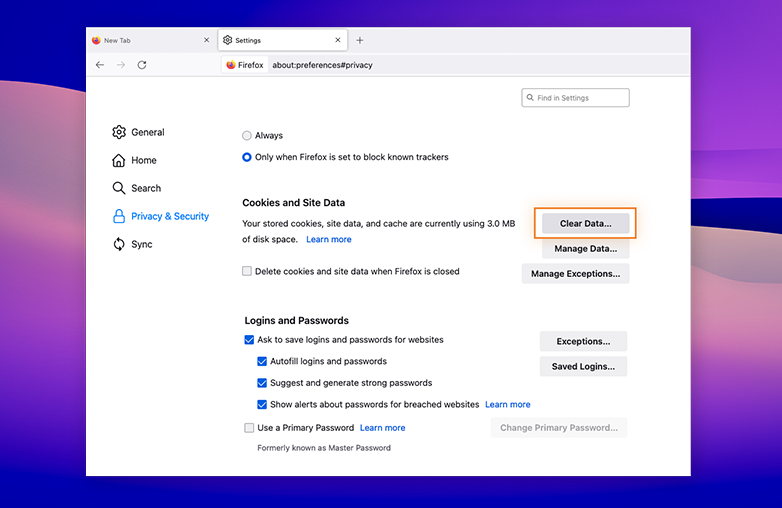
Delete Tracking Cookies in Chrome
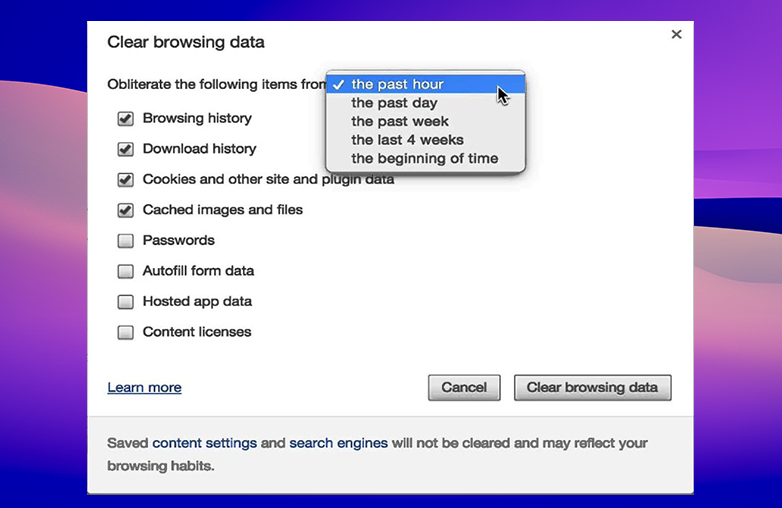
Remove Firefox Cache Files
In Firefox, click History in the top menu bar and select “Clear Recent History”. Choose a timeframe (select “Everything” for a full reset), tick “Cache,” and click OK. You can also use the shortcut, Command + Shift + Delete.
The main problem is that cache files are rebuilt once you start browsing again. So, you need to frequently clear the browser cache. You can also use tools to clean up browser cache; this is useful to delete tracking cookies on Mac that pile up.
You can also read this blog: How to Speed Up a Windows PC.
Remove Firefox Cache Files
Remove System Cache
If you want to strengthen your privacy, you should learn to find hidden files on Mac. Many apps store cached data, which can pile up and can trace your activity. A proper privacy cleanup Mac routine is necessary to keep your privacy intact and remove tracking files on Mac.
Find Hidden Cache Files in Finder : Via ~/Library/Caches
Every app on your Mac stores cache files, and these files are hidden in the Library folder. To find these files, open Finder and click Go in the top menu bar. Select “Go to the Folder,” type ~/Library/Caches, and click Go.
You’ll see a list of folders named after different apps. These will contain cached files that can be safely removed. Review these folders to find hidden files and Mac privacy risks that come from uninstalled apps with leftover data.
Check out this blog: How to Protect Your Privacy on Mac and Windows.
Use Storage Management for Privacy Cleanup
Another good way to keep a check on cached data is through Storage Management. Click the Apple icon in the top-left corner, go to System Settings, and select Storage. You will get to see how your disk space is used.
You may also find suggestions to optimize storage. You can check categories like Applications and System Data to check cache-heavy areas. This is a helpful step in the privacy cleanup Mac process; it will show where unwanted data might be stored without checking through folders manually.
You may find this blog helpful: How to Free Up RAM on Mac?
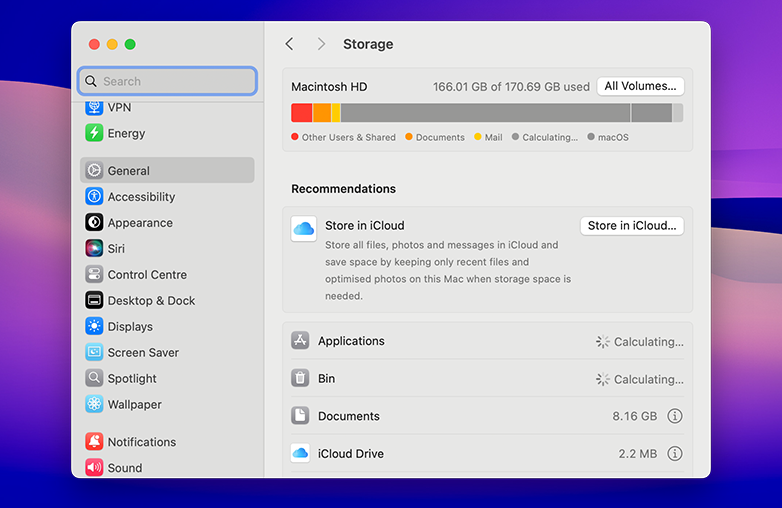
Use Storage Management for Privacy Cleanup
Bottom Line
Tracking cookies follow your activity across websites, often for ads, but they can also be used for malicious purposes like adware or data theft. To protect your privacy, it’s important to regularly remove tracking files on your Mac and clear your browser data. Deleting cookies helps limit what websites can track, but threats may still be there. You can also use tools that can help detect hidden adware or browser hijackers, keeping your personal data secure.
FAQs
Should I block all cookies in Safari?
This will give you privacy, but it can break website features like logins and saved settings. You can enable the “Prevent Cross-Site Tracking” setting, which blocks third-party tracking cookies and allows important ones.
How often should I clear cache and cookies on a Mac?
You should clear them every few weeks to maintain privacy.
What happens when I delete tracking cookies on Mac?
Websites will no longer remember your activity, which will reduce targeted ads and tracking.