

































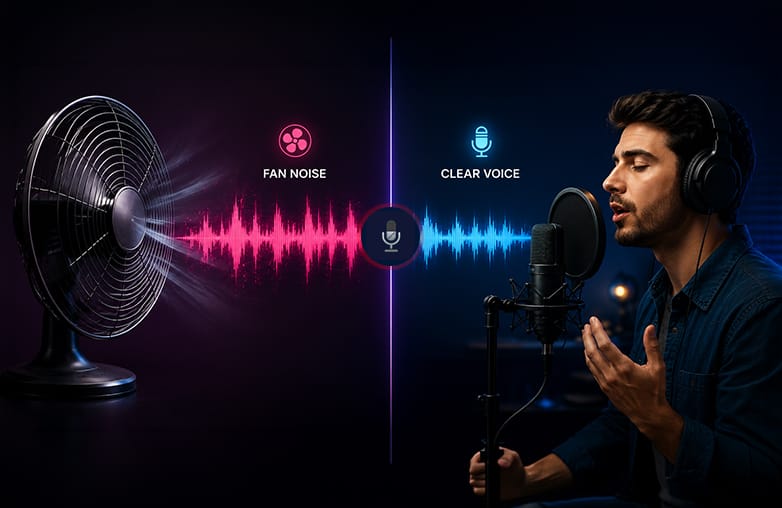
What are you recording? Podcast, interview, or YouTube Voiceover? If you’ve landed on this blog, you’ve probably heard background noise in your voice recordings. One common pesky background distraction is fan noise. It can come from a ceiling fan, air conditioner, or table fan.
The best part is you can remove such distractions and make your recordings sound more professional. Voice recording apps like AudiOn offer features to make your recordings crystal clear. Here’s how you can remove fan noise from a recording. Keep reading for all the deets to make your recordings shine.
Why is fan noise common in recordings?
To remove background fan noise, you must understand its causes. It becomes noticeable when the fan runs at high speed, the microphone is close to a fan, the microphone is in a quiet room, the microphone picks up ambient sound, or the recording gain is set too high.
You can reduce fan noise and make your voice-over clearer with apps like AudiOn. However, it is better to prevent noise during recording than to clean it up after. Read on to learn how to reduce fan noise in audio.
How to remove fan noise from a recording
Remove Fan Noise from a Recording
For a clean audio recording, control your recording environment. If you still find background distractions, noise reduction software and audio editing apps can help remove them.
You may find this blog informative: How to remove mouth clicks from audio.
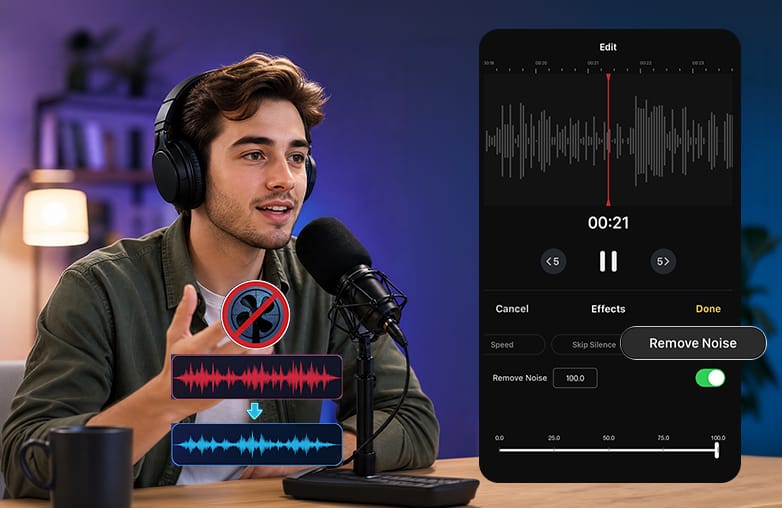
Use the Denoise Feature
Denoise is a feature found in apps like AudiOn. This feature reduces background noise and makes your speech clear. AudiOn is a recording and editing app that helps improve the quality of your recordings. You can remove constant noise with the Denoise feature. However, keep realistic expectations; it’s not possible to eliminate background noise completely.
Heavy noise reduction can sometimes make speech sound artificial. A limited amount of cleanup is enough to make your voice noticeable and clear.
This blog may be of interest to you. How to remove echo from audio recordings.
Try Voice Isolation
AudiOn iOS offers Voice Isolation, a recording mode that focuses on your voice and reduces background distractions. Use this feature to record when you know there are background distractions. For example, if you’re recording a podcast in a room with a ceiling fan running. You can turn on Voice Isolation to capture your voice clearly and reduce background noise.
Voice Isolation is useful when you’re trying to get clean audio while recording your voice, while Denoise is helpful when you’re cleaning up an existing recording.
You might like what this blog has to offer: How to make a voice recording sound clear and professional.
Use EQ
Some fans produce a low mechanical hum that sits underneath your voice. This is where Equalizer (EQ) can be helpful. AudiOn offers EQ presets. Try and see which preset works best to make your voice clearer.
Applying too much EQ can leave your voice thin or unnatural. Use the EQ as a finishing tool rather than a fan noise removal method.
Remove Unwanted Pauses with Skip Silence
Audio noise reduction is not the only way to make your recordings shine. Long pauses can make your recording sound dull and unprofessional. AudiOn includes the ‘Skip Silence’ feature that removes unwanted pauses and keeps your recordings moving smoothly. This doesn’t remove the fan sound, but it can be useful after you’ve reduced the background noise. You can clean up the recording and add a professional touch with the ‘Skip Silence’ feature.
Trim, Cut, and Merge Your Recording
You can find editing tools in AudiOn for trimming, cutting, and merging audio clips. For example, if the fan noise is more noticeable when you’re not speaking, you can remove that unwanted noise rather than processing the entire recording. You can also merge separate recordings. Voice recording cleanup is incomplete without trim, cut, and merge tools.
Make Your Recordings Sound Better with Reverb and EQ
So if you’ve already reduced the fan noise, and you may want to make your voice sound clearer, you can try Reverb and EQ controls. Reverb doesn’t remove fan noise; adding too much reverb can make background noise more noticeable.
Keep Reverb subtle and use EQ to improve voice clarity rather than using it as a noise reduction tool.
Use Pitch and Speech Controls
AudiOn offers Pitch and Speed controls while recording. These are not the features to remove unwanted fan noise, but these are excellent features to make additional adjustments after cleaning up the recording.
How to Prevent Fan Noise in Recordings
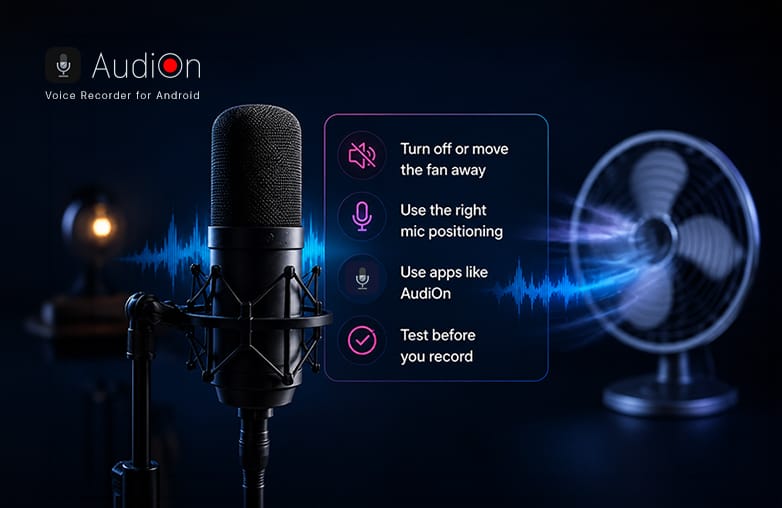
You may find fan noise remover tools, but it’s always better to prevent than find a solution. Before you start recording, turn off the fan if you’re comfortable with it. Move your microphone away from the airflow. Avoid unnecessarily high microphone gain. Record a short clip and test before starting the actual recording.
Use headphones to check the recording. Even moving the microphone a little away from the fan can make a difference.
Reduce fan noise from voice recording
Bottom Line
Now that you know how to remove fan noise from a recording, you can create high-quality recordings. If you know how to remove or prevent fan noise in your recordings, you’re already saving time.
FAQs
Does noise reduction affect voice quality?
A moderate reduction will keep voice quality natural. However, excessive reduction can make the voice sound robotic, thin, or hollow.
Is it possible to remove fan noise from a recording?
Yes, it is possible to reduce fan noise from a recording. However, a 100% reduction is not possible, and too much reduction can affect the quality of the original voice.
Does AudiOn remove fan noise?
AudiOn offers background noise removal and voice isolation features that can help reduce unwanted background noise.
Does EQ remove fan noise?
EQ is not a noise-removal tool. It can help make your voice clearer but cannot remove fan noise.
Is AudiOn available for both Android and iPhone?
Yes, AudiOn is available on both Android and iPhone. However, the features may vary.