

























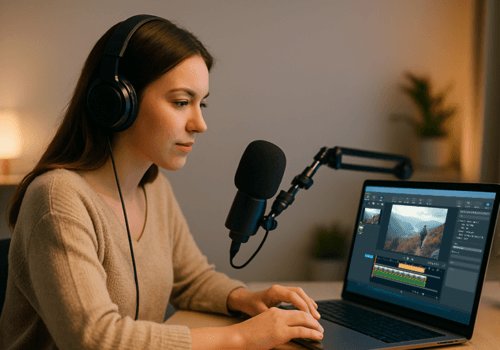







Once you’ve finished recording, it’s important to listen to it before posting or publishing it. So when you start listening to it, do you find your voice echoing? This is a common problem, and luckily there is a solution. Echo or reverb can make your voice sound less professional and affect the overall quality of your recordings.
The right place and audio enhancement tools can prevent an echoey recording. In this blog, learn how to remove echo from audio and know what causes it. Also, learn about apps like AudiOn to remove echo and get crystal-clear recordings.
Why Recordings Capture Reverb and Echo
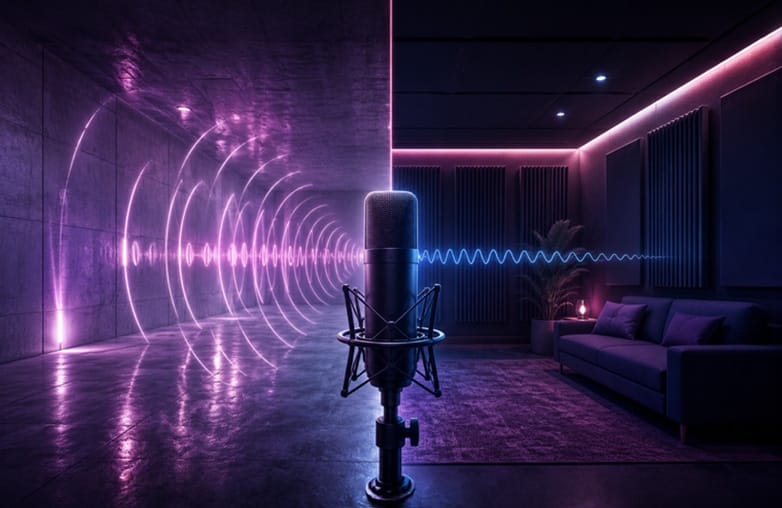
Reverb and echo become noticeable when sound reflects off the surfaces around you while you’re recording. In an untreated room, the microphone doesn’t capture just your voice directly. It also picks up these reflected sounds. Surfaces such as large windows, bare walls, and tiled floors are particularly reflective, causing those reflections to become part of the recording.
The effect can be especially strong in smaller rooms when hard surfaces are close to the microphone. Empty bedrooms are one common example. Larger spaces can produce longer-lasting reflections, creating a reverb trail that makes speech seem farther away and harder to understand. Echo removal from audio is possible with the right app. All you need is a good voice recorder and editing app like AudiOn. Continue reading to learn more.
Why Recordings Capture Reverb and Echo
Understand the Echo in Your Recording
If you want to remove room echo or fix other echoey voice recordings, you need to understand its cause. Give it a few seconds and listen to it carefully. Not every echo sounds the same. Once you know the type of echo and its cause, it becomes easier for you to remove it.
Repeating words after you speak
If you can hear a quieter version of your words a moment later, you’re dealing with a noticeable echo. This usually happens when your voice reflects off a nearby wall or another hard surface before reaching your microphone.
Voice sounding distant or speaking in an empty room
Sometimes, reflections blend into your voice, making the recorded voice sound hollow. This is common when recording in rooms with very little furniture, tiled floors, or bare walls.
Overlapping Recordings
A short delay between your voice and the reflected sound can make your speech sound doubled. You might notice that words aren’t as clear as they sounded when you were speaking.
Voice lingering after you stop speaking
Play a section where you pause between sentences. If you still hear the tail of your voice after you’ve finished speaking, the room is likely reflecting your voice toward the microphone.
Recording in a room with reflective surfaces
Be careful about where you record. High ceilings, bare walls, glass windows, and wooden floors can reflect sound. An empty room is likely to create echoes because there is little furniture or fabric to absorb those reflections.
This blog could provide valuable insights: How to make a voice recording sound clear and professional.
Microphone placed far from mouth
When your microphone is far from you, it is likely to capture more room sound along with your voice. If you were recording from across a desk or using your phone several feet away, the microphone may have picked up considerably more reflected sound.
Once you know what is causing the echo, you can choose the right audio echo remover or echo removal tool to reduce the unwanted reflections and make your voice sound crisp and clear.
Give this blog a read: Best AI audio enhancers.
How to Remove Echo from Audio Recordings?
If you’re looking for ways to eliminate echo from voice recordings, here are some of the best approaches to follow:
Use an audio enhancement tool.
Want to reduce echo in a recording? Try audio enhancement software or an app that improves voice clarity. Voice recording apps can help remove echo from a voice recording. However, it cannot eliminate 100% of the echo from your recordings.
For someone who prefers recording from their phone, AudiOn can be your best pick. It offers features for noise removal, equalization, voice isolation and audio ducking on iOS, audio editing, and voice enhancement to offer high-quality audio recordings.
Use AudiOn to Improve Voice Recordings and Reduce Echo
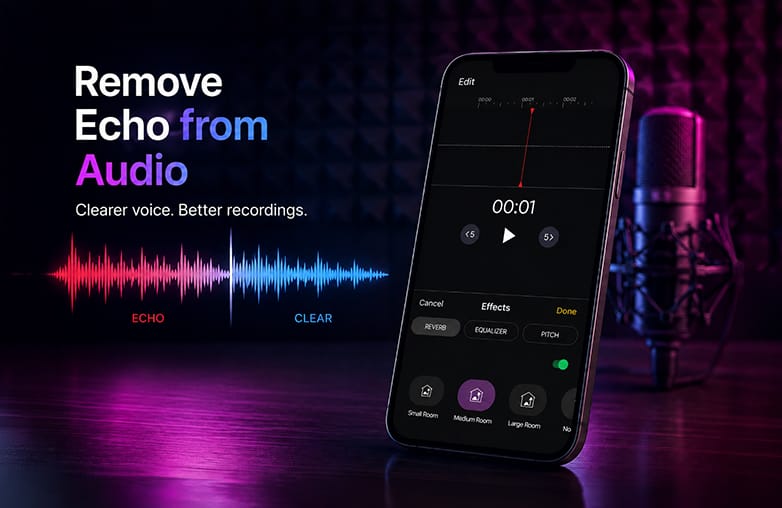
Still thinking about how to remove echo from audio on your phone? Stop thinking and use AudiOn to clean up recordings. Whether you’re looking to improve voice recordings, audio clean up, or remove reverb from audio, this app for iOS and Android can help to improve the quality of voice recordings.
AudiOn can eliminate background noise. Its Voice Isolation mode on iOS can also focus on the voice while reducing unwanted background noise.
Rule 1: Record your audio in AudiOn.
Open AudiOn and start recording your voice. If you’re using an iPhone, choose the suitable microphone mode for your recording. Choose ‘Voice Isolation’ when you want to focus on your voice and eliminate background distractions.
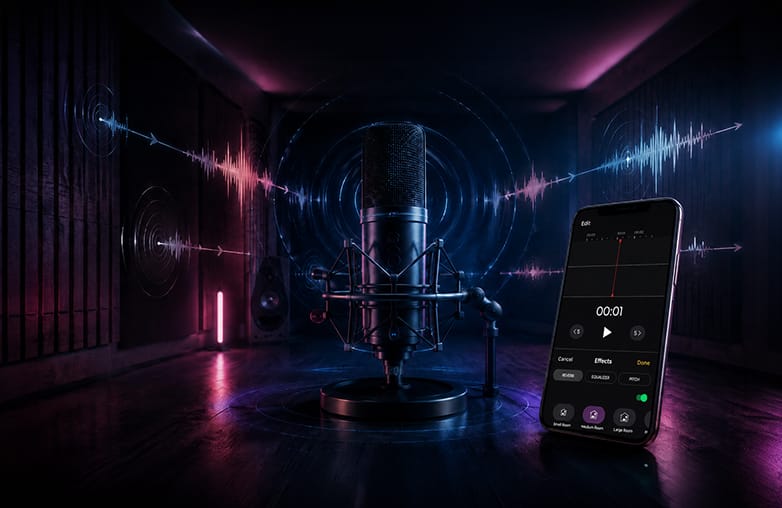
sound reflections causing echo in voice recording
Rule 2: Apply noise removal
Too many background distractions in your recordings? Use AudiOn’s noise removal features to reduce unwanted sounds. However, you need to understand that noise removal and echo removal are different. Noise removal features reduce unwanted background noise, while echo and reverb come from reflected sound. It’s not possible to completely remove reverb from audio or eliminate echo from recordings with noise removal features.
Rule 3: Adjust the EQ
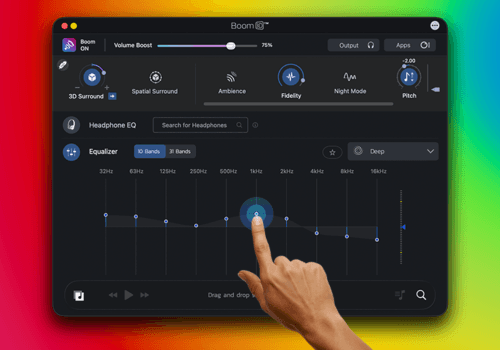
AudiOn offers equalizer presets that allow you to adjust the voice tone of your recordings. EQ doesn’t erase echo. Instead, it can help reduce some of the frequencies that make a recording sound muddy.
Rule 4: Preview your recording
Make a habit of listening to your recordings before exporting them. Make appropriate adjustments to your recordings and make sure they are clear and easy to understand.
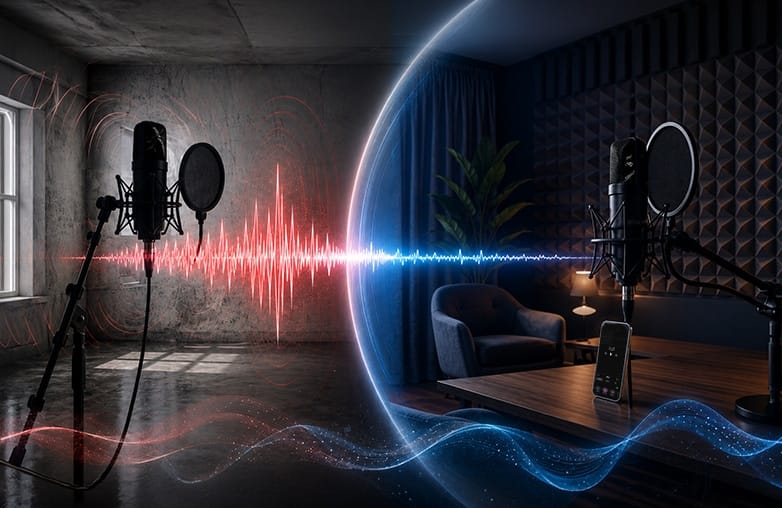
microphone placement to reduce room echo
Bottom Line
You cannot completely remove echo from audio; however, following certain recording techniques can make a huge difference. You can prevent echo from a recording by recording in a room with soft surfaces and avoiding large, empty rooms. Placing the microphone at the right distance and turning off unnecessary sound sources, like a fan, air conditioner, or other noise, can improve the quality of your recordings.
Download AudiOn for iOS or Android for crystal-clear and high-quality recordings.
FAQs
Can I completely remove echo from a voice recording?
It is not possible to completely remove echo from a voice recording. However, you can try to reduce it with noise removal features of a voice recording app.
Can EQ remove echo from audio?
EQ cannot erase echo, but it can make an echoey recording sound clearer.
What is the difference between echo and reverb?
Echo is delayed repetition of a sound, while reverb is a collection of quick reflections that blend and create a lingering effect.
How can I prevent echo when recording my voice?
Record in a room with soft furnishings, avoid empty and large spaces, close doors and windows, and position your microphone correctly.