





































Macs are known for speed and reliability, but even the best systems can slow down over time. If your Mac is running slow, these proven tips will help you improve performance, free up memory, and restore smooth macOS speed—without spending money.
macOS updates, storage usage, and background apps can impact performance over time. These fixes are updated for the latest macOS versions.
The Mac system is popular for its best performance. It’s fast, sleek, and a favorite among millions of users. However, even with all these advantages, a Mac can still experience slowdowns. We install apps and programs that are essential for our day-to-day work and entertainment, but they can consume a significant amount of memory, making your Mac less efficient and slower than it once was.
Are you also a Mac user experiencing slowdowns? A Mac running slowly can significantly impact productivity and cause frustration. We will guide you through various solutions to resolve the issue and speed up your Mac. The best part is you don’t need to break the bank; these are simple fixes with proven results.
Give it a Fresh Start
If your Mac is running slow, the best and easiest fix is to restart the system. Do you often leave your Mac running for long periods? You may rely on sleep mode instead of shutting it down. If you keep running your Mac for a long time, it can cause memory to stay occupied by background processes and unused apps.
Why Is My Mac Running Slow?
Restarting your Mac clears the RAM and stops unnecessary system tasks. This is how to speed up a Mac and improve performance if it has slowed down.
You can also read: Best Editing Software for YouTubers.
Clean Up Startup Apps
Have you noticed that some apps automatically launch when you start your Mac? If your device is slow after turning on, there may be too many startup apps. To make your Mac faster, all you need to do is:
- Open System Settings.
- Go to General and then Login items.
- Click the Minus(-) button to remove any apps you don’t need when turning on your Mac.
You can also check the “Allow in the background” section. Disable apps that you don’t want when turning on your Mac.
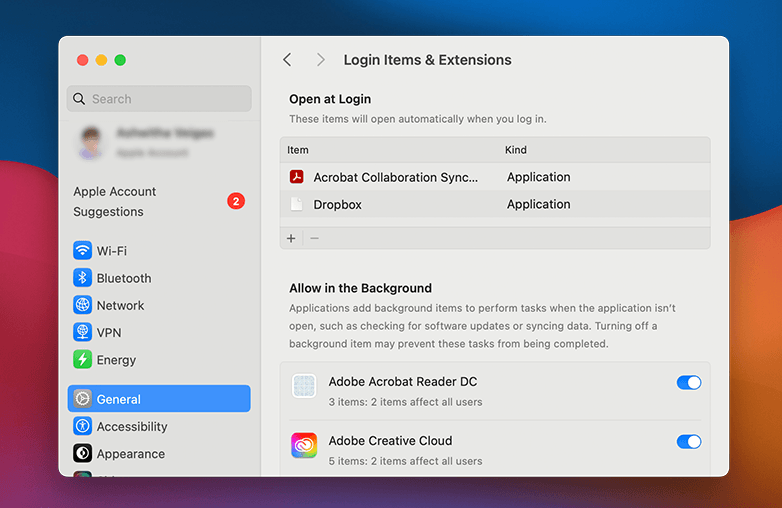
Clean Up Startup Apps
Mac lagging After Update Fix- Get Rid of Unnecessary Apps
We download various apps that once felt important, but may no longer be so. These apps consume storage space and may slow down your Mac’s performance. When your Mac is running slow even after a system update, deleting unused apps can be effective to free up disk space.
This is how you can remove unused apps:
- Open System Settings.
- Go to General and then Storage.
- Click Applications.
- Select an app that you don’t use and click Delete.
There are other ways to delete apps. You can go to Finder, and then Applications, drag the app to the Trash, and then empty the Trash. If you download an app from the App Store, open Launchpad, press and hold the app icon, and click the X. Try this; it might speed up your Mac.
You might also find this helpful: Best Tips to Get the Perfect Video and Webcam Lighting.
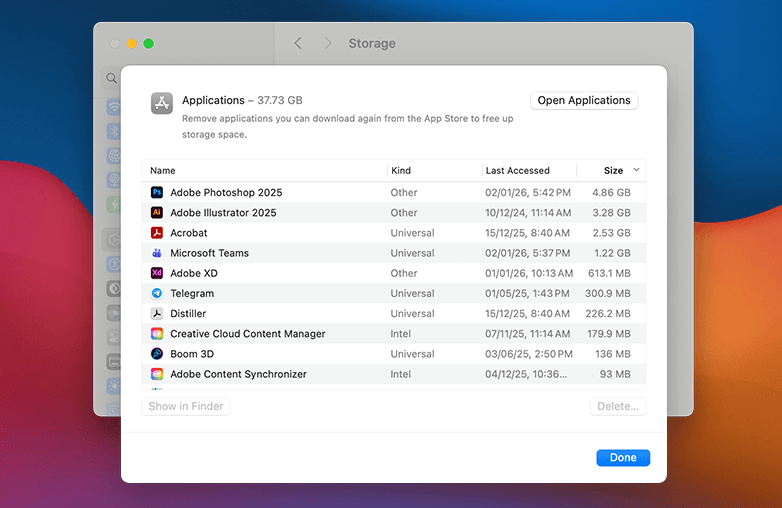
How to Speed Up Your Mac (Step-by-Step)
Clear Cache on Your Mac
Cache files are temporary data intended to speed up Mac performance, but they can gather junk files that can slow down your Mac. When too many cache files gather, they can take up storage space. Regularly clearing the cache is an important part of Mac performance optimization, as it frees up disk space and removes junk files.
How to Clear Cache on macOS
You can use tools to remove unnecessary cache files easily. You can download CleanMyMac to clear the cache on your Mac. Such tools are safe to use, and clearing the cache will help your Mac run smoothly.
Close Unused Browser Tabs
How many browser tabs are currently open on your Mac? Two, five, or more than that? Every browser tab uses your memory and processing power. Yes, you heard that right. Even if you’re not actively using the tabs, they will use memory. Your Mac can get slow and unresponsive.
If you want to speed up your Mac without a reset, close tabs that you don’t require currently. This can help free up RAM and power, and your Mac can run smoothly. If you want to save important pages, you can bookmark tabs or save them to your browser’s reading list.
You can also check out: Video Editing Tips to Make Your Video Look Professional.
Update Your Mac
Apple offers regular updates that improve performance, maintain security, and fix bugs. Your Mac is best when it is up to date. Running old versions can sometimes cause slowdowns.
How to update macOS:
- Go to System Settings.
- Go to General and then Software Update.
- If an update is available, click on Upgrade Now.
Make sure you’re connected to power; this may take some time, and your Mac may restart during the update. Keeping your Mac up to date is one of the most effective Mac running slow fix tips.
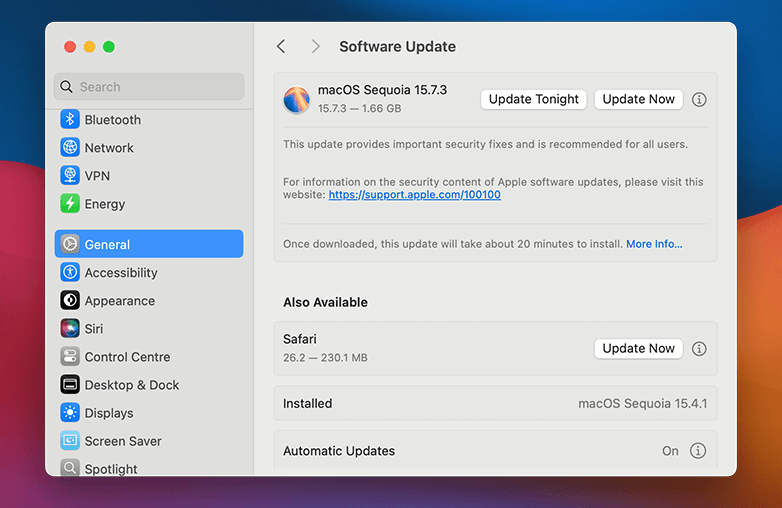
Software Update Your Mac
Bottom Line
These are easy tips to speed up your Mac without burning a hole in your pocket. With these simple steps, you can enjoy a smooth experience that Apple products are popular for.
FAQs
How can I speed up my Mac?
You can restart your system, remove startup apps, delete unused apps, clear cache, close unused tabs, and update your Mac.
Can I speed up my Mac without installing a third party software?
Yes, you can follow the above steps and keep updating macOS regularly.
Does clearing the cache speed up a Mac?
Yes, it can improve speed and overall Mac performance.
Reference Sources:
- Kingston – “6 Ways to Speed Up Your Mac’
- crucial – “Mac running slow? How to speed up a Mac’
- macpaw – “How to make Mac run faster: a complete guide [15 tested-and-tried tips]”
- avast – “Mac Running Slow? 15 Proven Solutions to Speed Up Your Mac”










Pingback: Mac Running Slow After macOS Update? Try These 7 Fixes - GD
Pingback: Reduce System Data on Mac: Easiest Tips that Work - GD
Pingback: How to Clear Cache on a Mac - Simple & Safely? | GD