


































macOS updates offer optimized security and cool new features, but with all the advantages, there can also be disadvantages. If you’re facing the Mac running slow problem after an update, you’re not alone. It’s common that your Mac may slow down after updating Tahoe, Sonoma, Sequoia, or other versions.
If your Mac is running slow after a macOS update, it’s usually due to background indexing, storage pressure, or compatibility issues. The good news? These problems are temporary and easy to fix.
The reasons can vary; one could be that the update has consumed too much disk space, other reasons could include updating apps, file reindexing, and more. These are temporary issues that can be fixed with simple tips. In this blog, you will learn how to restore your Mac’s speed without complex procedures. Below is a detailed guide to help you get started.
Fix macOS Update Performance Issues
Step 1: Simply Restart Your Mac
Sometimes, major problems have simple solutions. One way to fix a Mac running slowly is to restart your system. So if you recently upgraded to the latest macOS, and if your Mac is running slow, simply try this method, and enjoy a Mac that’s fast, just as it’s meant to be.
When you install a new version, cache files and background processes often run in the background, causing macOS update performance issues. A quick restart can improve overall performance and might help clear temporary memory and unnecessary processes.
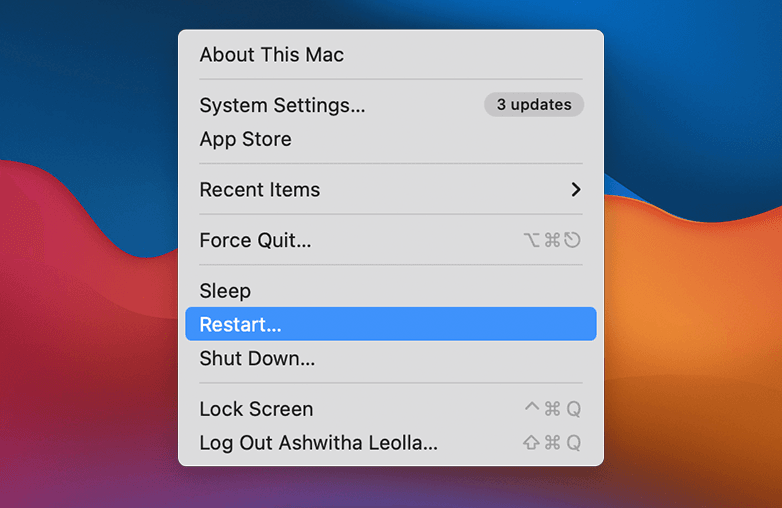
Simply Restart Your Mac
Step 2: Check Your Mac’s Compatibility With the Latest macOS
If you’ve already restarted your system and are still wondering, “Why is my Mac running slow?”, it’s time to check your hardware compatibility. Newer macOS versions can cause performance limitations on older Macs. It is designed with newer devices in mind. Before you update, check whether your system supports the latest macOS version.
These are some of the ways you can check compatibility:
- Check Apple’s official support pages to see which Mac models are supported by the latest macOS release.
- Read reports and blogs from tech websites to understand how older Macs perform and whether certain features are limited.
- Explore social media and Apple Community Forums to see if users with the same model mention issues like my Mac is running slow after updating.
Step 3: Reduce Visual Effects
macOS visual effects are fantastic, but they can hamper the performance of your Mac. After a major update, they can slow things down, especially if your Mac is slow after a Sonoma/Ventura update. To speed up Mac, you should turn off a few visual effects.
You can do this by going to System Settings > Accessibility> and then enabling Reduce Motion and Reduce Transparency. This simple change works well as a Mac lagging after update fix, as it reduces the load on your system.
Now, you can see the difference in the performance and speed.
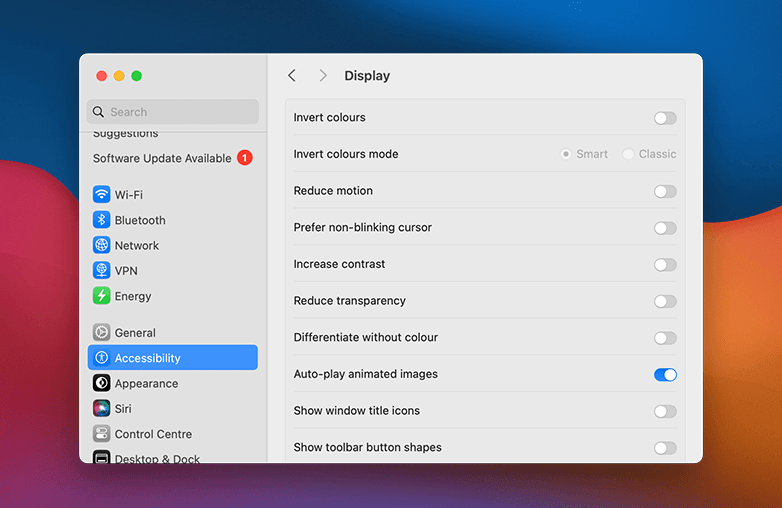
Reduce visual effects to fix Mac running slow after update
Step 4:Turn Off Startup Apps
Do you like everything ready the moment your Mac turns on? There can be browsers, Notes, Microsoft Teams, and more. If you notice carefully, one reason your Mac is running slow during startup is because of these apps. Too many apps during startup can delay boot time.
You can fix this problem in the following way:
- Go to System Settings.
- Now go to General>Login Items and Extensions.
- Click on the minus(-) button if you don’t want to remove apps that you don’t need to launch automatically.
Try this method, and your Mac will boot faster, and its overall performance will improve.
You may also find this blog helpful: Learn how better lighting improves video performance
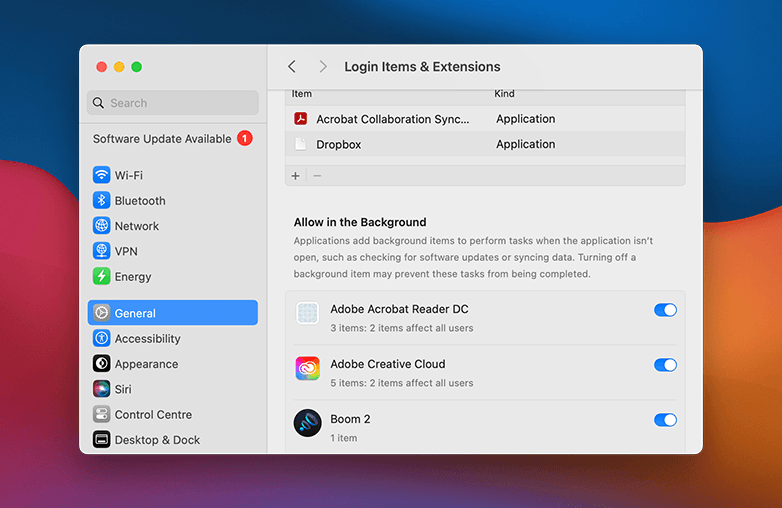
Turn Off Startup Apps
Step 5: Check and Free up Storage Space
Trying to fix a slow Mac after a system update? Try freeing up storage. Major macOS updates need extra space to run background tasks. When your storage is full, your Mac may feel slower than usual.
You can start by examining how much space is available, and you can also remove apps, files, or downloads that are not needed.
This is how you can free up storage on a Mac:
- Go to System Settings.
- Go to General and then click Storage.
- Examine the storage to check what’s taking up much space.
- Open Finder and look for large or unused files that you don’t need anymore.
- Right-click the files and choose Move to Trash.
- To remove apps, go to System Settings>General>Storage>, select Applications, and uninstall unwanted apps.
- Empty the Trash to save more space.
Step 6: Check Activity Monitor
- Identify CPU / Memory hogs
- Quit resource-heavy apps post-update
Step 7: Update Apps After macOS Update
- Old apps = performance conflicts
- Especially Adobe, Chrome, Teams
Step 8: Reset SMC & NVRAM (Advanced Users)
- Helps with fan noise, lag, startup delay
If your Mac has slowed down after a recent update, you can try this step.
You can also check: Explore the best editing software for YouTubers to reduce system load
Bottom Line
A Mac running slow can be frustrating, and it can delay your work. However, these issues can be fixed with the above-mentioned steps. Identify the real issue and try these steps, you’ll be surprised to know the results. Ready to use a Mac that works as efficiently as it should? Follow our guide.
FAQs
Is it normal for a Mac to slow down after updating macOS?
Yes, it’s normal for your MacBook to slow down after a macOS update. However, it’s a temporary issue that can be solved by following simple steps.
How to Speed Up a Mac?
You can speed up your MacBook with the following steps:
- Restart your system.
- Check your system’s compatibility.
- Reduce Visual Effects.
- Turn off startup apps.
- Free up Storage Space.
How can I improve Mac performance?
You should update the software, and clear the cache and system junk to improve performance.
Reference Sources:
https://macpaw.com/how-to/fix-mac-running-slow
https://www.crucial.in/articles/mac-users/what-causes-slow-mac