





































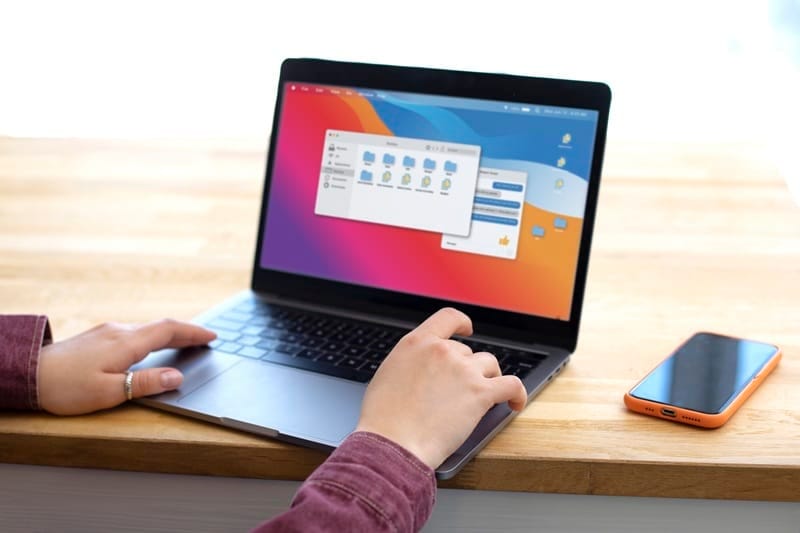
Nothing can be more frustrating than your Mac running slowly. Have you noticed that your applications have been hanging recently? You must also observe the delayed response or warning messages about low memory. These issues typically indicate that your RAM is being utilized beyond its capacity.
The good news is you can free up RAM on a Mac with simple steps. One option is to install more RAM, but if you’re looking for a budget-friendly option, bookmark this guide. Learn how to free up space and speed up your Mac.
What is RAM?
Random Access Memory (aka RAM) is your computer’s memory used to hold data for system processes and active applications. It enables apps to load quickly and ensures they work smoothly while running on a Mac. As RAM usage increases, a Mac has less space to operate smoothly, which can lead to slow performance. This is when you should look for ways to reduce memory usage on Mac.
You may also wonder why your Mac is running slowly after an update. New macOS versions can require more memory, making your Mac run slowly.
Mac High Memory Usage Fix
Restart Your System
One of the best and simplest ways for a Mac running out of memory is to restart the system. When something is not working properly in your system, we mostly try turning it off and on again. In many cases, this works. Restarting your Mac clears temporary system caches and clears out RAM, which can help your Mac speed up its performance.
It is also one of the best steps to follow to remove cache files safely on Mac. However, sometimes you have ongoing work, you may have multiple programs running on your Mac, and you can’t choose to restart your system. In that scenario, you can follow the other steps mentioned in the following section to clear RAM without restarting the Mac.
Clear System Storage
Another step to free up RAM is to clear system storage. You can manage it with macOS built-in optimization tools. When you free up storage space, your Mac’s performance improves and becomes more responsive.
Clear Mac’s System Storage:
- Open System Settings.
- Go to General and then Storage.
- Review the options, such as Store in iCloud, Optimize Storage, and Empty Bin Automatically.
- Enable the option that fits your needs to free up space.
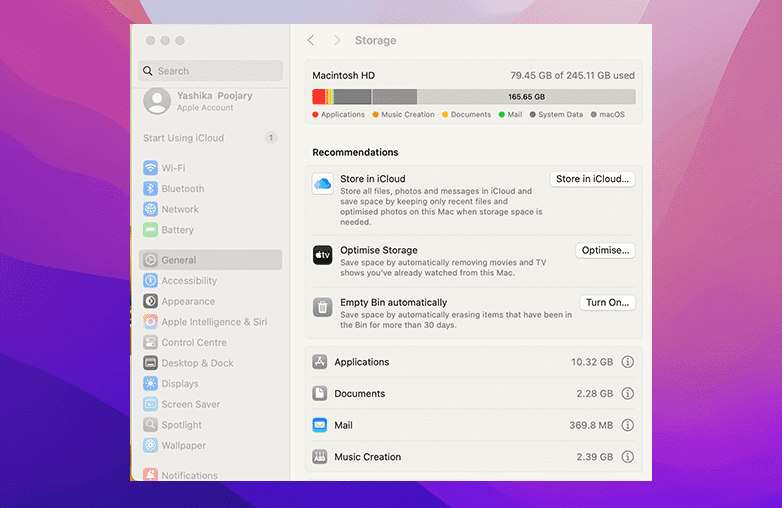
Free up ram mac storage settings
This may not directly clear RAM, but it is useful to manage resources. It can help your Mac utilize the available memory more efficiently. This is how to manage memory on a Mac and make it run smoothly.
Clear RAM Using Terminal
If you want to clear disk cache and free up space, you can use Terminal. It doesn’t remove important data or force-close apps; it removes cached memory and improves the Mac’s speed. If you notice high memory pressure in Activity Monitor, it’s time that you use Terminal.
How to Use Terminal to Reduce RAM Usage?
- Open Terminal from Applications.
- Type sudo purge and press Return.
- Enter your Mac user password when prompted.
- Wait a few seconds to complete the process.
Remove Unused Applications
Another step to reduce memory usage on Mac is to remove unused applications. If you open Finder, you will be shocked to see applications that you no longer use. These applications can consume RAM, even when they’re not actively used.
This is how you can uninstall applications on a Mac:
- Open Finder, go to Applications.
- Find the app you want to remove.
- Right-click and select Move to Bin.
- Open Trash and Empty it.
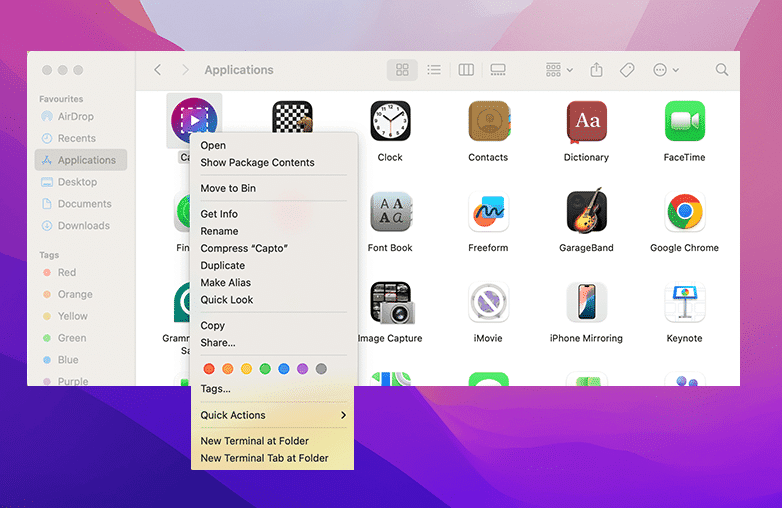
Remove Unused Applications
This is one of the best practices to lower memory usage and keep your system running smoothly.
Update macOS
Lastly, you can update macOS to the latest version. This may take some time, and we’re sure you don’t want to do this in the middle of important work. Many times, performance issues are caused by known bugs in older macOS versions.
Apple regularly releases macOS updates with better security, performance improvements, and bug fixes. These updates can improve overall system performance.
How to update macOS
- Go to System Settings.
- Click on General and then Software Update.
- If an update is available, click Update Now or Upgrade Now.
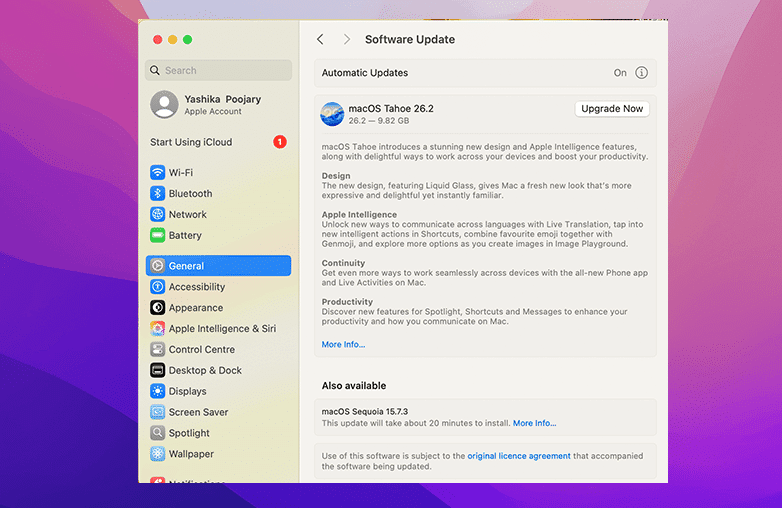
Update macOS
Bottom Line
These tips will free RAM on Mac and ensure your system is running smoothly. You don’t need complex procedures to fix your Mac; these simple tips will give the desired results. Moreover, these steps are easy to follow and will give you quick results.
FAQs
Which apps consume the most RAM?
Some apps consume more memory than others. Programs that use more RAM include video and photo editing software, Chrome, video games, video conferencing apps, and music streaming apps.
Does adding more RAM speed up a Mac?
Yes, it can improve your Mac’s performance. Adding more RAM is a good idea if your Mac is running slowly because of limited memory. However, if your system is slow due to other factors, adding RAM alone may not speed up your Mac.
How do I check RAM usage on my Mac?
Open Activity Monitor from Applications, then go to Utilities and select the Memory tab.
Reference Link:
- Macworld – Comprehensive guide to freeing RAM on Mac
- Norton – Performance tips for freeing system memory
- Nektony – Mac memory optimization techniques
- Setapp – Managing memory usage on macOS
- TechToro – Step-by-step RAM cleanup guide










Pingback: Speed Up Mac Performance Without Reset - Global Delight