



















There are several tasks we perform in a day, which can be related to work, education, or business. One thing that stays constant is our Laptop or PC. Our day-to-day work is incomplete without it. Even on weekends, they are our ultimate partners for enjoying movies or listening to music.
Another thing that’s common these days is to add webcam footage to make your video instructional, engaging, and to add a personal touch. However, every time you turn on your webcam, there is a mix of emotions: “How do I look”? facial expressions, posture, voice tone, and more. The good news is that with the right screen recording app and the knowledge of how to record video on PC, you can create outstanding content. Read on for more deets!
The Best Screen Recording Software For Mac and Windows
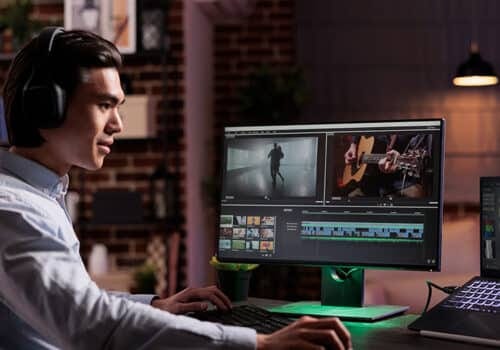
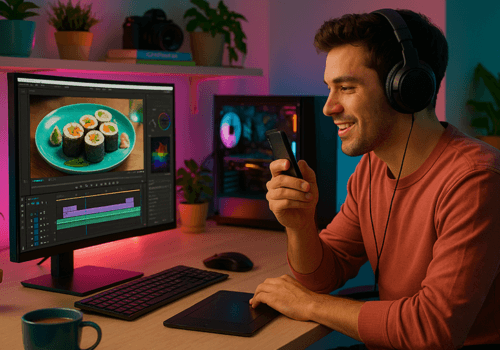
Capto is a powerful screen recording app that offers editing tools to make your content stand out. If you’re looking for video editing software to edit your travel, food, and other vlogs, or create presentations, tutorial videos, and more, Capto is the ultimate choice.
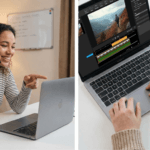
It has millions of downloads and is the top choice for professionals who want high-quality screen recordings. Capto offers a Webcam overlay feature with which you can record yourself and your screen simultaneously. Moreover, you can edit your recordings to make them more informative and add a professional touch. You can also add voice-overs to your screen recordings. To make your screen or Webcam recordings the best, download Capto for Mac or Windows.

Best software for recording webcam and screen together
Do Webcam Recordings Matter?
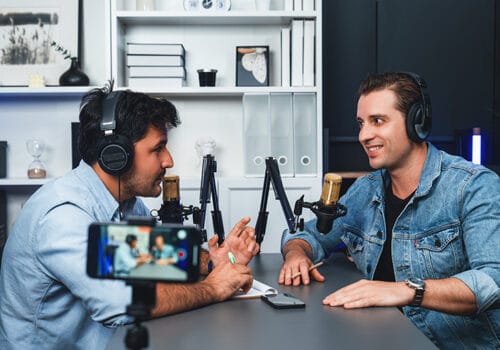
If you’re an instructor, corporate professional, teacher, gamer, or business person, webcam recordings matter to explain your concept and to engage your audience. They can build trust; moreover, they help your viewers connect with you.
When you record video on PC, you’re not only capturing footage; you’re sharing your idea, presence, and you’re showcasing your personality. That’s why you need to choose a great app like Capto to make your presence strong and explain your ideas clearly.
How To Record Webcam Video?
Declutter the frame
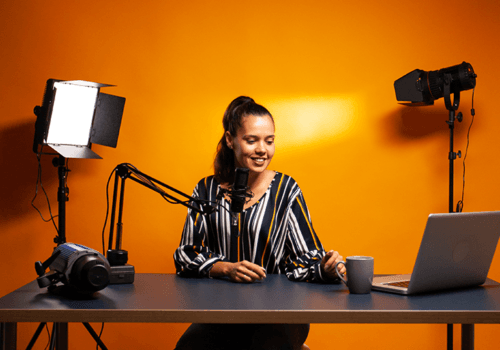
The first thing you need to do before you hit the record button is to clear your desk and remove all distractions. This helps keep your viewers’ attention on what you’re saying, instead of your desk or distractions in the background stealing the spotlight.
Install Capto
Once installed, open Capto and choose Screen Recording or Webcam Recording.
Enable Webcam
Select your PC/ laptop camera. You can also preview the camera before you start recording to adjust camera positioning.
Adjust Audio
Check audio levels. Capto ensures clean sound and screen capture, making your recordings stand out.
Select Screen Area
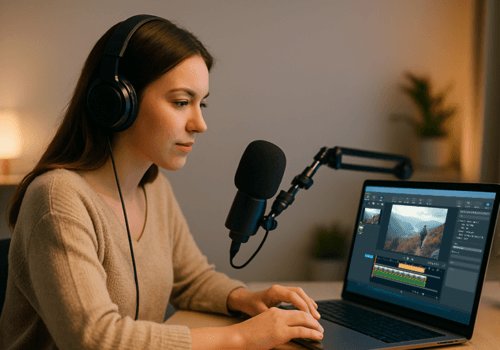
If you’re creating a webcam video tutorial, you can choose a webcam overlay that allows you to record yourself along with your screen; it is perfect for instructional videos and explanations.
Click Record
Start recording and be confident. You just have to focus on your content; everything else will be handled by Capto.
Edit and Export
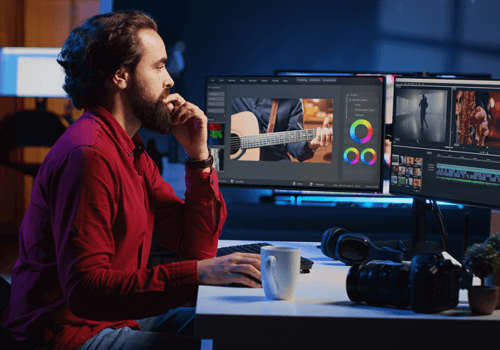
Once you complete the recording, trim mistakes, add annotations, and export your video in high resolution. You can do all this within Capto.
How to Look Good on a Webcam?
Get Your Framing Right
Even with great lighting, poor framing can ruin an otherwise good video. One of the most useful laptop camera recording tips is to keep your camera aligned at eye level so your viewers feel like they’re speaking directly with you.
Avoid placing the camera too high or too low, and leave just enough room above your head for a naturally balanced frame.
“Recording at eye level improves audience retention by 27%.” — Media Training Institute
Choose the Best Screen Recording Software
There’s no such thing as the best setting for webcam recording; it all depends on your setup and requirements. All you need to do is choose the best screen recorder, like Capto. You can choose the resolution, frame rate, edit videos, and do much more. Capto gives you complete control over how your recordings should appear. Adjust the settings, and you’re ready to get studio-quality clarity.
Good Lighting Can Change the Game
Lighting determines how professional your webcam footage looks. Even if your webcam is great, dim lighting can drastically reduce quality.
A simple rule is to keep the main light source in front of you—not behind. Sitting near a window or a soft light creates a bright, clear image that brings your expressions to life.
Bottom Line
Capto supports full HD webcam recording, annotation tools, and webcam–screen overlays, making it ideal for instructors, YouTubers, and remote professionals.
Now that you know how to record video on a PC or a Laptop, it’s time for your next video to stand out. With the right settings and software like Capto, you can record high-quality videos and wow your audience. Download Capto on Mac or Windows.
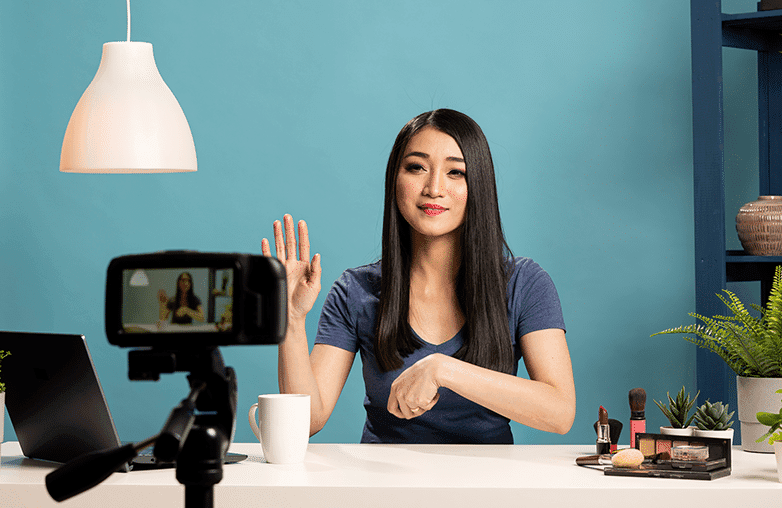
PC webcam recording guide for MacWindows users worldwide
FAQs
Which is the best screen recording software for webcam recording?
Capto is an excellent screen recording solution for webcam videos. It lets you capture your screen and webcam simultaneously, edit your recordings instantly, and export them in high quality—making it ideal for tutorials, vlogs, and presentations.
How do I look good on a webcam while recording videos?
You need to focus on good lighting, and maintaining eye contact can help. Moreover, a good video recording and editing tool like Capto can help improve the quality of webcam recordings.
Can beginners use Capto for webcam recordings?
Yes, Capto is for beginners and seasoned pros alike. If you’re new to screen recording, Capto is the best tool that offers easy-to-use yet advanced features to make your screen recordings look professional.
Reference Sources: techsmith, riverside