



































If you record a podcast, interview, or lecture, you may have noticed that the audio includes fan noise, dog barking, room echo, and other unwanted noise. Background noise in audio is a common problem, and luckily it has solutions. With an audio noise reduction tool, you can make your voice recordings much clearer.
In this blog, we will learn how to remove background noise from audio using AudiOn. These simple recording tips can make your voice recordings stand out. Are you ready to make your voice recordings extraordinary? Here we go!
Start by Identifying the Type of Noise
Before you use a noise reduction tool, take some time to listen to the recording and identify what you’re dealing with. This will help save time and make your original voice sound natural.
A constant fan or AC sound
Steady background sounds are generally easier to mask and reduce. They remain consistent throughout the recording; noise-reduction tools can identify unwanted sound or interference and reduce it without affecting the original voice.
Barking or door slams
Intermittent sounds can occur at any point in the recording and overlap with the original voice, making them harder to remove without affecting the original recordings. This is common in voice recordings, podcasts, interviews, and YouTube videos recorded in different environments.
A humming or buzzing sound
A low-frequency hum can often come from electrical interference or recording equipment. These sounds usually require targeted frequency adjustments rather than applying noise reduction.
Hiss, static, or a cracking sound
Cables, microphone gain, or recording hardware can cause this. You can apply noise reduction, but it can affect the original voice quality. This matters for online classes, presentations, and voiceovers where clarity is prioritized.
Recording outdoors
Outdoor recordings can contain several types of noise at once, including wind, people talking, traffic, and environmental sounds. Wind is challenging to eliminate because it can create deep rumbling that basic noise reduction may not completely remove.
Which Background Noises Are Easier to Remove?
- Steady Background noise: Usually the easiest to remove because it remains consistent.
- Sudden noise: More challenging, particularly when it occurs over someone’s speech.
- Noise overlapping with speech: Difficult to remove completely without changing the voice itself.
- Wind and low-frequency rumble: Often among the most challenging sounds to clean up.
- Severely noisy recordings: If the background noise is louder than the original voice, there may be a limit to how much a recording’s quality can be improved.
Understanding the type of noise first helps you choose the right approach, whether you’re cleaning up a podcast, a voice recording, a YouTube video, an online class, a presentation, or a voiceover.
How to Remove Background Noise Using AudiOn
One of the best ways to remove noise from audio is with a voice recorder and editor app. One such app is AudiOn, which is available on both iOS and Android. It includes features for background noise removal, reverb, transcription, equalization, and other audio editing options.
Here’s how you can use AudiOn to make your recording clearer:
Open AudiOn
Launch AudiOn on your iPhone or Android device.
You can use the app to record audio. You can also import audio recorded from another app. After recording, you can edit the audio.
Import Audio
Import the audio that you want to edit. This can be useful if you have an old voice recording, podcast, lecture, interview, or another audio file that contains unwanted sound.
Apply Noise Reduction
Look for the Denoise or background noise removal option in the editing controls. Apply the effect and review the result. You can reduce unwanted ambient sounds while keeping your original voice unaffected.
Compare the Result
If you want to remove background noise from audio, one important step is to compare results. This is how you know whether you achieved the desired results. Carefully examine both speech and background noise. Check whether the unwanted noise has been reduced. Noise reduction software like AudiOn helps to improve audio quality with its powerful features.
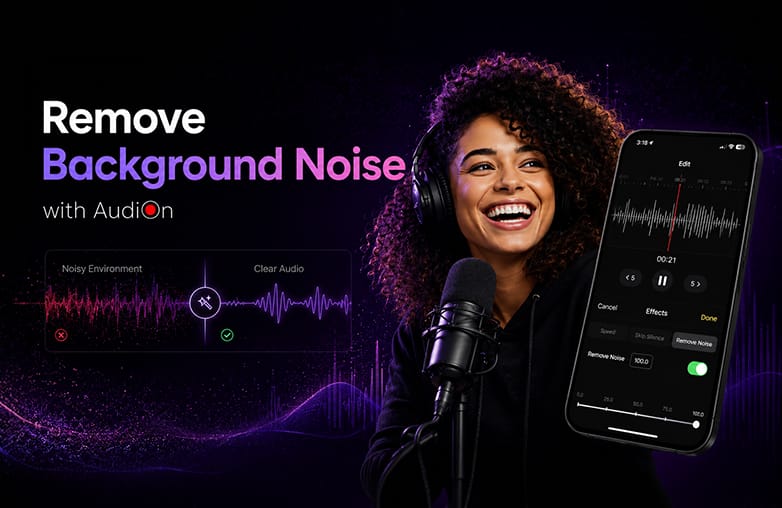
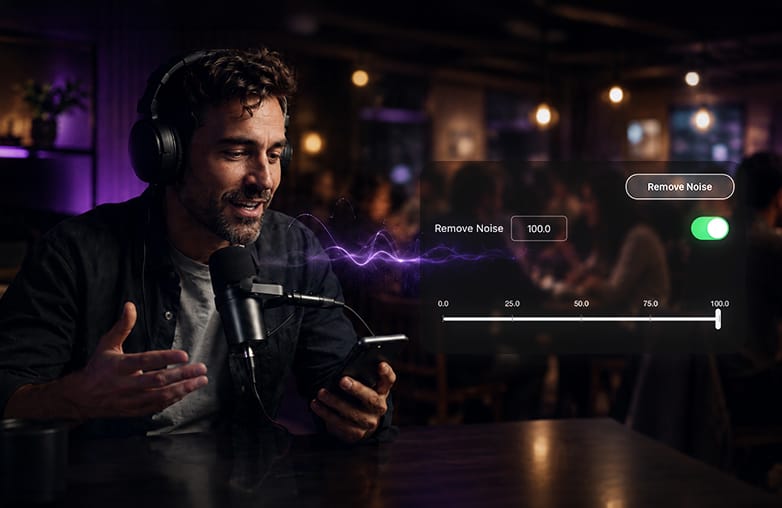
Remove background noise from audio using AudiOn Denoise
Apply Other Audio Enhancements
Noise reduction is not the only solution to improve a recording. AudiOn offers features like equalization and reverb to help make adjustments to the sound. For voice recordings, avoid adding too many effects; a natural voice sounds better than one with excessive processing.
Reduce Noise While Recording with AudiOn
Use AudiOn while recording; it offers features through which you can avoid unwanted noise while recording your voice. AudiOn includes Voice Isolation, which reduces surrounding noise while recording. To use this feature:
- Open AudiOn and start a new recording.
- Check the available microphone or recording modes.
- Select Voice Isolation.
- Start Recording.
AudiOn also offers a Wide Spectrum mode for capturing ambient sound. You can choose Voice Isolation if you want to give priority to clear speech rather than preserving the surrounding environment. The Voice Isolation and Wide Spectrum modes are available only on AudiOn iOS.
Remove Unwanted Pauses with Skip Silence
Want to skip awkward pauses in your voice recordings? Try the Skip Silence feature. This feature will detect silent parts in your recordings and remove them. AI noise removal tools like AudiOn offer the Skip Silence feature to ensure your recording sounds clear and professional.
Other Ways to Get Professional and Clean Audio
If you are looking for an audio enhancer for your voice recordings, AudiOn is your best bet. Here is how you can use AudiOn to reduce background noise and get clear audio.
Use an Equalizer
An audio equalizer lets you adjust different frequency ranges. Adjusting the EQ can make voice recordings sound cleaner. However, EQ isn’t a replacement for proper noise reduction. Applying too many EQ adjustments can hamper the voice quality in your recordings.
Reduce Echo
Choosing a smaller room can reduce echo. Also, add soft furnishings and move closer to the microphone.
Keep the Microphone Close
A microphone far away may capture the surrounding environment’s noise. Keeping it close can make your voice recordings clearer and later audio cleanup easier.
If you’re interested in spatial audio apps, give this blog a read: 5 best spatial audio apps.
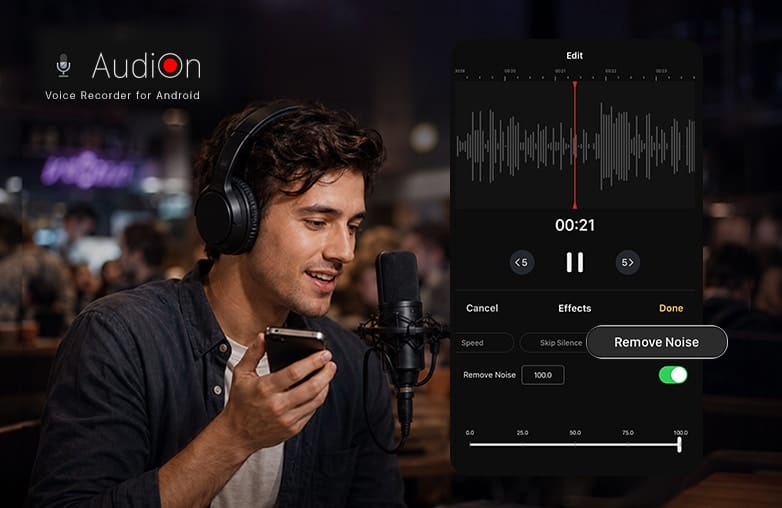
Background noise removal before and after audio
Bottom Line
This is how you can remove background noise from audio. Follow these steps to make your voice recordings sound professional. Download the voice recording and editing app, AudiOn, on iOS or Android, and make your recordings stand out.
FAQs
Can I remove background noise from voice recordings on my phone?
Yes, apps like AudiOn offer noise reduction and background noise removal features on iOS and Android.
Is 100% noise cancellation possible?
No, 100% isn’t possible. However, you can reduce ambient sounds with the right features, like voice isolation and Denoise.
Which is the best voice recorder app for the phone?
Try Audion for iOS or Android. It is one of the best voice recording and editing apps for phones.
Does AudiOn remove background noise?
Yes, AudiOn can remove background noise with Denoise and background noise removal features.
How can I reduce background noise while recording?
Record in a quiet room, and use voice isolation or noise reduction features to reduce background noise while recording.
Does AudiOn offer the same features on iOS and Android?
AudiOn is available on iOS and Android, but features may vary between the two platforms.