




























Whether you’re watching a movie, playing games, or listening to music, good sound can make all the difference. It can make you feel more present in the action and can elevate your entertainment. We all love watching movies in theatres. One of the main reasons is high-quality sound. What if you had the same cinematic audio on Windows? Yes, you can achieve a similar experience with volume boosters and Equalizer apps, as well as by adjusting Windows sound settings.
These simple tips and tricks can change the way you listen. If you’re an audiophile, this blog is for you. Bookmark this blog for future reference.
Turn on Spatial Audio on Windows 11
One of the easiest ways to get a cinematic surround sound experience on Windows 11 is by using Spatial Audio. This feature creates immersive 3D sound for movies, music, and games, making everything feel more realistic. This is how you can switch to Spatial audio:
Step 1: Open Sound Settings
Press Win + I to open Settings, then go to System > Sound.
Step 2: Choose Your Audio Device
Under the Output section, select the headphones or speakers you want to use for cinematic audio on Windows 11. This will open the device properties.
Step 3: Turn On Spatial Sound
Scroll to the Spatial sound section and click the drop-down menu under Spatial sound format. Select Windows Sonic for headphones or any other available 3D audio format.
This will enhance surround sound effects and contribute to a more immersive listening experience on Windows 11.
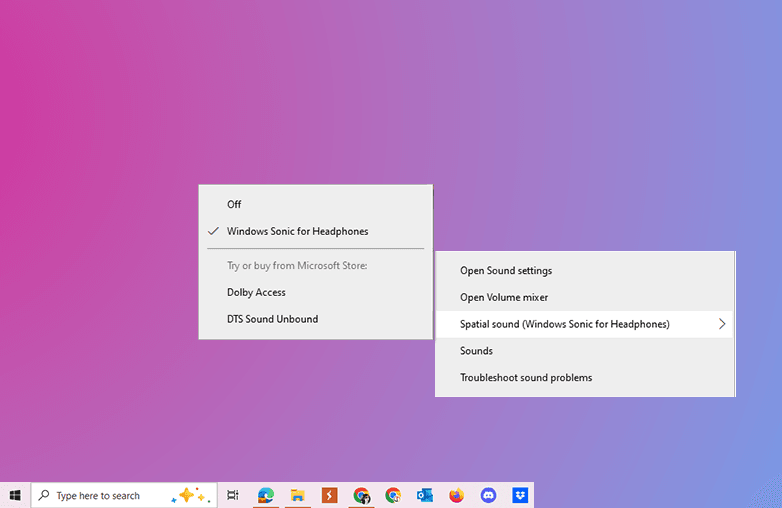
Turn On Spatial Sound
You may also find this blog helpful: Best Spatial Audio Apps for Gaming and Music.
How to Enable Spatial Sound on Windows 10
Spatial Sound in Windows 10 enhances audio with immersive 3D surround sound effects. Your movies, music, and games will sound much more realistic with Spatial sound.
Step 1: Open Sound Controls
Click the volume icon in the bottom-right corner of the taskbar to access the sound controls and Quick Settings menu.
Step 2: Open Spatial Audio Settings
Click the arrow next to the volume slider to view available audio devices and sound options. Select Spatial sound to access the Windows 10 Spatial audio settings.
Step 3: Turn on Spatial Sound
In the Spatial Sound settings window, choose Windows Sonic for Headphones or Dolby Atmos for Headphones from the drop-down menu.
Click Apply, then select OK to save the changes.
Once enabled, Windows 10 delivers a more immersive theatre audio experience with enhanced surround sound for streaming platforms, gaming, and cinematic content.
Download 3D
If you have tried the above steps and still aren’t satisfied with the audio on your Windows PC, you should try Boom 3D for Windows. It is a volume booster and Equalizer app that can level up your listening experience. It is best for audiophiles who seek perfection in their sound.
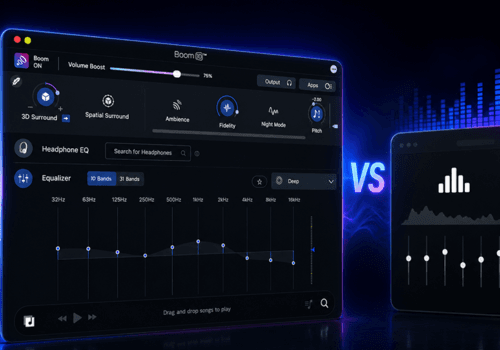
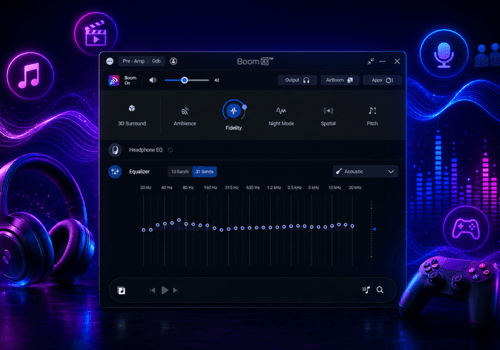
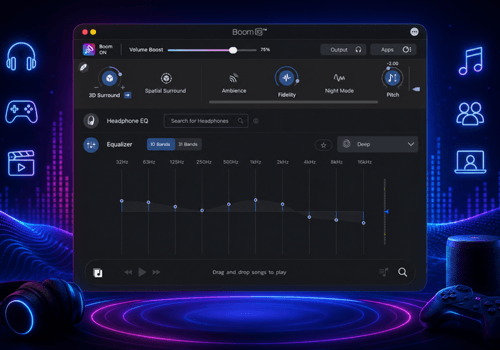
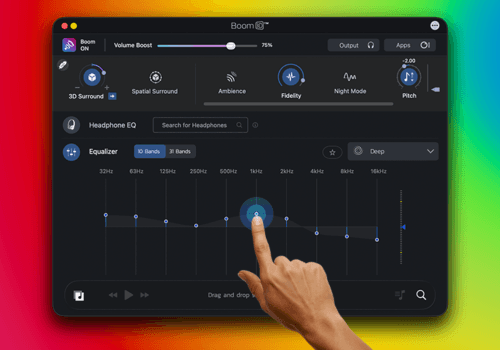
This audio enhancement app can do wonders and help you fine-tune the sound to your taste. Boom 3D offers 3D surround sound, a 31-band equalizer with presets, audio effects, an app volume controller, Bass boost, and other features to customize your sound. Boom 3D is compatible with ANY headphones. You can grab any pair of headphones and enjoy premium sound quality with Boom 3D.
Here’s a blog you may find helpful: Why Every Music Lover Should Customize Equalizer Settings.
How to get Cinematic Audio with Boom 3D
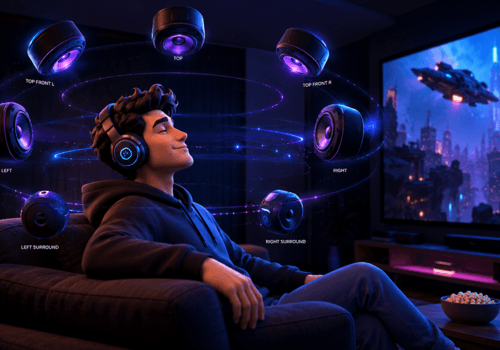
Boom 3D will give you a theatre-like experience at home. As mentioned above, it offers 3D surround sound, and Mac users can also get 5.1 multichannel audio. Whether you’re listening to music, playing games, or watching movies, this audio enhancement software will make you feel like a part of the action. Here is how you get cinematic sound with Boom 3D:
Install and Launch Boom 3D
Download and install Boom 3D on your Windows PC. Open the app and select your headphone type.
Enable 3D Surround Sound
Turn on 3D surround sound and adjust the audio settings according to your preference.
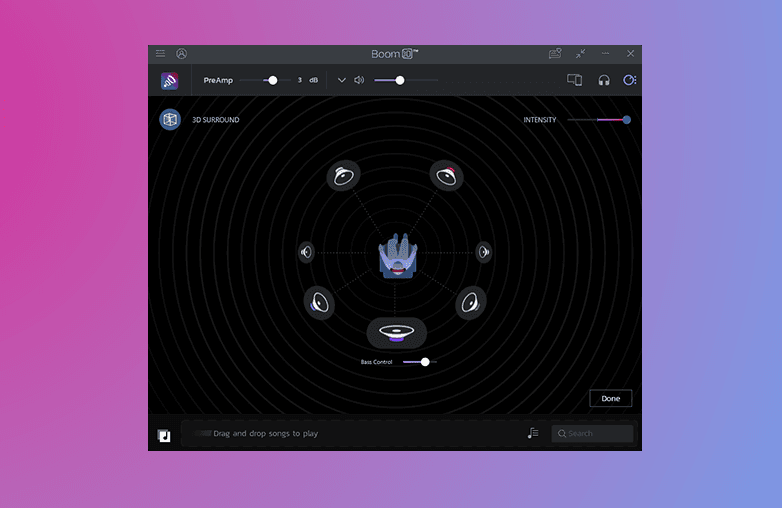
Enable 3D Surround Sound
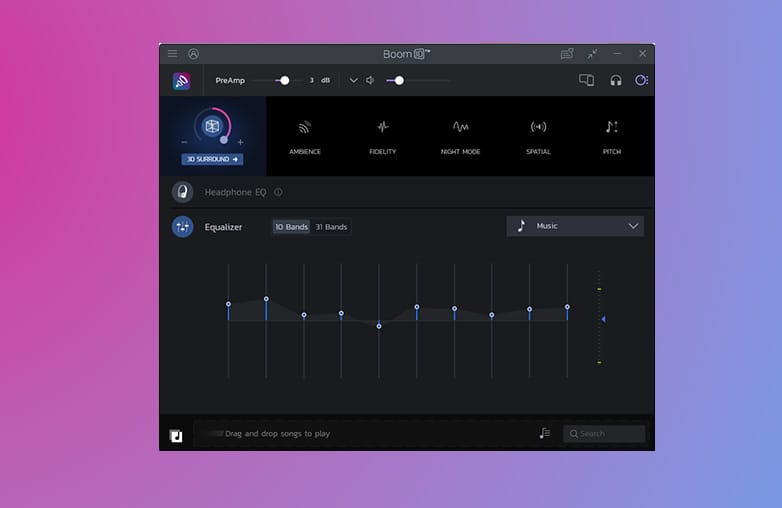
Install and Launch Boom 3D
Adjust the Equalizer
Fine-tune the advanced built-in equalizer to customize sound. If you’re new to equalizers, you can use ready-to-use presets.
Turn on Audio Effects
The app provides various audio effects to amp up your listening experience. You can also combine audio effects and make everything sound the way you want it to.
Add Depth with Volume Boost
Turn on the volume booster feature to make your audio louder and clearer.
When you have Boom 3D, you don’t need fancy speakers; one app is enough to enjoy cinematic sound on your headphones. It’s time to upgrade to Boom 3D and experience theatre-like sound at home.
Bottom Line
This is how you can experience cinematic audio on Windows. Try these steps, and if you’re an audiophile, don’t miss downloading Boom 3D to enjoy surround sound and to customize sound to your preference.
FAQs
Does Windows 11 support surround sound?
Yes, Windows 11 supports surround sound.
Is Boom 3D better than Windows Sonic?
Boom 3D offers an advanced and detailed surround sound experience, which is suitable for both audiophiles and casual listeners. Windows Sonic is good for everyday use.
Which apps can improve cinematic sound on Windows 11?
Audio enhancement software like Boom 3D can improve cinematic sound on Windows 11.