


































We use our Macs for almost everything: meetings, work, shopping, movies, and listening to music. While Mac audio is good, are you missing that theater-like experience? If your answer is a resounding yes, bookmark this blog now. Many of us think that the built-in sound is enough to enjoy great sound, but only audiophiles can truly tell the difference.
If you want to get that concert-like sound from your Mac, you can’t just rely on built-in speakers. You need something more, and of course, a few tweaks to your Mac’s settings. Learn how to improve your Mac’s sound quality in this blog. These are easy steps, and we bet you won’t regret trying them.
Download a Sound Enhancer App to Improve Mac Sound Quality
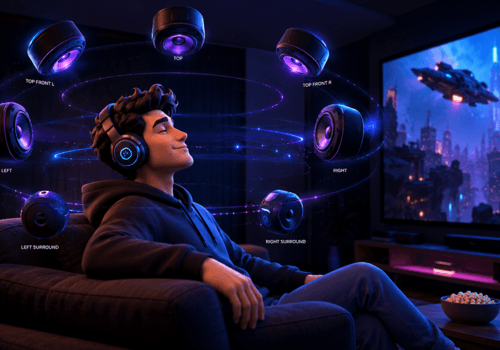
If you want to experience theater-like sound at home, download a sound enhancement app. It can change your overall listening experience. What is the best sound enhancer? You can try Boom 3D for Mac or Windows. It is an award-winning app known to offer a theater-like sound experience on ANY headphones. You can fix low volume on Mac with this sound enhancement app.
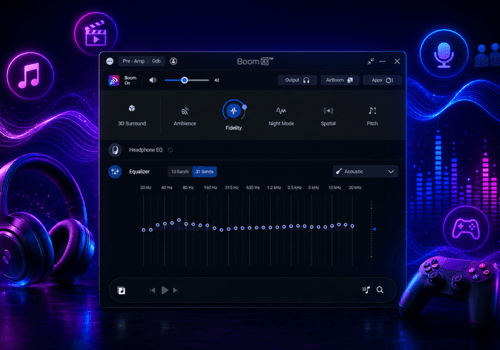
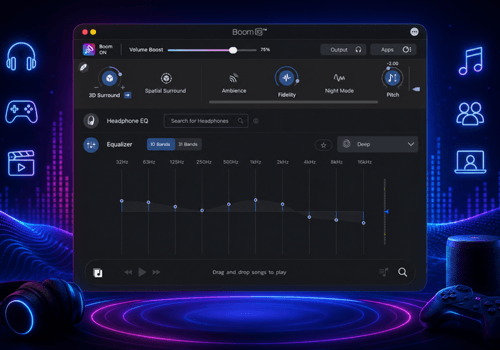
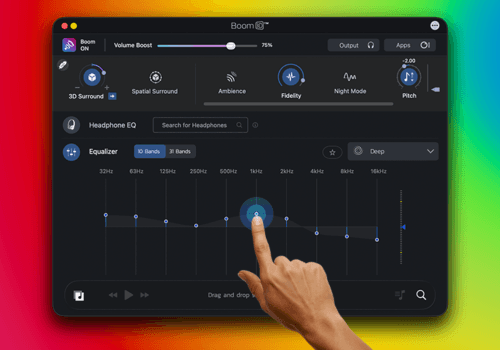
Boom 3D is popular for various reasons and is one of the top choices of audiophiles. It offers 3D surround sound, Headphone EQ, audio effects, a 31-band equalizer with presets, system-wide volume boost, and more. Take your Mac’s audio to the next level with Boom 3D and hear the unheard.
How to Bass Boost on Mac
To add a punch to your music, consider boosting the bass. Boom 3D gives you the option to adjust the bass. You can fix Mac sound quality issues with Boom 3D.
How to Bass Boost Your Mac?
- Open the Boom 3D app.
- Go to Equalizer, select Bass Boost.
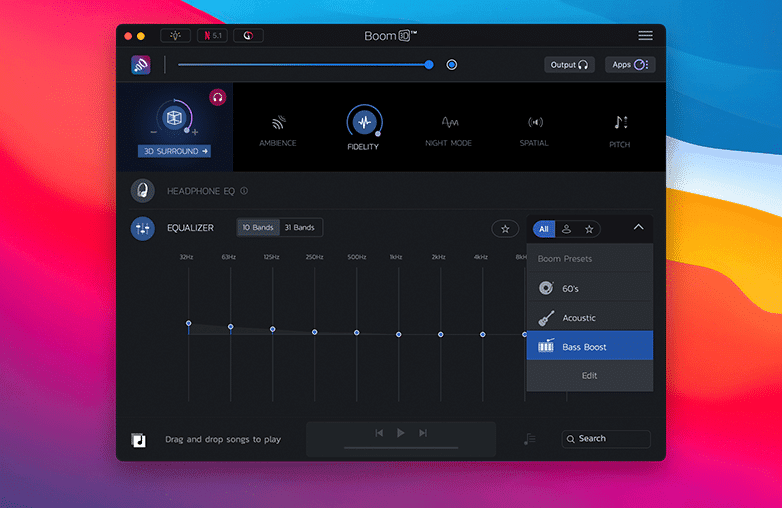
Fix Mac sound quality issues with Boom 3D
Boom 3D also allows you to adjust fidelity and pitch, and gives you more options to personalize sound.
You may also find this blog helpful: Why is Mac running slow after an update?
Restart Your Mac to Fix Audio Glitches
Yes, it’s that simple. When you face sound issues or if your Mac speakers sound low, you can restart your Mac, and this can sometimes fix audio issues. Over time, system glitches, background processes, and other issues can create issues with Mac’s audio performance. A restart will clear the system memory and give your Mac a fresh start, and improve your Mac’s sound quality.
To restart your Mac, click on the Apple icon in the top left corner of your screen. and select Restart. Make sure you save your open files before you restart your system. Once your Mac restarts, check the sound to see if the issue has been resolved. You can follow these steps to restore Mac’s audio output.
You can also read this blog: How to reduce system storage on Mac?
Adjust Mac Audio Settings for Better Volume
You can increase the MacBook’s volume using keyboard shortcuts. Press F12 to raise the volume and F11 to lower it. When you make a sound adjustment, a visual indicator appears on the screen, showing the volume level.
- If you want precise sound control, you need to follow the steps.
- Go to System Settings.
- Click on Sound.
- Use the output volume slider to adjust audio levels.
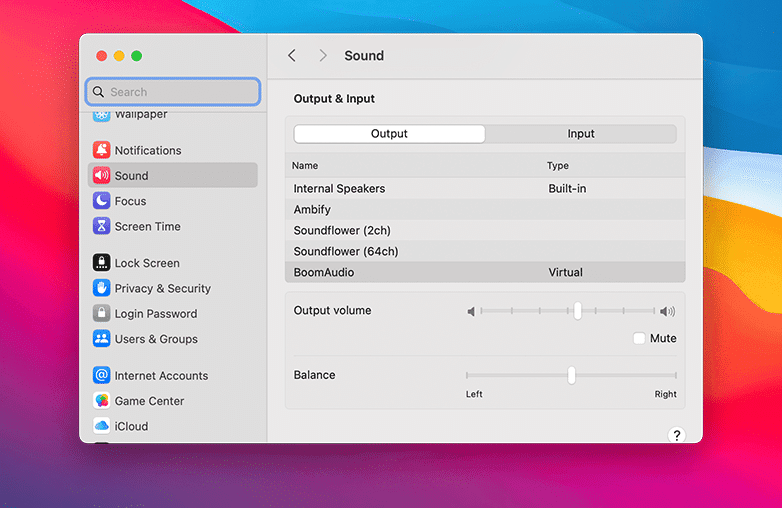
Adjust Mac Audio Settings for Better Volume
Be careful with higher levels, especially during extended use. High volumes may cause ear fatigue. Test the volume carefully and choose a sound level that feels comfortable and avoids ear fatigue.
Upgrade Audio Cables for Clearer Sound
While digital audio transmission may seem intangible, analog cables still play an important role in preserving sound quality between your Mac and external audio devices. Low-quality or old cables can cause unwanted noise, signal loss, and other audio issues, affecting your listening experience. Change to audio-grade cables that are made with high-quality copper or silver conductors to deliver clear and stable signals.
High-quality sound can improve Mac audio quality and make a noticeable difference when using headphones or external speakers. They also help enhance bass on Mac speakers by reducing distortion. When you change your Mac audio settings or download a Mac audio enhancement app and upgrade cables, the result you get is immersive and balanced audio.
Update macOS to Improve Sound Quality
Keeping your MacBook up to date with the latest version is important for maintaining audio quality. Software updates often include audio optimizations to solve common sound-related problems. If your Mac volume is too low and if you notice inconsistent audio output, you should update macOS to the latest version.
This is how you can update your MacBook:
- Go to System Settings.
- Click on General and then go to Software Update.
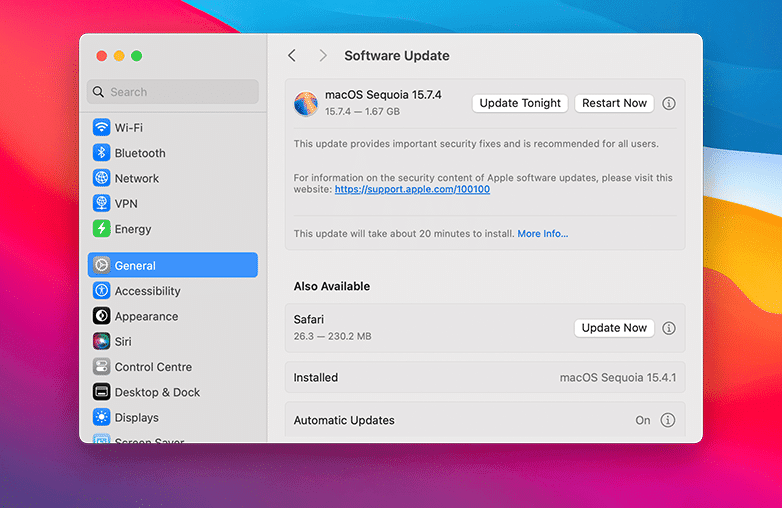
Update macOS to Improve Sound Quality
If an update is available, install it and restart your Mac. Restarting can also help speed up your Mac. Regular updates also improve sound quality on Mac and reduce distortion.
Bottom Line
This is how you can improve the Mac’s sound quality. Try these steps and download Boom 3D to enjoy theater-like sound at home and personalize your listening experience.
| Feature | Built-in Mac Audio | Boom 3D |
|---|---|---|
| Equalizer | Limited | 31-band EQ |
| Surround Sound | No | 3D Surround |
| Volume Boost | Limited | System-wide Boost |
| Presets | No | Yes |
FAQs
How do I improve audio quality on my Mac?
You can start by upgrading your listening gear. Using high-quality headphones or external speakers can improve sound quality. For even better results, you can download a volume booster and sound enhancer app like Boom 3D.
Why does my Mac volume sound low even at full volume?
The reasons can vary. You can download a sound enhancement app to enjoy boosted and personalized sound.
Does updating macOS improve Mac’s sound quality?
Yes, it can improve audio quality. Updates often include audio performance improvements.
References
Laptop Mag – Tips to Improve MacBook Sound
Roadie Music – Fine-Tuning Your Mac for Audiophile Listening
Setapp – How to Improve Audio Output from Mac
Medium – How I Improve Sound Quality on Mac








Pingback: Fix Low Volume Issues on Mac:7 Easy Ways to Increase Mac Sound