
































Are you a Mac user? Great! You want to start your work, and suddenly you realise your Mac is taking too long to start up; that’s frustrating. Slow startup time can be caused by several reasons. From too many apps launching at startup, excessive background processes, or outdated software, performance on a Mac can be impacted. Mainly, startup items consume system resources and slow down your Mac.
The good news is you can fix these issues. One solution is to disable startup apps on Mac that you don’t use daily. In this guide, you will learn how to improve Mac startup time in the simplest ways. Read on to get all the deets.
Download a Mac Cleanup Tool
One of the best practices to improve boot time is to use a Mac cleanup tool. Why should you download this tool? The reason is that it identifies and removes items that slow down your Mac. It will remove unused apps, temporary files, and other unnecessary items. They can also manage a Mac startup app that may launch unnecessarily during startup.
A cleanup tool can provide an easy Mac slow startup fix by removing unwanted startup items, unnecessary files, and more. You can speed up your Mac without complex procedures and with minimal effort.
Remove Startup Items
Do you see those applications automatically launch during power-up? They’re a reason for your Mac to slow down. You may not even be actively using those applications, yet they still launch when you start your Mac up. Here’s how to stop a program from opening on startup.
- Go to system settings.
- Select General and then go to Login Items.
- Click the minus(-) button beside any program you don’t want to launch at startup.
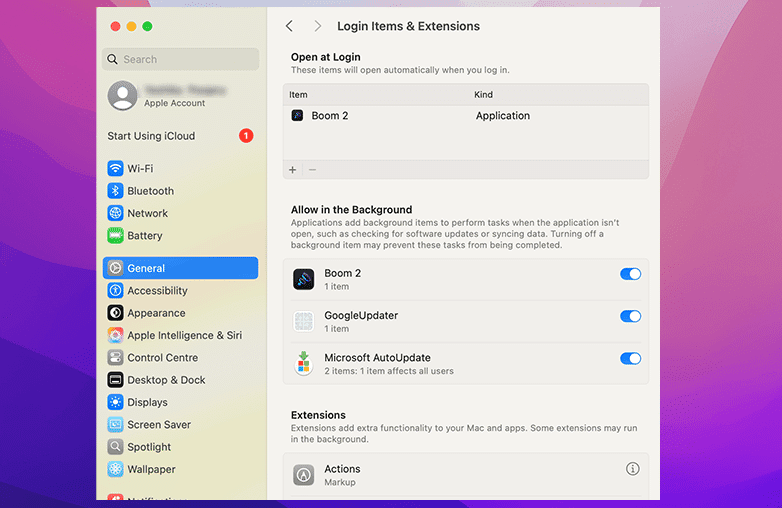
How to disable startup apps on Mac from Login Items settings
Moreover, if your Mac is running slowly after an update, the startup apps could be an additional reason. You can try this method to reduce the number of startup apps and improve your Mac’s speed.
Keep macOS Up To Date
Do you feel that your Mac takes a long time to start? You also need to check whether your Mac is running the latest version of macOS. Apple frequently releases new updates to improve performance and fix issues to keep your Mac running smoothly. An outdated version can make your Mac slow and can also slow down startup time.
To update your Mac to the latest version, you need to follow these steps:
- Go to System Settings.
- Select General and click on Software Update.
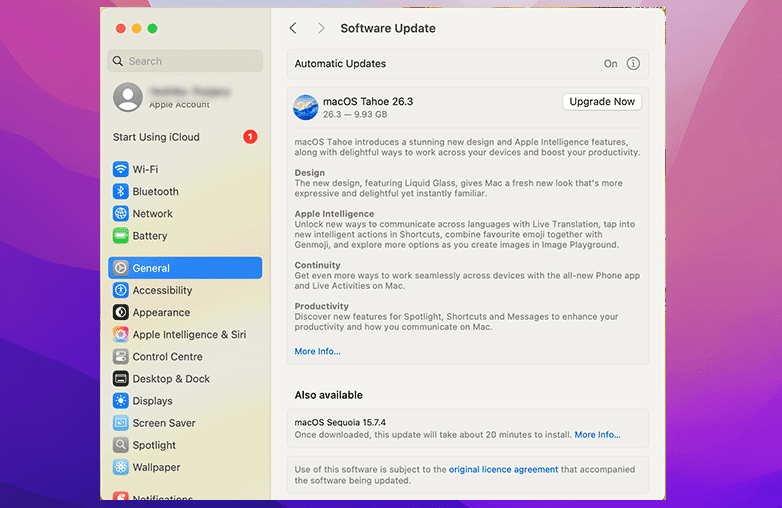
Check for macOS updates to improve Mac startup time
If an update is available, follow the instructions and update your Mac to the latest macOS version. When you keep your Mac up to date, it can improve how applications load during startup. You already learnt in the above section how to stop apps from opening on startup; these steps together can reduce startup delays.
You can also read this blog: How to Free RAM on Mac?
Turn Off Visual Effects
Visual effects can enhance the look of macOS, but they can slow down your system. These effects put an extra load on the GPU and system resources, and can increase startup time. Turning them off is a simple way to reduce Mac boot time and improve your Mac’s performance. When combined with steps like disabling startup apps on Mac, you will notice a performance improvement.
This is how you can turn off visual effects:
- Go to System Settings >Accessibility > Display.
- Enable Reduce Transparency to lower the graphical load on your Mac.
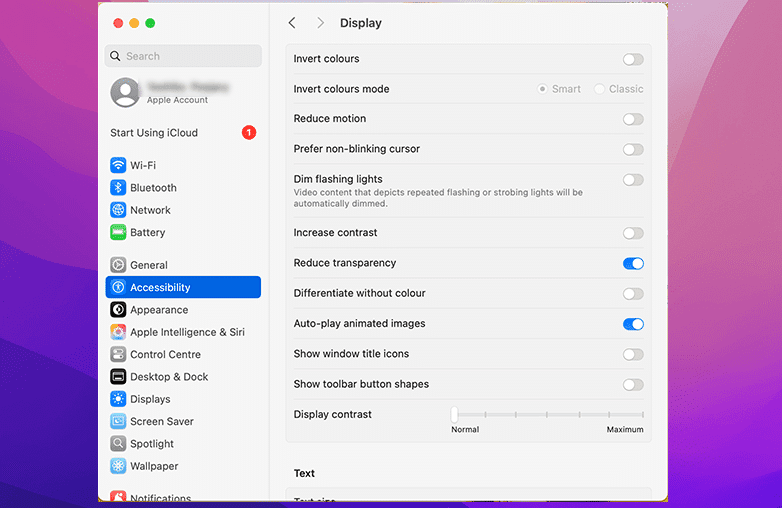
Turn off visual effects on Mac to improve performance
These small changes can make a huge difference and speed up your Mac.
You may also find this blog helpful: How to Reduce System Data on Mac?
Turn off FileVault
FileVault encrypts the data on your startup disk, which adds extra security. However, this can slow down system startup and other processes. Disabling FileVault can help improve boot time on macOS. If data security is important for you, it’s best to keep FileVault enabled. If encryption isn’t necessary for your daily use, you can turn it off to make your Mac start faster.
- Go to System Settings.
- Click Privacy and Security, scroll until you find FileVault.
- Turn off FileVault, and enter your password if prompted.
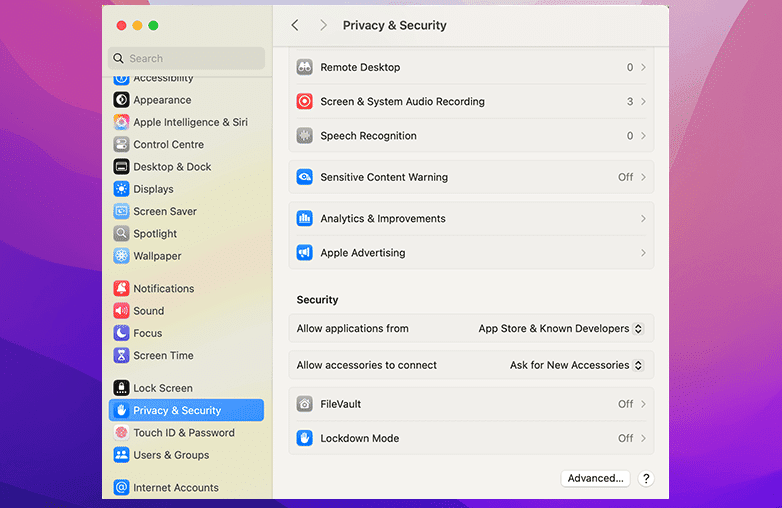
Turn off FileVault on Mac to improve startup speed
If you want your Mac to run smoothly, combine this step with managing login items by learning how to stop a program from opening on startup.
You may also check out this helpful blog: How to remove cache files safely on Mac?
Bottom Line
You don’t need to be tech-savvy to improve your Mac’s startup time. Follow these simple tips to help your Mac start faster. One of the most effective actions is to disable startup apps on a Mac. There are also other steps that you can try.
FAQs
How can you prevent a Mac from getting slow?
You can follow simple steps like downloading a Mac cleanup tool, removing startup items, keeping your Mac up to date, turning off visual effects, and disabling FileVault to prevent your Mac from getting slow.
Do some apps launch automatically when a Mac starts?
Yes, some apps are automatically added to the startup list. That’s why it’s important to regularly check your startup list.
Do startup apps slow down a Mac?
Yes, a startup app can increase startup time and slow overall performance.