




































System Data on Mac includes cache files, logs, backups, and app leftovers that often take up unnecessary space. Reducing system data helps free up storage, improve performance, and prevent macOS issues — all without deleting important files.
Have you ever considered checking the storage settings on your MacBook? How often do you check in a month, once or never? If you want to save space on your Mac, clearing system storage is important. Moreover, if you’re wondering why Mac is running slowly, it could be due to excessive storage use. It can also cause apps to freeze or crash, prevent you from saving new files, prevent macOS updates from installing, and increase the risk of data loss, among other issues.
Now, if you’re thinking about how to reduce system data on Mac, this blog is for you. We will help you boost your Mac’s performance and help manage storage space effectively. Read on to learn more!
What is System Data on a MacBook?
Before learning how to reduce system data on a Mac, let’s understand what it actually is. System data includes various files, such as disk images, photos, iCloud Drive, plugins, browser cache, and more. It contains files that don’t fall under standard Mac storage categories.
It consists of files from apps you’ve deleted, along with temporary files and cache, like system cache, application cache, browser cache, and more. It also includes disk images, browser plug-ins, and extensions used to customize apps and web browsers. Most of this macOS system data is stored within the System and Library folders.
Clear System Cache Files
- Finder → Go → Go to Folder →
~/Library/Caches - Delete contents safely (not folders)
How to Check Storage on Mac?
Want to check how much space System Data is taking up on your Mac? It’s simple, and it’s the first step to reduce system data on Mac and regain storage space, and also speed up your Mac by deleting unwanted files.
This is how you can check:
- Go to System Settings.
- Then go to General and click on Storage.
Remove Old DMG Files
- Disk images often hide in Downloads & System Data
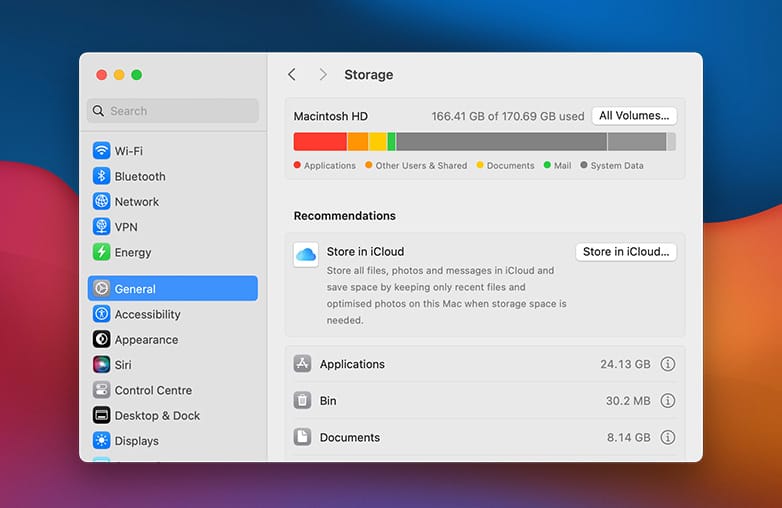
Check system data storage usage on Mac in System Settings
Now, you can see a breakdown of your storage usage. You can click or hover on it for the details. It gives you a clear understanding of how much storage is used and how much is left. It now gets easier for you to plan a Mac system storage cleanup and free system storage on macOS without deleting important files.
Clear Storage on Mac
Optimize Your Storage
If you’re thinking about how to clear disk space on a Mac and optimize storage. Here is how you can do it. Click System Settings > General > Storage. Explore the different options. Store in iCloud, Optimize Storage, Empty Bin Automatically. Choose the option that you think is best for your Mac. These steps will help manage your storage and optimize the performance of your MacBook.
You can also read: Best Editing Software for YouTubers?
Delete App Leftovers
Remove files from:
- ~/Library/Application Support
~/Library/Containers
Clean the Junk in the Download Folder
We download important things, and we forget about them, but over time, the Download folder fills up with files and can occupy a large amount of storage and add to System Data, making it harder to free up disk space on a Mac. Below is the solution:
This is how to clear disk space on a Mac:
- Open Finder and go to Downloads.
- Click the Size Column at the top to sort files by size.
- The largest files will appear first.
- Review and move the files to Trash that you no longer need.
Clear Browser Cache
- Safari/Chrome cache contributes heavily to System Data
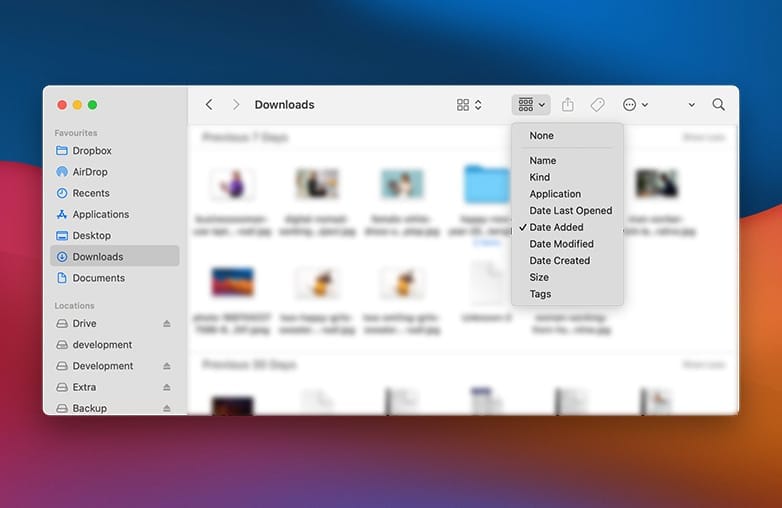
Delete large files from Downloads folder to free up disk space on Mac
If you’re wondering how to delete system data on Mac, this is one of the easiest ways to free up disk space. It can also fix issues like your Mac running slowly after an update. Deleting a few large files can make a huge difference. Also, this is one of the safest ways to reduce System Data without deleting important files.
Clear Time Machine Backup Snapshots
One of the best ways to clear Storage on your Mac is by using Time Machine to back up your device. Did you know macOS saves local backup snapshots on your Mac’s internal drive? These snapshots are created daily and kept on your startup disk when enough free space is available.
While macOS automatically deletes older snapshots as new ones are created, they can still occupy a large portion of your storage. If you’re struggling to understand how to delete other storage on Mac, here’s what you can do:
How to prevent Time Machine Snapshots from filling up Storage
- Go to System Settings.
- Click General.
- Select Time Machine.
- If backups are enabled, toggle the option to off.
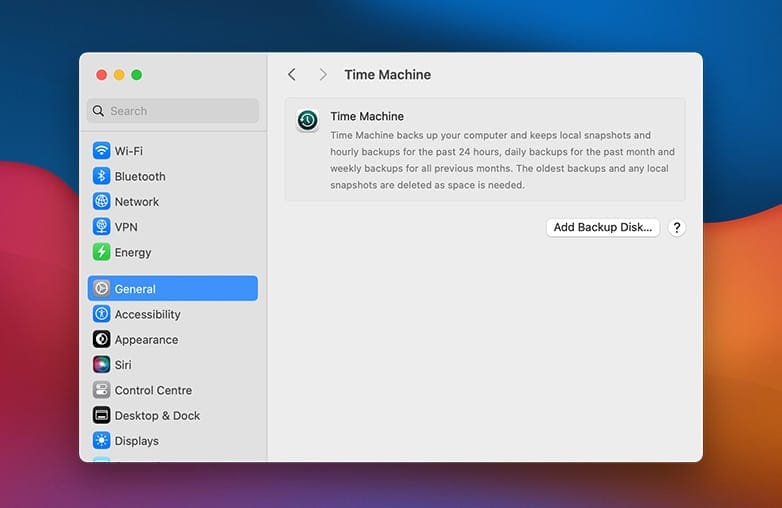
Optimize Mac storage using built-in macOS storage management options
It’s a simple and effective way to reduce hidden files and to clear the system storage on a Mac.
You may find this blog helpful: Perfect Webcam Lighting Tips
Bottom Line
This is how you can reduce system data on a Mac. There are also other ways you can optimize your Mac storage. Once you understand what’s taking up space, you can easily find a solution. However, it’s tricky to understand since many of the files are hidden in the background. Try these steps and clear System Data on your Mac.
FAQs
Is deleting System Data on Mac safe?
It’s safe if you know what you’re deleting. Avoid deleting files that are important for macOS to function.
Can clearing the System Storage on Mac improve performance?
Yes, it can significantly improve the performance of your Mac. Your system will feel faster and more responsive.
How often should I clean system storage on a Mac?
Once a month or every few years is enough to keep system storage under control.
Reference:
MacPaw – How to Clear System Storage on Mac
Setapp – How to Clean System Data on Mac
Nektony – macOS System Storage Cleanup Guide
SpyHunter – Clear System Data on Mac