




































A slow PC can turn even a simple task into an arduous experience. If your system is taking longer to boot, running out of storage, or lagging, the issue may not be the hardware; it’s often the buildup of unnecessary junk files. How are these files created? These files are created during app installations, system updates, and regular PC usage. They accumulate in locations such as the recycle bin, temporary folders, and downloads, consuming valuable disk space and reducing performance.
The good news is that improving a PC’s speed doesn’t require technical skills. You can follow simple steps and restore its speed in just a few clicks. In this guide on how to remove junk files on Windows, learn simple, effective steps to delete unwanted files, free up storage, and keep your PC running smoothly.
Uninstall Unused Programs and Remove Bloatware
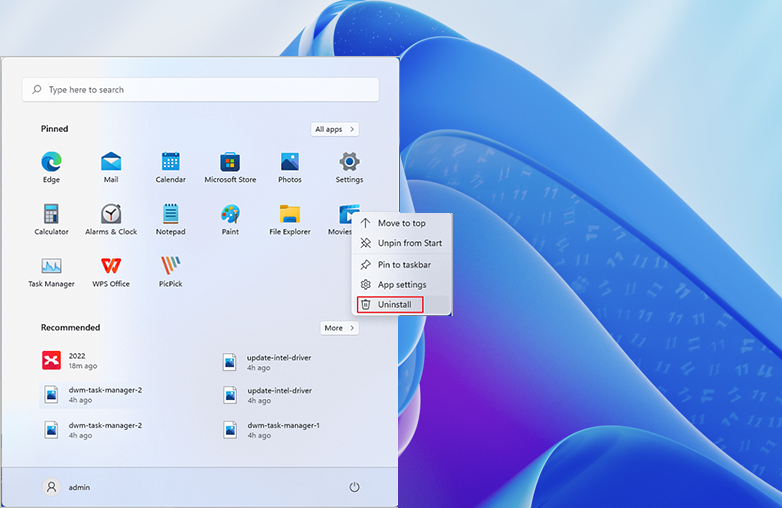
Removing unwanted applications is important in improving your PC’s speed and freeing up storage space. You can find many PCs with pre-installed apps (bloatware) that are rarely used, yet still occupy disk space. You may also install programs for temporary tasks and forget to uninstall them. These unused applications can slow down your system if they’re continuously running in the background.
If you’re searching for how to remove junk files on Windows or how to speed up Windows 10/11, uninstalling unwanted programs is a quick solution. On Windows 10 and 11, go to Settings > Apps > Apps & Features to view and remove unwanted software.
Using a bloatware removal tool or PC cleaner software can also help remove hidden junk programs. Frequent cleanup helps free up disk space and improve performance.
You may find this blog helpful: How to Speed Up a Windows PC.
Uninstall Unused Programs and Remove Bloatware
Perform a Disk Cleanup Scan
Running a system scan with disk cleanup software is one of the fastest ways to remove junk files from a PC. Instead of manually searching through multiple folders, a reliable junk file cleaner for Windows can automatically find unwanted data in seconds.
If you want to improve system performance, using a scan tool saves time and ensures the cleanup of the PC. You can also use built-in tools, such as Disk Cleanup, to search for junk files. You must run a disk cleanup scan frequently to improve your PC’s speed by removing junk files.
Check out this blog: How to Clean Up Disk Space on Windows.
Clear Browser Cache
This is one of the easiest ways to improve browsing speed and fix loading issues. Browsers store temporary files, images, and website data to load pages faster. This data can lead to slow performance.
To speed up browser performance, clearing the cache is one of the important steps to follow. To do this, open your browser settings, navigate to Privacy & Security, and find the option to clear browsing data. Choose the time range (Eg, last hour, last 7 days, or all time) and select data types like cached images, files, and cookies, then confirm deletion. Clearing browser cache helps free up storage space, improve page loading speed, and enhance overall system performance.
This is an excellent follow-up blog: How to Fix 100% Disk Usage?
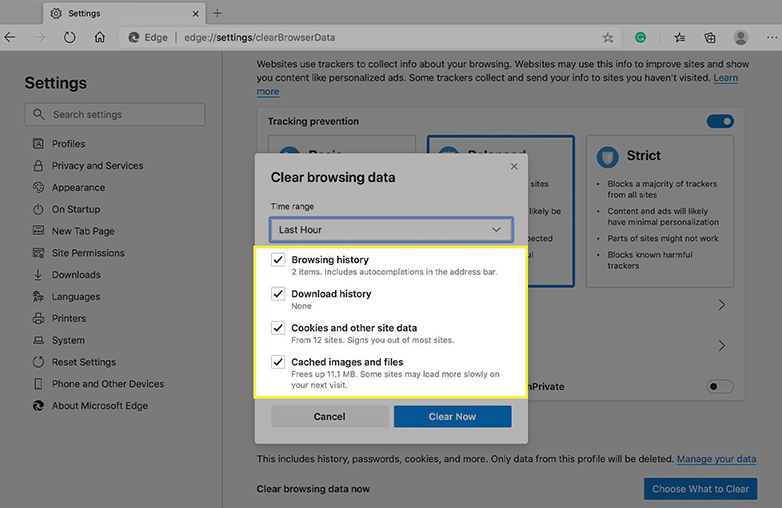
Clear Browser Cache
Find and Delete Large Files to Free Up Space
Want to improve system performance? You need to find large, unnecessary files to free up storage. Your PC can accumulate bulky files, such as old videos, installers, backups, and downloads. This can take up disk space, and removing these files is important if you’re looking for how to remove junk files on Windows.
You can try popular tools to scan your hard drive and identify large files and folders. These disk space analyzer tools help you quickly locate files and folders that consume most of your storage.
You should always review files before deleting, and avoid deleting important files that can cause serious system issues. Avoid deleting directories like C:\Windows\System32.
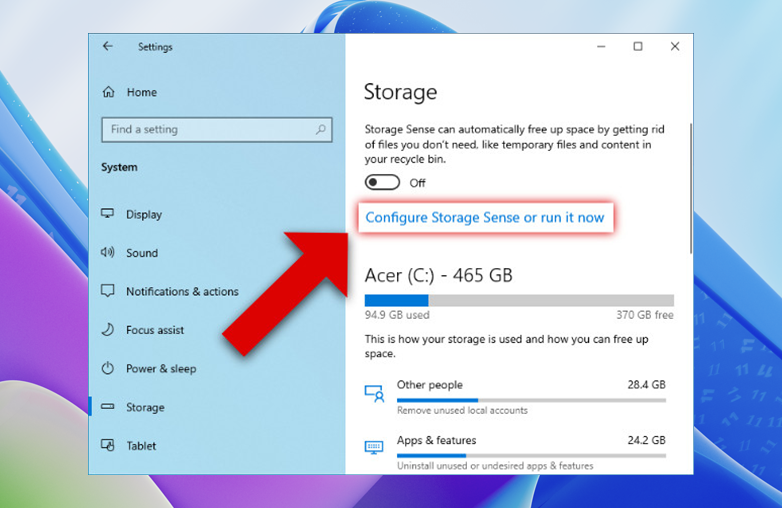
Best Ways to Remove Junk Files on Windows
Disable Startup Programs
If your PC is slow to start, even if it’s new, too many startup programs could be the reason, and you need to manage them if you want to speed up Windows startup. You can easily control this using the Windows Task Manager. Press Ctrl + Shift + Esc, switch to the detailed view, and open the Startup tab. You’ll see a list of programs that run when your PC starts. Right-click on unnecessary apps and select Disable.
You can also read this blog: Why is My Windows Startup So Slow?
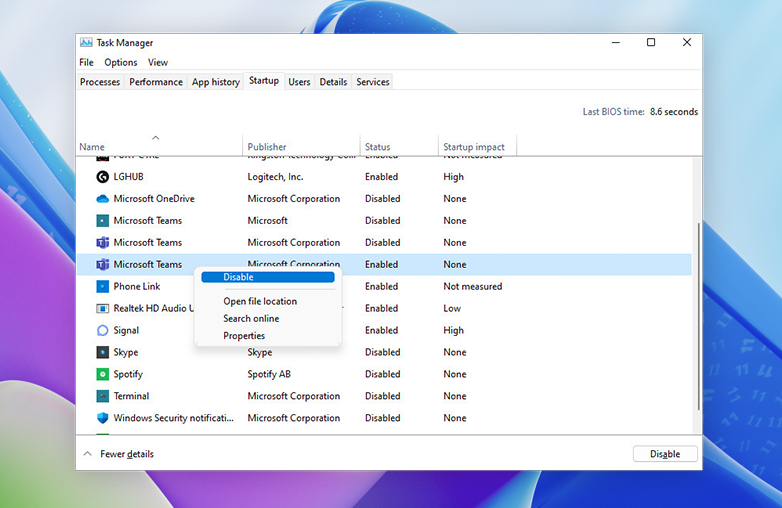
Disable Startup Programs
Bottom Line
By following these simple steps, you can enjoy a faster computing experience. The above-mentioned steps explain how to remove junk files on Windows without complicated steps and deep technical knowledge. When your PC is junk-free, it performs better and boosts your productivity.
FAQs
Is it safe to delete junk files?
Yes, it is safe to delete junk files, but you need to avoid deleting important system files.
Are third-party tools safe to clean junk files?
You need to choose third-party tools that are trusted – always check user reviews. Some of the best tools perform better scans and remove hidden junk files.
Will removing junk improve PC performance?
It will free up disk space and improve the overall speed of your PC.