








































Clearing cache on a Mac is one of the fastest ways to fix slow performance, free up storage, and resolve app glitches — without reinstalling macOS or losing data.
A Mac is an excellent device known for its speed and efficiency. Everything about it feels seamless; however, even the best devices can sometimes slow down, and one reason may be the different types of cache. Did you know that a Mac stores different types of cache? Yes, this includes app-related data, browser storage, and system files.
Cache files help apps, websites, and the macOS system run faster by saving frequently used data for quick access. However, when too much cache builds up, it can slow down your system. This is why it’s essential to clear the cache on a Mac regularly. Here are the simplest techniques that anyone can follow. Let’s get started.
Restart Your MacBook
You can fix minor performance issues and speed up your Mac just by restarting it. Simple, right? When you restart, many temporary system and app cache files are automatically removed. This is one of the simplest steps to answer your question about how to clear the cache. The best part is that it doesn’t involve complex steps.
Here is how you can restart your MacBook
- Click the Apple menu in the top-left corner of the screen.
- Now click Restart.
Clear Cache in Mac Browsers
Let’s learn about how to clear the cache in popular Mac browsers, Safari, Chrome, and Firefox.
How to Clear Cache on Safari
- Open Safari and click Safari in the top menu bar, then select Settings.
- Go to the Advanced tab and enable Show Features for Web Browsers.
- Once enabled, click Develop in the top menu bar and choose Empty Caches.
This is how to clear cache on Mac, simple and effective. Try it for yourself.
You can also read: Why is My Mac Running Slow After an Update?
How to Clear Cache on Chrome?
- Open Chrome, click the three-dot menu in the top-right corner.
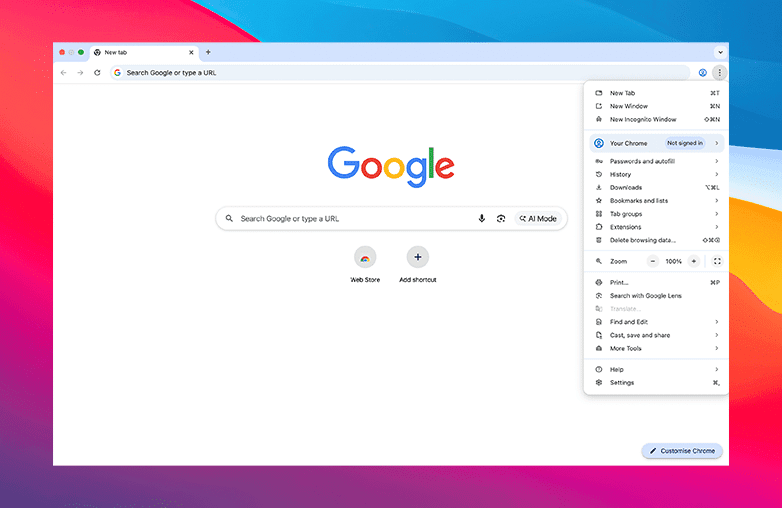
How to Clear Cache on Chrome
- Go to Settings > Privacy and Security > Delete browsing data.
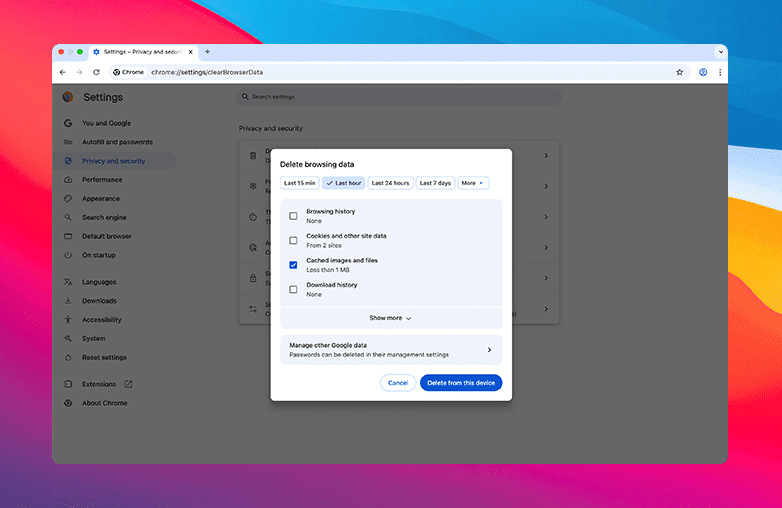
Delete browsing data
- Use the Time-range drop-down to choose how much data you want to remove.
- Select Cached images and files and click Clear Data.
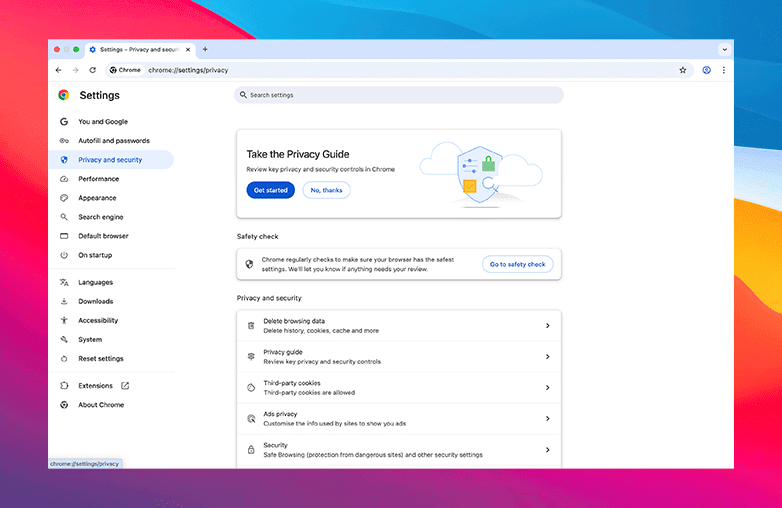
Clear cache vs clear cookies on Mac
This is how you can clear the cache on a Mac. You can also use Incognito mode to avoid cache buildup. However, it can be less convenient if you’re working on your Mac for a long time.
How to Clear Cache in Firefox
- Open Firefox, click History in the top menu bar, and select Clear Recent History.
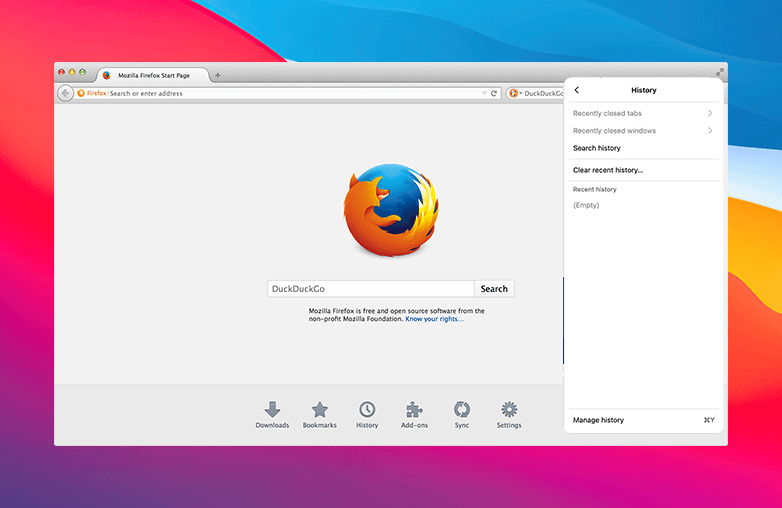
Select Clear Recent History
- From the Time range to clear drop-down, choose the desired timeframe, select Everything to fully remove Firefox cache from your Mac.
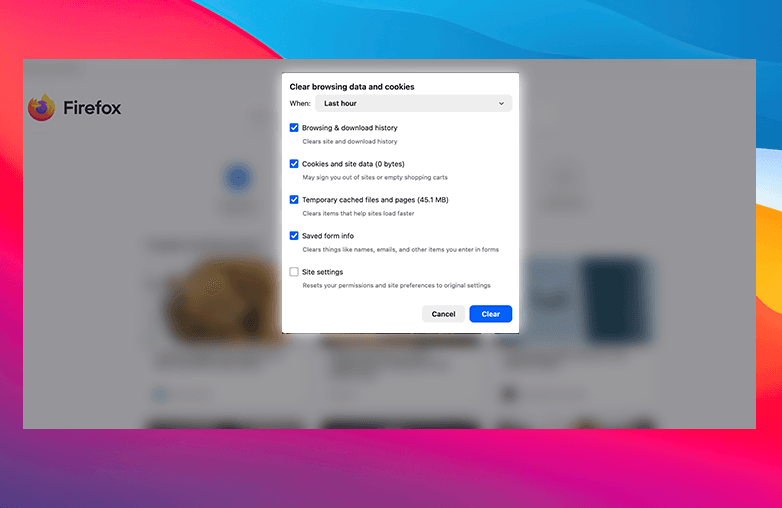
Fully remove Firefox cache from your Mac
- Check the cache, then click OK to confirm.
How to Clear System Cache on Mac?
In this section, we will walk you through how to clear your Mac’s system cache. One quick tip before we get started, it’s always safe to back up your data. Accidentally deleting an important file can hamper system performance. If you back up your files, it allows you to restore your Mac if anything goes wrong.
If you’re unsure about manually managing system files, or if you’re looking for a safer way to clear cookies on Mac, you can consider opting for the secure option explained in the section below.
- Open Finder, then click Go in the menu bar and select Go to Folder.
- Type Library/Caches/ and press Enter or click Go.
- Browse through the folder to remove unwanted files. Sorting items by Date Modified can help you identify older cache files.
- Move the selected cache files to the Trash, and make sure to empty the Trash to complete the process.
How to Clear Application Cache on Mac?
Removing application cache on a Mac isn’t always required, as many of these files help apps launch and run faster. However, if an app starts crashing, it may be helpful to delete the cached Mac app data related to that specific application.
- Open Finder, click the Go menu, and choose Go to folder.
- Enter Users/[YourUserName]/Library/Caches
- Open the folder of the app you want to clean, select the cache files inside, and move them to Trash.
- Don’t forget to empty the Trash to permanently remove cache files.
You may find this blog helpful: How to Reduce System Data on Mac.
Bottom Line
Isn’t cleaning cache files easy? Follow these steps to make your Mac run seamlessly. Clearing the cache helps to solve issues like app glitches, slow loading, and more. However, a cache helps apps and websites run faster, but too much of it can create problems. You can follow the above-mentioned steps to safely remove the cache on a MacBook. Clearing the cache on a Mac will free up storage space, and you will notice improved performance on your Mac.
FAQs
Does clearing the cache cause issues on Mac?
It can have both positive and negative results. On the positive side, it helps fix minor bugs, refresh website content, recovers storage space, and improves connectivity. On the downside, deleting important cache files may result in system instability or app errors. You should delete cache files that you’re sure about, or you can use a cache-clearing app.
How frequently should I clear cache files on a Mac?
It’s best to clear cache files when you notice issues, such as slow-loading websites, app glitches, or when your storage space is low.
Does clearing the cache remove personal data on a Mac?
No, clearing the cache only removes temporary files. Your personal documents, saved settings, and important data are safe.










Pingback: Free Up RAM on Mac: Easy Steps to Boost Performance - GD