



































Computers may have evolved with time, yet slow startup times remain a common problem for many of us. Despite having powerful processors, SSDs, and RAM, booting into Windows can still take a long time. These delays can be frustrating and directly affect your productivity if you frequently start your system. Those extra minutes spent waiting can add up and hamper your overall productivity.
Instead of keeping your PC running for days to avoid slow boots, try to identify and resolve the actual issue. The good news is that this problem is usually easy to resolve with the right adjustments. In this guide on how to fix slow startup Windows, you’ll learn to speed up your PC’s boot time with simple steps. Get ready to work on your PC quickly every time you power it on.
Enable or Disable Windows Fast Startup
One of the first settings to check when you’re facing slow boot times is Windows’ Fast Startup feature. It is designed to reduce startup delay by saving important system information before shutdown; it can sometimes have the opposite effect and cause boot issues. All you need to do is open the Control Panel, switch to Small icons, and go to Power Options. Click Choose what the power buttons do, then select Change Settings that are currently unavailable to enable the options below it. Now toggle Turn on fast startup and save changes.
How to Improve Windows Boot Performance
If your PC starts slowly, try disabling this feature; if it’s already off, enabling it may help. Results may vary depending on your system, mainly with SSDs. For users searching for how to fix slow startup Windows, disable fast startup Windows 10/11, or speed up Windows boot time, this simple toggle can make a difference.
Don’t miss reading this blog: How to Clean Up Disk Space on Windows.
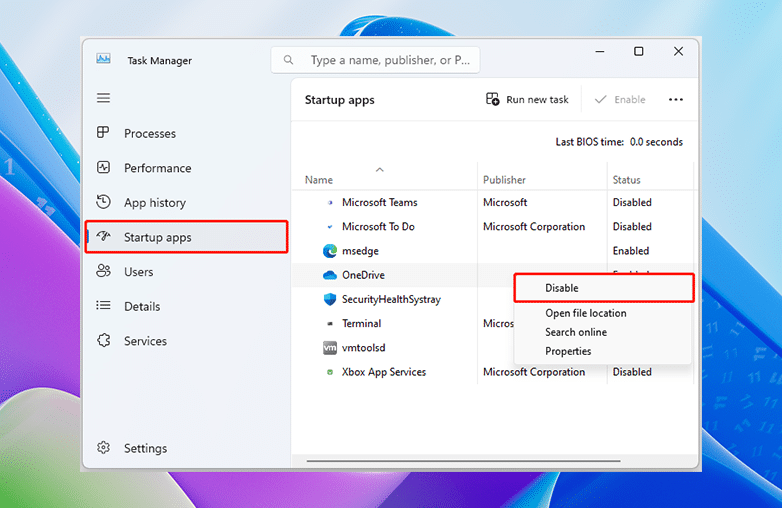
Windows startup apps settings
Update Graphics Drivers
Outdated or corrupted graphics drivers can slow down a PC’s startup. Keeping GPU drivers updated is an important step if you’re looking for how to fix slow startup Windows or improve Windows boot time.
To update them, open Device Manager (press Win + X and select it), then expand Display adapters to identify your graphics card, whether it’s NVIDIA, AMD, or Intel. Use the official software like NVIDIA App, AMD Adrenalin, or Intel Driver and Support Assistant to check for the latest updates. Installing the newest drivers can resolve compatibility issues and speed up the boot process.
While you’re at it, check for Windows updates under Settings, as system updates often include important driver fixes. For users searching to update graphics drivers for Windows 10/11 or to fix slow PC startup, this step can help you.
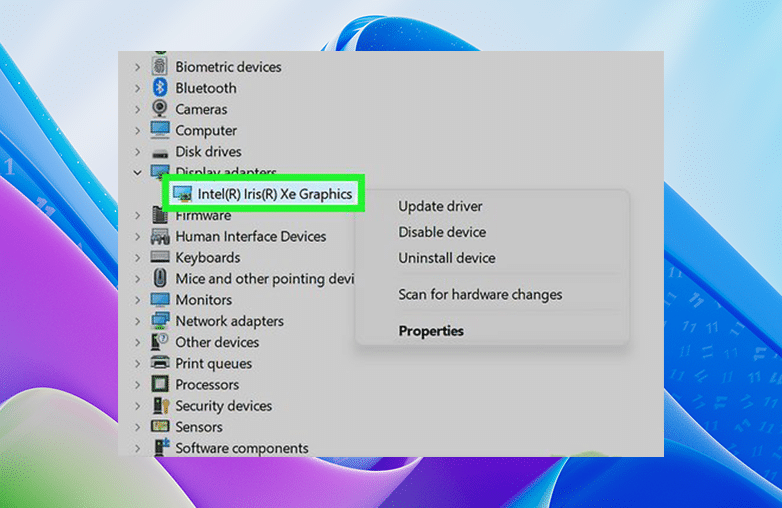
Update Graphics Drivers
Get Rid of Unwanted Startup Programs
Having too many startup programs is one of the reasons behind slow boot times and sluggish performance. When too many apps launch automatically, they consume system resources and make your PC slow.
To manage them, press Ctrl + Shift + Esc to open Task Manager, then go to the Startup tab (or Startup apps in Windows 11). Here you’ll see a list of programs along with their startup impact. Disable unwanted apps, especially those marked as “High impact”. You can also manage startup apps via Settings > Apps > Startup or by removing shortcuts from the Startup folder.
This will improve boot speed and enhance overall performance. This is one of the steps to speed up Windows by limiting unwanted startup programs.
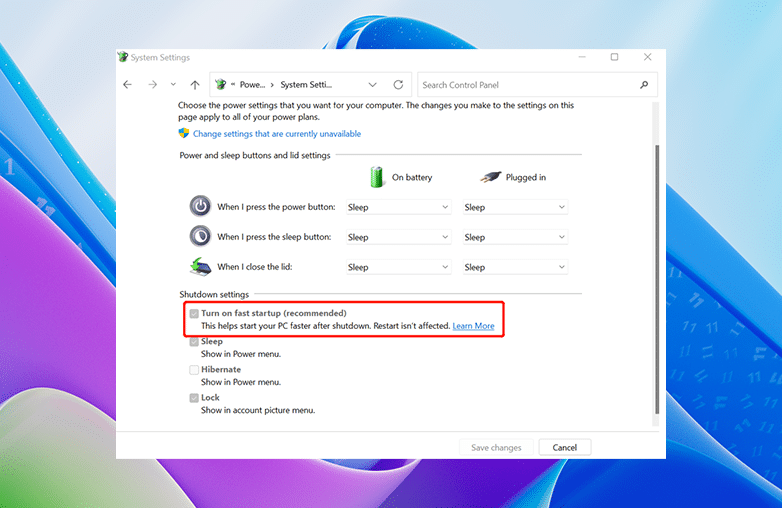
Enable or Disable Windows Fast Startup
Scan Your PC for Malware
Malware is one of the common problems of slow startup issues; it consumes system resources and affects performance. Does your PC take a long time to boot? Well, the reason could be hidden malware. For users searching for how to fix slow startup Windows, remove malware Windows 10/11, or why is my PC slow to boot, you should run a thorough scan.
Use a trusted antivirus or Windows Security to perform a full system scan and detect any virus or malware. If malware is found, remove it immediately and restart your PC. Now, you will see the difference in boot time.
Be careful when backing up during this process. If your system is infected, backing up files can save the malware as well. Instead, restore from a clean backup created before the slowdown began to make sure your system is safe.
You may find this blog helpful: How to Fix 100% Disk Usage?
Bottom Line
A slow startup can be caused by several reasons, making it difficult to find the exact issue at once. In some cases, outdated hardware can also contribute to longer boot times. There isn’t a single cause; the best way to find out is to test different steps and see what works best. If you’re looking for how to fix slow startup in Windows, you need to first find out the common problems that can help reduce boot time and get your system running smoothly.
FAQs
Why is my PC so slow at the start?
It is usually caused by too many startup programs, outdated drivers, malware, or a nearly full system drive. You need to identify the issue to improve boot time.
Is seven seconds boot time good?
Yes, it is considered good. If your PC’s boot time is under 10-15 seconds, your system is well-optimised.
Is Windows 10 or Windows 11 better in 2026?
Windows 11 is a better choice in 2026, the reason being improved security, latest updates, and better performance.