
































Is your PC performing slowly? If it’s not performing the way it used to, you can try a few things to boost the speed. However, no PC stays fast forever, no matter whether you’re using Windows 11 or an older version. Your PC naturally slows down due to background processes, storage clutter, and everyday usage. The good news is, you don’t have to settle for slow performance, and you don’t always need a new PC.
Top Ways to Speed Up Windows PC
With the right steps, you can restore your system to its optimal performance. Whether you’re clearing out unnecessary apps, adjusting settings, or making small upgrades, the right steps can help. Learn how to speed up Windows without getting involved in a complicated process.
Keep Your System Updated
One of the easiest ways to speed up Windows 11 and earlier operating systems is by checking if your system is up to date. Regular updates from Microsoft fix bugs, enhance security, and optimize system processes, which help your PC run smoothly.
Even a small update can improve PC performance. If your system hasn’t been updated in a while, it could affect overall speed. To update, simply go to Settings > Windows Update and click Check for updates. Install any available updates and restart your PC. This is a simple and effective step to keep Windows running fast.
Improve Windows speed with simple optimization steps
This blog can be helpful: How To Improve Mac Startup Time.
Uninstall Unnecessary Apps
One of the effective ways to speed up a laptop running Windows 11 and other earlier operating systems is by removing unwanted software, often called bloatware, crapware, or PUPs (potentially unwanted programs). Many new PCs come with these preinstalled apps, and these programs can run in the background, consume system resources, and slow down overall performance.
If you’re looking for how to make computers faster, cleaning out these unnecessary apps is one of the solutions. To remove them, simply right-click on any unwanted app in the Start menu and select Uninstall. You can also go to Settings > Apps > Installed Apps, where you’ll see a complete list of programs on your PC. From here, you can sort apps by name, size, or date.
You should make it a practice to remove unused apps, not just preinstalled ones but also those you installed and forgot about. This is one of the best ways to speed up a PC without spending any money.
Check out this blog: How to Free Up RAM on Mac?
Restart Your PC Regularly
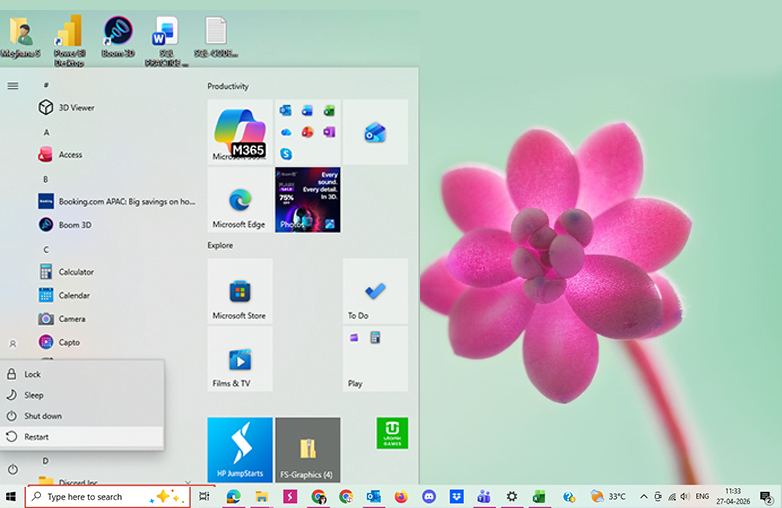
This may sound simple, but restarting your PC is one of the simplest answers to the question of how to speed up Windows. It is one of the best ways to boost Windows performance. Many of us leave PCs running for days or even weeks, relying on Sleep mode instead of fully shutting down. This can slow down everyday tasks.
If your system feels sluggish while opening apps, switching between programs, or accessing files, a quick restart can help your PC speed up. Restarting clears temporary data, refreshes system memory, and stops unnecessary background activities that may be affecting performance.
To keep your PC running fast, make it a habit to restart or shut down your PC regularly. This is one of the easiest steps to follow without making any complicated changes.
Improve Windows speed with simple optimization steps
Disable Startup Programs
If you’ve ever wondered why my PC is so slow, startup programs could be the reason. Many apps automatically start when you start your computer, even if you don’t use them. These background processes can consume memory and processing power, leading to problems like slow boot time, PC lagging and freezing, and reduced overall performance.
One of the simplest ways to fix this is to disable startup programs in Windows that you don’t really use. To manage this, open the Task Manager by pressing Ctrl + Shift + Esc, then go to the Startup tab. Check the Status column to see which programs are enabled. Right-click on any unnecessary app and select Disable. This is a quick PC lagging and freezing fix, and is one of the smartest ways to optimize your system.
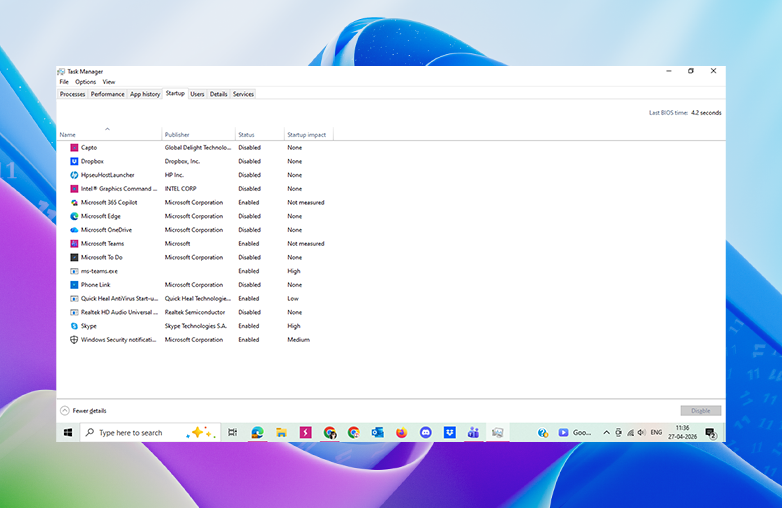
Uninstall unnecessary apps in Windows 11
Upgrade Your Storage (Switch to SSD)
If you’re looking for how to speed up Windows and improve PC performance, you should upgrade your storage. Many older PCs still use traditional hard disk drives (HDDs), which are slower; replacing them with SSDs (Solid-state drives) can boost your system’s speed.
An SSD can reduce boot time, speed up app launches, and make your system more responsive. If your computer takes too long to start or programs lag while opening, switching to an SSD is one of the best ways to speed up your laptop’s Windows 11.
You can also read this blog: How to clear cache on a Mac.
Bottom Line
This is how to speed up Windows without involving complex procedures. These are some of the simplest steps. Try them and make your PC more responsive. With just a few changes, you can notice an improvement in your system’s speed. Start with these basic steps, and see the change for yourself.
FAQs
Why is my PC running slow?
Your PC may be slow due to background apps, low storage space, outdated software, or limited RAM.
Does upgrading to Windows 11 improve performance?
Yes, it can help improve performance compared to older versions.
How to improve a PC’s gaming performance?
Update drivers, close background apps, lower in-game settings, and use an SSD. Upgrade RAM or GPU if needed for better performance.
Reference Links:
- Speed Up Windows Performance with Kingston Technology Expert Tips
- 11 Proven Ways to Make Windows Faster by PCMag
- Fix Slow PC Performance Using Dell Support Guide