
































Privacy and security are important on both Mac and Windows. To protect privacy on Mac and Windows, macOS is known for its robust security features, and Windows 11 introduces improvements; however, when connected to the internet, both operating systems are vulnerable to privacy risks. Data tracking, malware, and unsafe files can put your personal information at risk.
Why Privacy Protection Matters on Mac and Windows
You think relying on default settings is enough? Your data still may be at risk. Users must configure privacy controls. Whether you’re setting up a new device or upgrading your system, adjusting security settings is important. Small steps can enhance protection, from app permissions to backups; every step matters. Cyber threats are increasing these days, and you should learn how to protect your data on both macOS and Windows. This guide will help you secure your digital privacy.
Privacy Protection on Mac
Use Encrypted Storage for Data Protection
macOS includes built-in disk encryption through FileVault, which helps protect your data if your Mac is lost or stolen. These macOS privacy settings ensure your data stays secure in every situation. With full-disk encryption enabled, unauthorized users will find it difficult to access your files. There are also third-party apps that add an extra layer of protection by encrypting files and folders. Using encrypted storage, folder encryption, and secure file-sharing can protect your data and privacy.
You may find this blog helpful: How to Remove Junk Files on Windows?
Disable Automatic Login to prevent Unauthorised Access
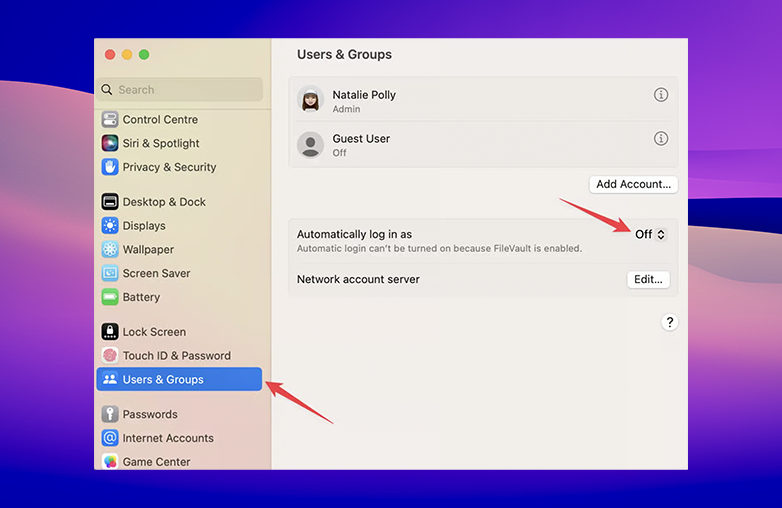
On your Mac, you can enable automatic login for your convenience. It may be convenient, but it also has security risks. From a system security and privacy perspective, if automatic login is enabled, anyone who has access to your Mac can access your files, apps, and personal data without needing a password.
It’s best to disable automatic login through the Users & Groups settings in System Preferences. This is also a useful step when learning how to disable tracking on Mac, as limiting access helps reduce data exposure. This ensures that a password is required every time to start your system, adding protection to your data.
Disable Automatic Login to prevent Unauthorised Access
Use Strong Passwords to Secure Your Mac
Creating a strong password is one of the ways to protect your personal data. While it may be tempting to create easy-to-remember passwords, it increases the risk of unauthorized access. Always use a strong alphanumeric password for maximum protection.
You can update your login credentials by navigating to System Settings > Security & Privacy > Change Password. When your macOS login password is strong, your data can remain safe even if someone gains physical access to your device.
Keep macOS updated
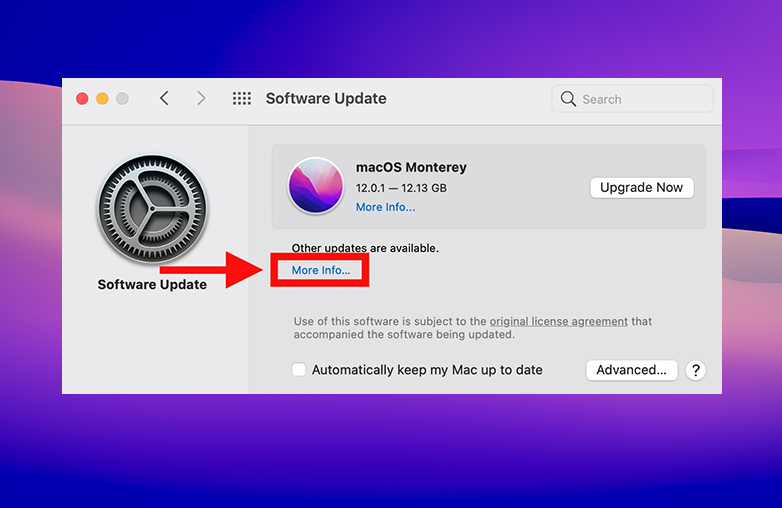
Want to maintain the security and privacy of your Mac? You should regularly update it. New threats, such as malware and exploits, can cause privacy issues. Apple frequently releases updates to avoid such threats. If you ignore macOS security updates, you’re leaving your system exposed to several risks.
Regularly check for updates in System Settings > Software Update. Also, outdated apps can risk your privacy. Update apps through the Mac App Store or directly within the application.
Keep macOS updated
Privacy Protection on Windows
Disable Location Tracking
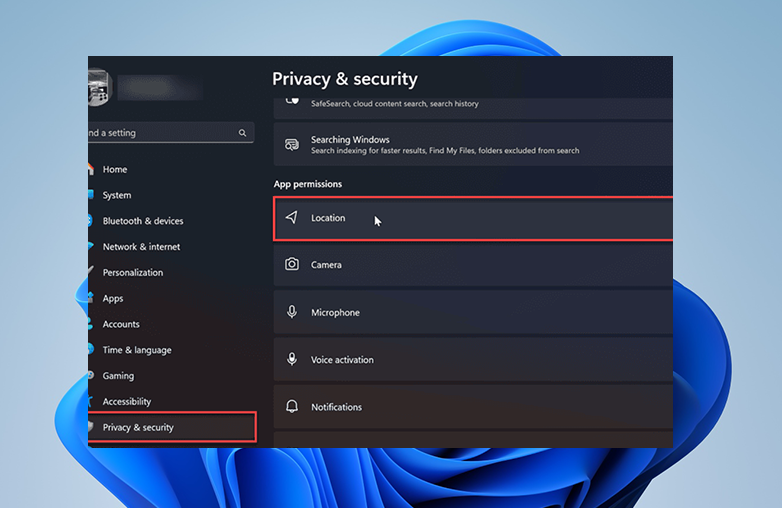
To protect privacy on Mac and Windows, it’s important to control how your location data is shared. Location tracking can give your exact position; it’s a useful feature, but it can also cause privacy issues. You should review and control these settings. On Windows 11, go to Settings > Privacy & Security > Location and turn off location, or allow access only to selected apps. Adjusting Windows privacy settings helps keep your personal information safe.
This is a great follow-up read: How to Fix 100% Disk Usage?
Best Practices for Protecting Personal Data
App Permissions to Strengthen Privacy
Apps in Windows can access your camera, microphone, location, and other files. You should review and control these permissions regularly. You can leverage built-in Windows privacy controls that allow you to manage access in detail. You can change the permissions, and you can decide which apps can use specific features. This will reduce the risk of unnecessary data collection or misusing your private information.
On Windows 11, go to Settings > Apps > Installed apps, select an app, and adjust its permissions under Advanced options (if available). Another method is to go to Settings > Privacy & Security > app permissions to control access to features like the microphone, camera, and more. Using these Windows privacy controls can ensure data security.
Check out this blog: How to Speed Up a Windows PC.
Limit Cortana
Cortana was once enabled by default in Windows 10, and this was raising privacy issues because it collects personal data to function effectively. Windows 11 keeps Cortana disabled by default; it’s best to leave it off to protect browsing data and reduce privacy risks.
If Cortana is already enabled on your system, you can disable it by opening the app, clicking the three-dot menu in the top-left corner, and selecting “Sign out”. When you limit the sharing of your personal data, you gain better control over your privacy.
Limit Cortana
FAQs
Is disabling location tracking necessary?
If you want to limit apps from collecting and storing your personal data, you should disable location tracking.
Are third-party apps a privacy risk?
Yes, some apps request unnecessary permissions, which can put your data at risk. Always review and restrict access to important files.
Do software updates improve privacy?
Regular updates are important to maintain security.